
Options
You can change the options and the user preferences of Spatial Manager Desktop™ through the “Options” window. This window includes three tabs (“General”, “Workspaces”, and “License”) to access the options or preferences of the application and also setup shortcuts.
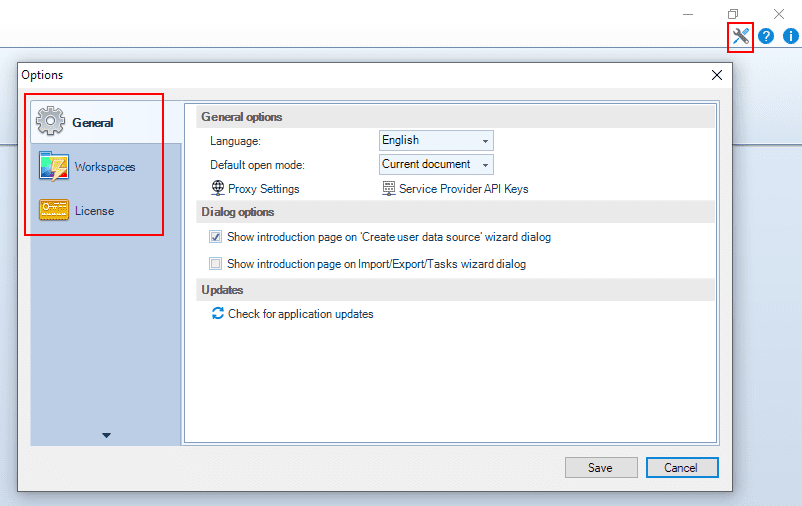
- General
- General options
- Language: You can select the interface language for the application (read the Note below) between the available languages.
- English.
- French - Français.
- German - Deutsch.
- Portuguese - Português.
- Spanish - Español.
- Note: The setup application, as well as technical documents (this documentation, blog posts, etc.), are only available in English. Marketing documents (website, etc.) may not be available in all of the above languages.
- Default open mode: You can select if an upcoming table from a data source will be opened in the current document or in a new document when double-clicking on the table in the Data Sources panel.
- Proxy Settings: read below.
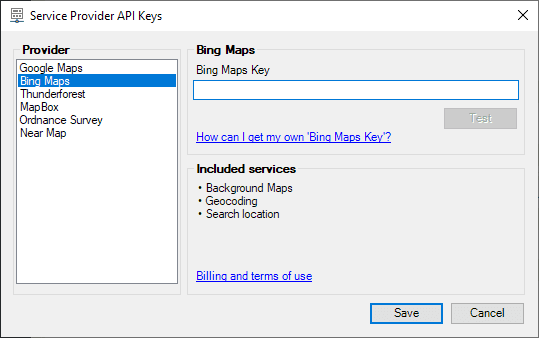
- Service Provider API Keys: Some Service Providers (Bing, Google, etc.) may require a user account for some or all of their services Geocoding, Background Maps, Search Locations, etc. Many of the provider accounts are completely free of charge or include a sufficient number of queries for most users at no charge. Anyway, if a certain provider requires an API Key for a certain service, in this options window you can review how to get the API Key, enter it, check its validity, and examine which services of each provider may require an API Key.
- Language: You can select the interface language for the application (read the Note below) between the available languages.
- Dialog options
- Show introduction page on ‘Create user data source’ wizard dialog (“Standard” and “Professional” editions only).
- Show introduction page on Import/Export/Tasks wizard dialog.
- Updates
- Check for application updates: Although by default the application will check for updates automatically, you can click here to check for new application updates whenever you want.
- General options
- Workspaces
- License, see Licenses.
Proxy Settings
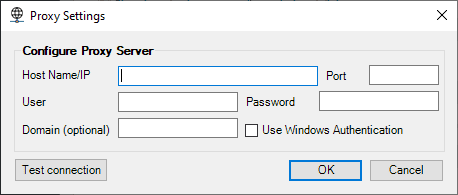
If you are accessing the Internet through a Proxy server, you can configure the Proxy access parameters here. There are several processes in the application in which it is necessary to access the Internet from the application itself (Background Maps, license activation, etc.). If you find problems accessing the Internet in any of these processes, ask your network administrator if it is being accessed through a proxy server and what the connection parameters are.
Disclaimer:
- Some components shown here (providers, names, window styles, etc.) may differ slightly from those on your computer.
- Certain features require Internet access. If you experience issues, check with your network administrator about a possible Proxy server. You can configure the Proxy settings in the application options.
- Some geographic data providers (Geocode, image maps, etc.) may require a user account, which you can set up in the Service Provider API Keys section of the application options.