
Panels
The different panels of the application (Data grid, Properties, Data sources, and Task manager — “Professional” edition only) can be arranged, docked, undocked, grouped, self-collapsed, etc., and resized, depending on the preferences and needs of each user or each job, by dragging their title bar, using the absolute or relative position arrows, double-clicking on their title bar, etc.
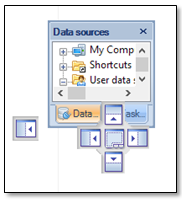
These panels can also be closed. To reopen a closed panel, use the “Display” tab on the ribbon.
To quickly restore the default panel layout of the application, use the “Restore position” function from the “Display” tab on the ribbon (the application must be restarted).
Disclaimer:
- Some components shown here (providers, names, window styles, etc.) may differ slightly from those on your computer.
- Certain features require Internet access. If you experience issues, check with your network administrator about a possible Proxy server. You can configure the Proxy settings in the application options.
- Some geographic data providers (Geocode, image maps, etc.) may require a user account, which you can set up in the Service Provider API Keys section of the application options.