
Properties
Properties panel
When the Properties panel is open, you will see all information about items such as Data Sources, Data Tables, Layers, Maps, etc., depending on the current focus of the application. The next images show you some samples of the Properties panel in Spatial Manager Desktop™.
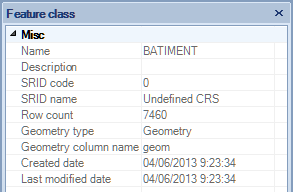
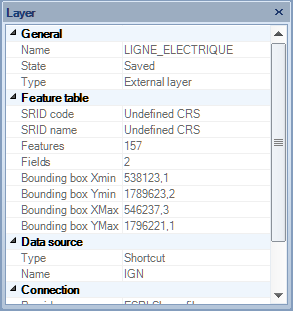
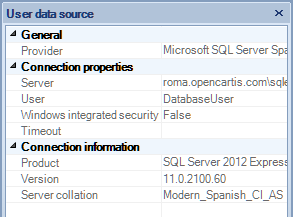
In the Properties panel, by placing the cursor over any data, if CTRL + C (standard combination for “Copy”) is pressed, the corresponding data goes to the Windows clipboard and can be exploited within the same application or any other, using “Paste” or by pressing CTRL + V.
If any data is not fully visible due to the width of the Properties panel, a tooltip will display by keeping the cursor over this data.
You can edit here the field values of the Feature Classes, as well as you can do in the “Data grid” panel.
Disclaimer:
- Some components shown here (providers, names, window styles, etc.) may differ slightly from those on your computer.
- Certain features require Internet access. If you experience issues, check with your network administrator about a possible Proxy server. You can configure the Proxy settings in the application options.
- Some geographic data providers (Geocode, image maps, etc.) may require a user account, which you can set up in the Service Provider API Keys section of the application options.