
Ribbon
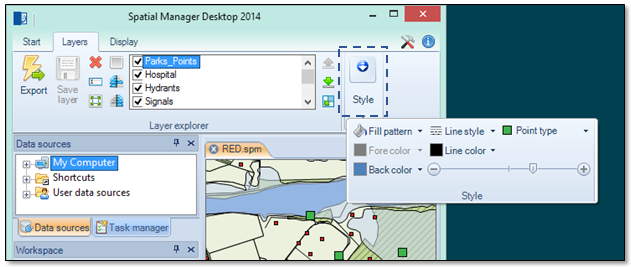
The functions available through the Ribbon are separated into tabs containing functional groups. These tabs can be static (“Start”, “Layers”, etc.) or contextual, which are only available under some conditions; for example, the “Selection\Tools” tab, when there are selected items.
Different groups in a tab can be found under its normal display (expanded, all icons and functions of the group are visible on the screen) or compressed (a single symbol appears to dropdown the group), depending on the size of the application window and the space available for the components of the ribbon. The expansion or compression of the groups is fully automatic when the application window is resized.
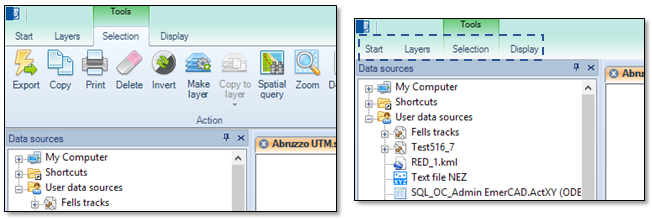
The ribbon can be set as self-retractable by double-clicking over any of the tab titles, to expand the space of the application window dedicated to workspaces or the application panels. In this mode, selecting the title of a tab will expand it to show all functions in the tab and will automatically retract it when you select a function. To expand them back again, just double-click over these same tab titles.
Disclaimer:
- Some components shown here (providers, names, window styles, etc.) may differ slightly from those on your computer.
- Certain features require Internet access. If you experience issues, check with your network administrator about a possible Proxy server. You can configure the Proxy settings in the application options.
- Some geographic data providers (Geocode, image maps, etc.) may require a user account, which you can set up in the Service Provider API Keys section of the application options.