
Show/Hide
Choose from among a lot of dynamic Backgrounds Maps from providers such as Google Maps, OpenStreetMap, Bing, MapBox, Ordnance Survey, etc., or configure your own maps from TMS, WMS or WMTS servers.
Display a Background Map
You can select an image map model to show as ‘Background Map’ in the map through the “Start” ribbon of Spatial Manager Desktop. This will open the “Background Map” window, allowing you to select a model from the Maps list. You can find the list arranged using different Groups (Tabs) for the different preset Providers (OpenStreetMap, Mapbox, etc.) and the User groups (see Configure User ‘Background Maps’). The image of the dynamic ‘Background Map’ is automatically adapted to the current map view, and it will be automatically fitted when the map view changes (zoom, pan, etc.).
To change the image model map for the ‘Background Map’, you can run this function again. The “Background Map” window will display emphasized the current image map model, which you can keep by clicking the “OK” button. Click another model if you want to change to this model.
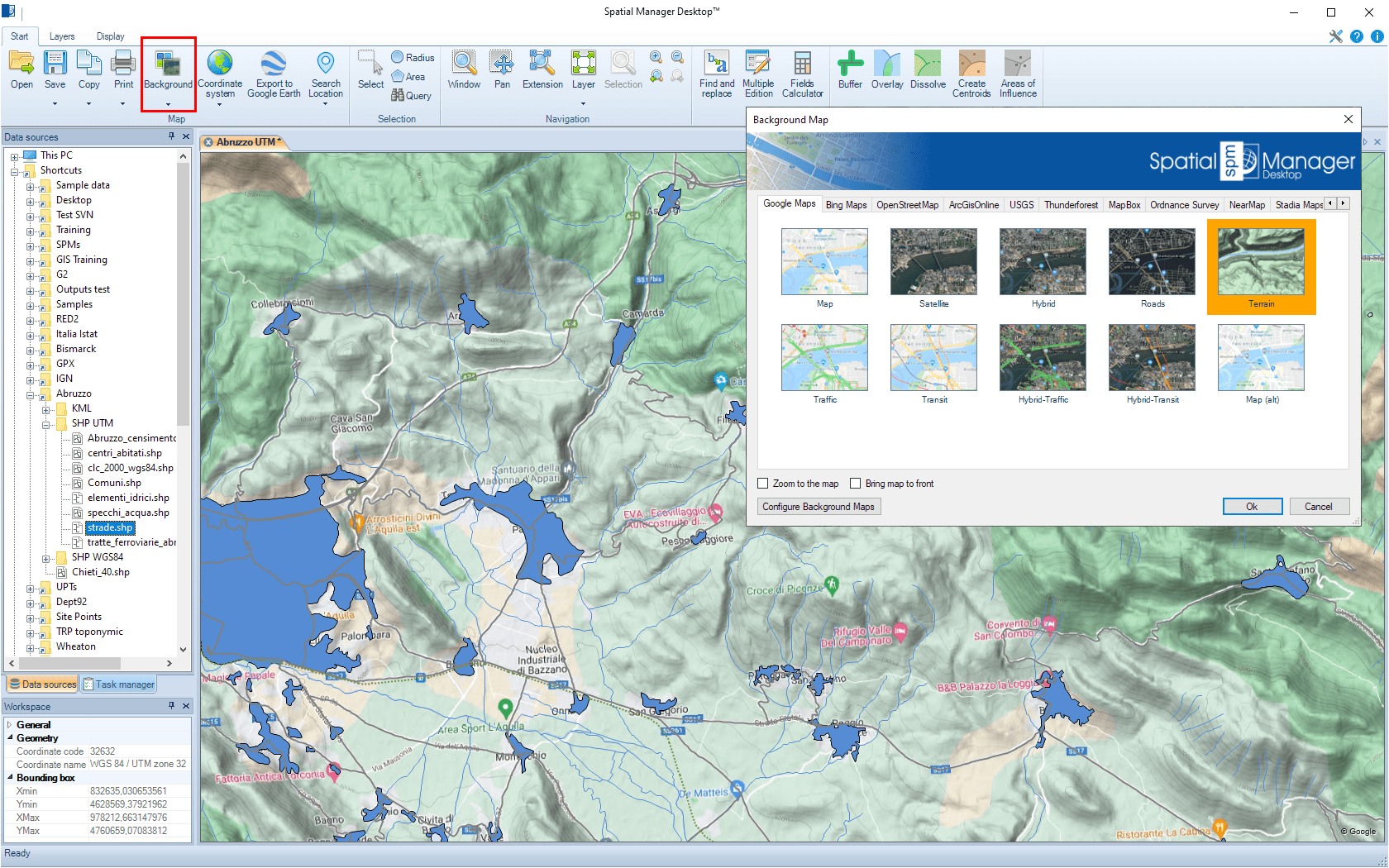
Workspace view behavior when selecting a ‘Background Map’ and the “Zoom to the map” option:
- “Zoom to the map” selected.
- If the map extension intersects the ‘Background Map’ extent, then the view fits to the map extension.
- Otherwise the view fits to the ‘Background Map’ extent.
- “Zoom to the map” not selected.
- The view does not change. If the current view does not intersect the ‘Background Map’ extent, a warning alerts you that the selected ‘Background Map’ is located outside the current view and that you will not see it in the view.
- In any other case not covered above.
- The view does not change.
Note: The ‘Background Map’ extent is the bounding box defined in the corresponding Map Server and sometimes may be greater than the ‘Background Map’ geographic extent.
“Bring map to front” option: When checked, the map will be overlapped to all the elements in the workspace.
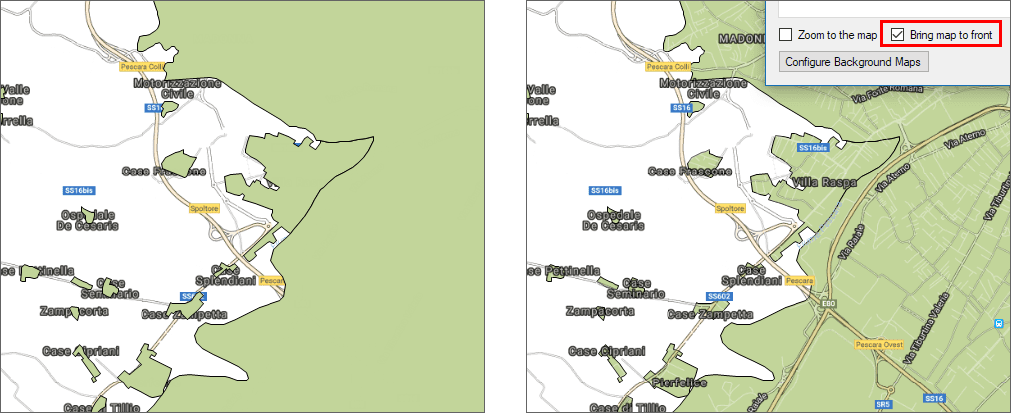
Notes:
- Bringing the ‘Background Map’ to front makes sense, and it is a very practical option, when it has any transparent area (learn more about Transparent ‘Background Maps’ support).
- If you add elements to your map after bringing the ‘Background Map’ to front, those will overlap the ‘Background Map’. If you want to put the ‘Background Map’ back in the foreground, simply select it again and keep checked the option “Bring map to front”.
- Warning: Bringing the ‘Background Map’ to front can cause the rest of the elements to be hidden (except in transparent areas of the ‘Background Map’, if any).
Disclaimer:
- Some components shown here (providers, names, window styles, etc.) may differ slightly from those on your computer.
- Certain features require Internet access. If you experience issues, check with your network administrator about a possible Proxy server. You can configure the Proxy settings in the application options.
- Some geographic data providers (Geocode, image maps, etc.) may require a user account, which you can set up in the Service Provider API Keys section of the application options.