
Transparent maps
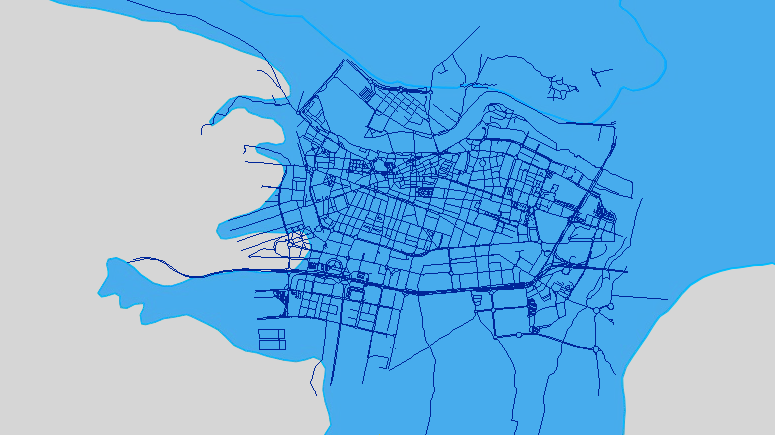
Transparent maps allow you to blend multiple map layers to create visually enhanced and richer backgrounds. By supporting transparency in Background Maps, Spatial Manager Desktop™ enables combination of different map styles.
‘Background Maps’ and Transparent maps
Spatial Manager Desktop™ supports ‘Background Maps’ that include transparency information. When you select any transparent ‘Background Map’ to show it, the transparent areas of the map will show the last Background solid color used. In addition, if the option “Bring map to front” is checked when selecting the ‘Background Map’, you will see the opaque areas of the ‘Background Map’ over the rest of the elements in your map (see the option “Bring map to front” in Background Maps).
Note: Transforming coordinates of the resulting images of a map (if needed) is a little slower when a transparent ‘Background Map’ is shown in the workspace.
Disclaimer:
- Some components shown here (providers, names, window styles, etc.) may differ slightly from those on your computer.
- Certain features require Internet access. If you experience issues, check with your network administrator about a possible Proxy server. You can configure the Proxy settings in the application options.
- Some geographic data providers (Geocode, image maps, etc.) may require a user account, which you can set up in the Service Provider API Keys section of the application options.