
Alphanumeric
Manage the alphanumeric data attached to the elements, design and edit the structure which will be used to store the data.
Export alphanumeric data
In Spatial Manager Desktop™ you can export alphanumeric data of the features in the selected Layer to a CSV file (comma-separated values or character-separated values) by using the right-click menu over any place on the Data grid or by clicking on the button in the left bottom of the Data grid. When the export process is finished, you can use the CSV file in other applications, such as office or CAD applications.
You can choose any extension in the name of the outgoing CSV file, but the application will suggest .txt, *.csv, *.tab and .asc, because they are the most commonly used extensions.
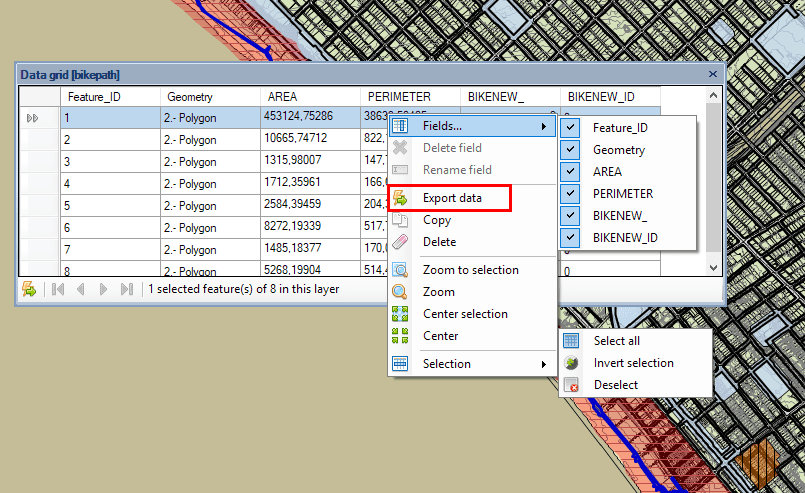
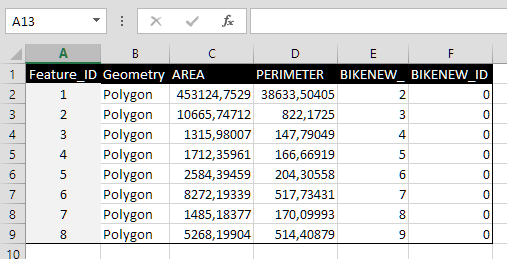
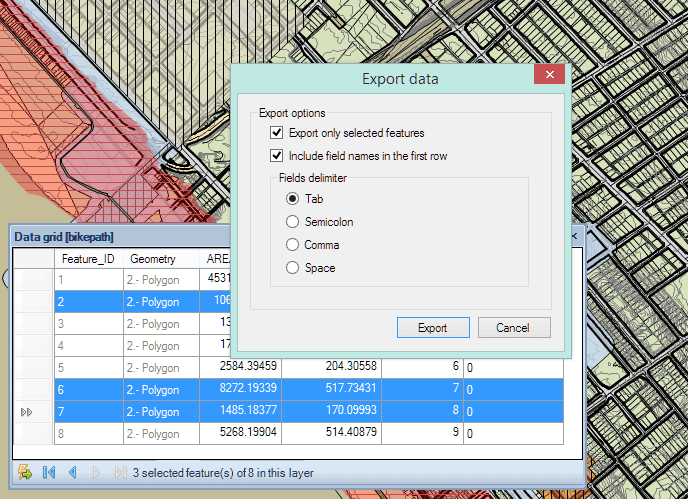
You can export the data for the whole Layer or only for the selected features in the Layer, if any. You can also choose the values separator and, if you want, you can add a first row in the outgoing CSV file including the names of the data table fields.
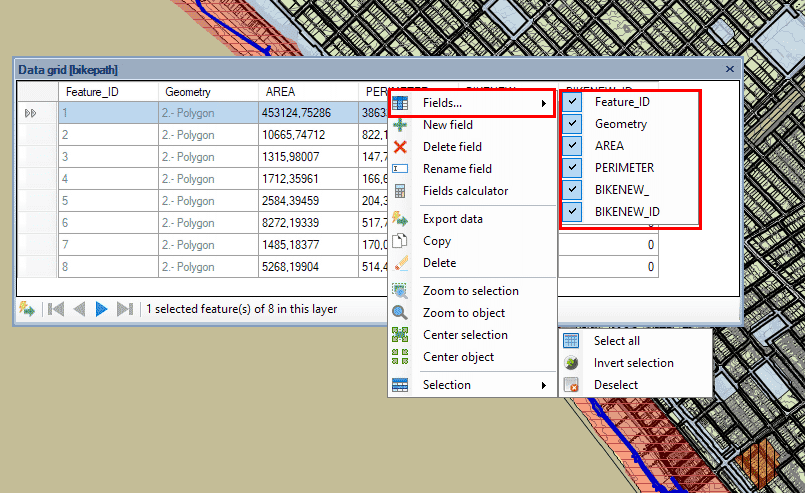
As you can choose which fields will be displayed in the Data grid, the exported CSV file will only include the data in these fields. And, as you can also sort the field columns in the Data grid by dragging the name of the field to sort, the contents of the exported CSV file will also respect the column order in the grid.
Disclaimer:
- Some components shown here (providers, names, window styles, etc.) may differ slightly from those on your computer.
- Certain features require Internet access. If you experience issues, check with your network administrator about a possible Proxy server. You can configure the Proxy settings in the application options.
- Some geographic data providers (Geocode, image maps, etc.) may require a user account, which you can set up in the Service Provider API Keys section of the application options.