
Copy to clipboard
Copy data to the Windows Clipboard
You can copy data to the Windows Clipboard in Spatial Manager Desktop™ in several ways:
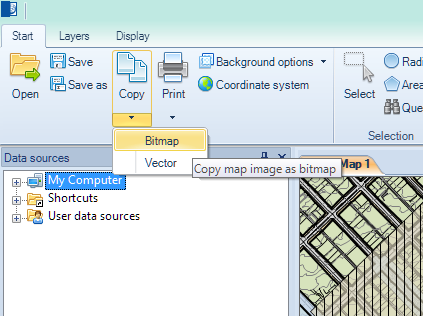
- Copy the current view of a Map as an image using the “Copy Bitmap” function in the “Start” ribbon.
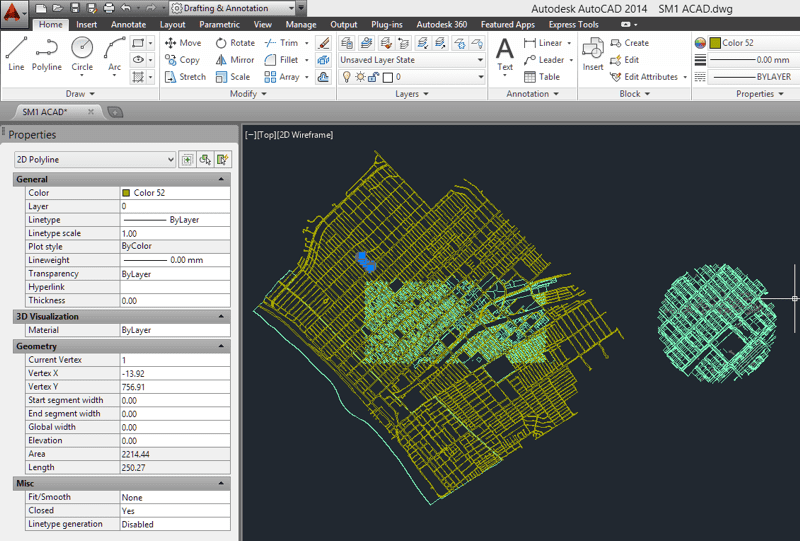
- Copy all the features included in the current view of a Map, if any, as vector objects using the “Copy Vector” function in the “Start” ribbon.
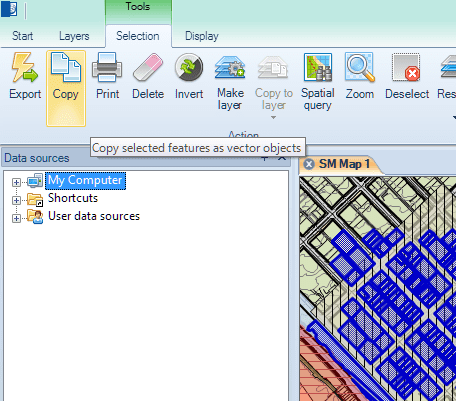
- Copy the selected features in a Map, if any, as vector objects using the “Copy” function in the “Selection\Tools” ribbon.
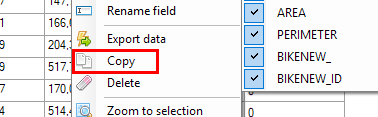
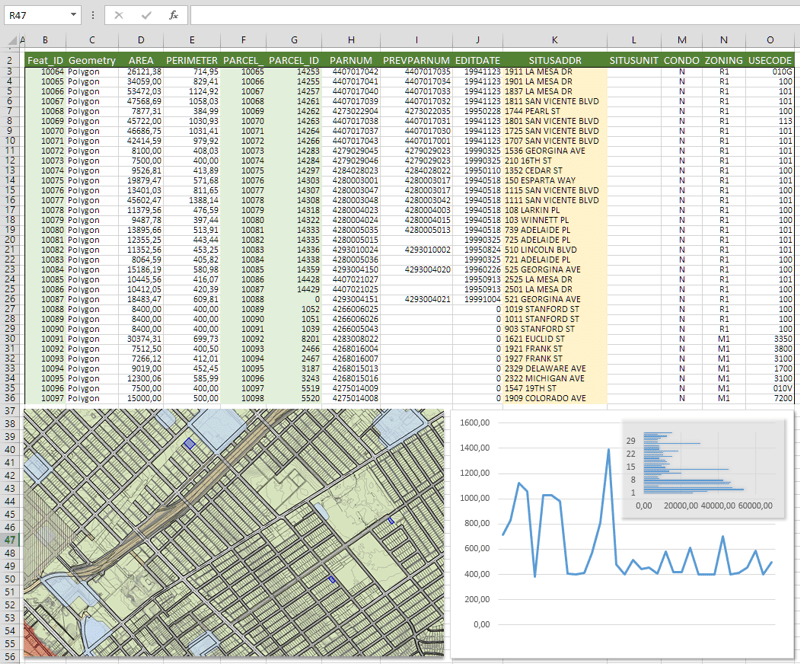
- Copy the alphanumeric data of the selected features in the Data grid, if any, by pressing CTRL+C. You can also copy the data using “Copy” from the Data grid right-click menu.
- The selected row(s) and header(s) (field names) will be copied in a tab-separated format, suitable for pasting into a spreadsheet, ASCII editor, etc.
- As an exception, if a field is being edited, only the value of this field will be copied to the clipboard.
- Copy any data in the Properties panel by placing the cursor over this data and pressing CTRL+C.
After copying the data to the Windows Clipboard in Spatial Manager Desktop™, you can paste it into another Windows application that supports image, vector, or text data in this operation.
Paste samples
Sample 1: MS Word as vector objects. Ungroup them after pasting and you can edit the objects in MS Word.
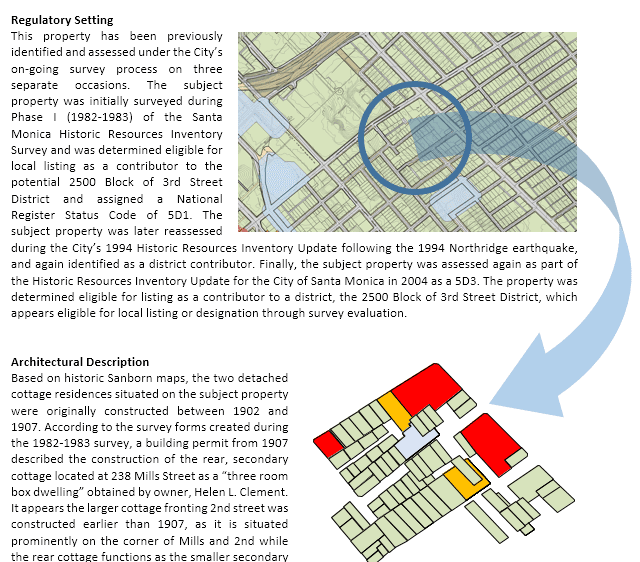
Sample 2: MS Excel as an image.
Sample 3: As vector objects. You will get Polylines, Points, etc., if you paste them as CAD objects.
Disclaimer:
- Some components shown here (providers, names, window styles, etc.) may differ slightly from those on your computer.
- Certain features require Internet access. If you experience issues, check with your network administrator about a possible Proxy server. You can configure the Proxy settings in the application options.
- Some geographic data providers (Geocode, image maps, etc.) may require a user account, which you can set up in the Service Provider API Keys section of the application options.