
Layer edit
Manage the alphanumeric data attached to the elements, design and edit the structure which will be used to store the data.
Edit a Layer or Features in a Layer
You can edit Features or Layers in Spatial Manager Desktop™ as follows:
- In “Editable” Layers.
- “External”.
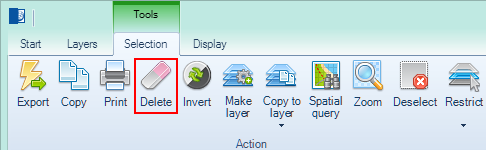
- You can “Delete” selected features (“Standard” and “Professional” editions only). You can also “Delete” from the right-click menu of the Data Grid.
- You can modify values in any field directly in the Data Grid (“Standard” and “Professional” editions only) or using:
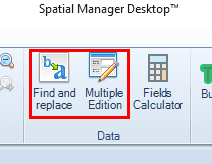
- “Find and replace” function (“Standard” and “Professional” editions only), to find and replace values in the Data Grid for a layer.
- “Multiple Edition” function (“Standard” and “Professional” editions only), to modify the value of a field in the Data Grid only for a layer. This function may be applied to all features in the layer or only to selected features (if any).
- “Embedded in the Map” Layers.
- All the above, and:
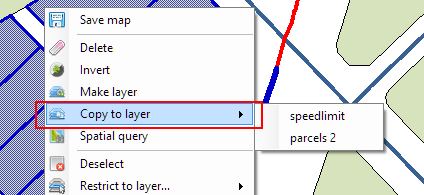
- You can add a copy of the selected features (if any) to the layer using the “Copy to layer” function.
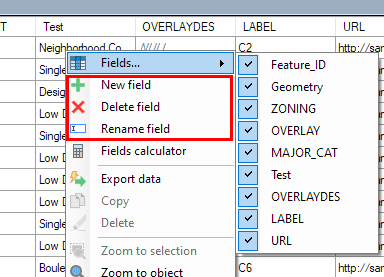
- You can “Add”, “Delete”, or “Rename” fields in the Data Grid (“Standard” and “Professional” editions only).
- “External”.
- In “Non editable” Layers.
- There is no way to edit a “Non editable Layer” or its features. You can “Disconnect” a “Non editable” layer from its read-only source, or you can select all features in the layer and “Make” a new layer including a copy of the selected objects.
Disclaimer:
- Some components shown here (providers, names, window styles, etc.) may differ slightly from those on your computer.
- Certain features require Internet access. If you experience issues, check with your network administrator about a possible Proxy server. You can configure the Proxy settings in the application options.
- Some geographic data providers (Geocode, image maps, etc.) may require a user account, which you can set up in the Service Provider API Keys section of the application options.