
Print Background Maps
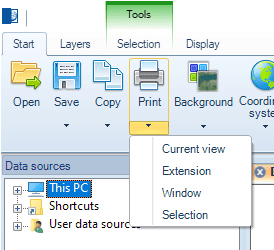
You can print several views of a map in Spatial Manager Desktop™ by using the “Print” drop-down button in the “Start” ribbon. The functions included in this button are the following:
- Print the current view of the map.
- Print the extents of the map.
- Print an area of the map defined by a window.
- Print the extents of the currently selected features of a map (if any). You can also find this function in the “Selection\Tools” ribbon.
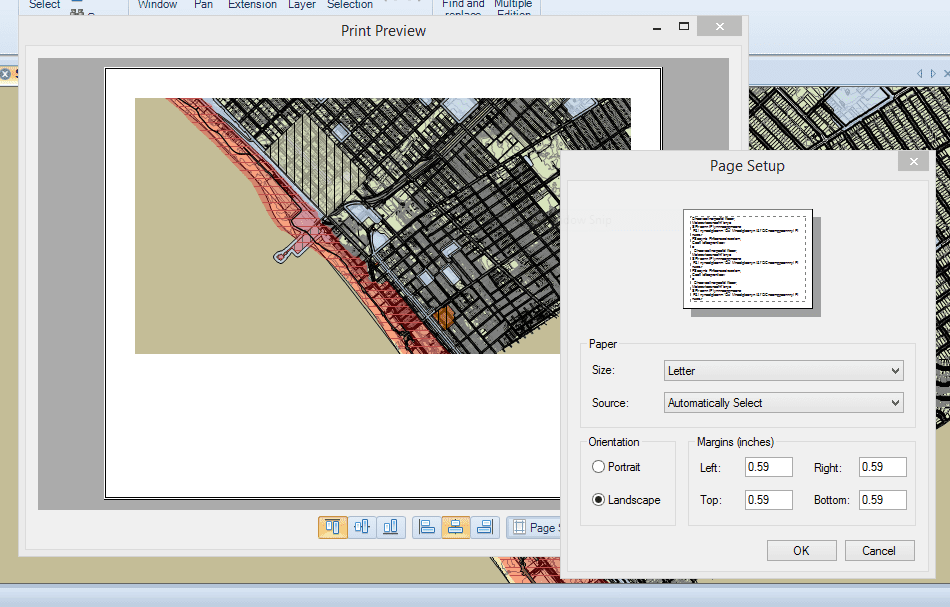
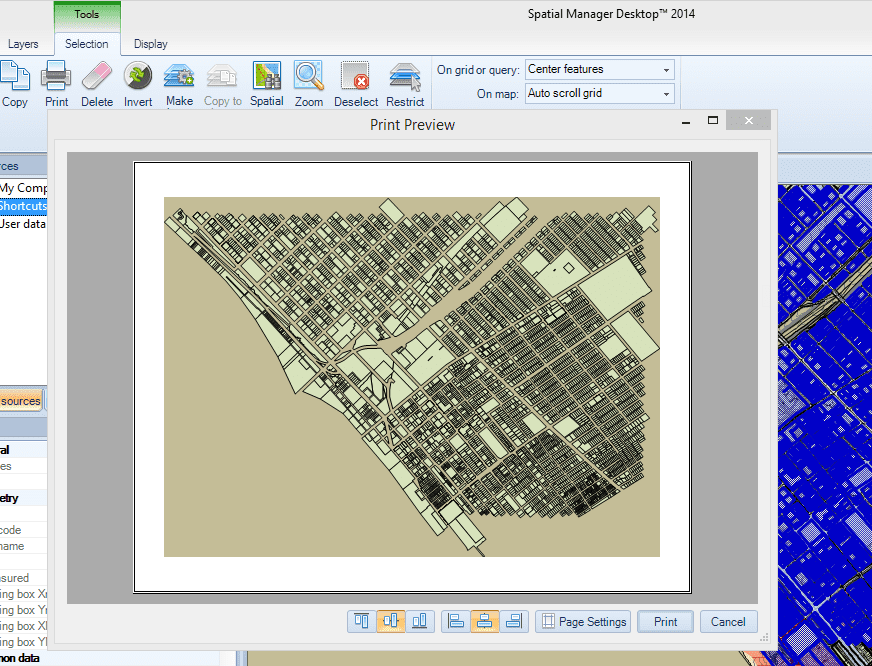
When you run any of these functions, you will get a “Print Preview” window to check the area to be printed. Furthermore, in this window, you can adjust the basic “Page Settings” and the horizontal and vertical alignments of the printed area inside the page.
Note that, if you have chosen a base map as background, it will also be printed. If not, the “Background color” configured for the map will be the printed color for any empty zone inside the selected area to print.
Disclaimer:
- Some components shown here (providers, names, window styles, etc.) may differ slightly from those on your computer.
- Certain features require Internet access. If you experience issues, check with your network administrator about a possible Proxy server. You can configure the Proxy settings in the application options.
- Some geographic data providers (Geocode, image maps, etc.) may require a user account, which you can set up in the Service Provider API Keys section of the application options.