
Advanced
Sort the Shortcuts or User Data Sources (UDS)
To sort any Shortcut or UDS (“Standard” and “Professional” editions only) item in the “Data sources” panel of Spatial Manager Desktop™, you must drag and drop up or down the item itself.
Recognize each different type of spatial data and its properties
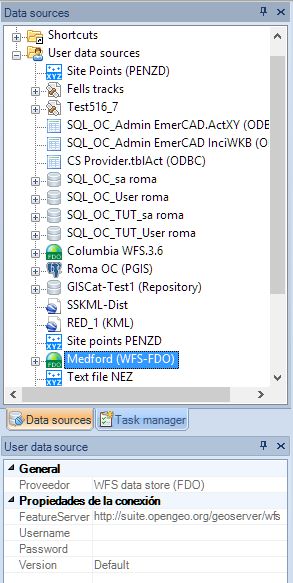
To recognize each different type of spatial data, you will see the different icons used for each data provider in the “Data sources” panel of Spatial Manager Desktop™. In addition, when you select any data source, you will see its properties in the “Properties” panel.
Other ways to access spatial data
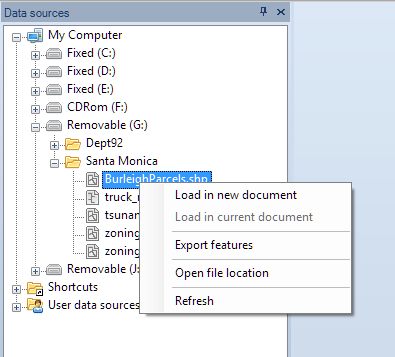
You can access spatial data files directly through the “My computer” node in the “Data sources” panel of Spatial Manager Desktop™. However, to access spatial databases or spatial stores, you should always use UDSs.
Disclaimer:
- Some components shown here (providers, names, window styles, etc.) may differ slightly from those on your computer.
- Certain features require Internet access. If you experience issues, check with your network administrator about a possible Proxy server. You can configure the Proxy settings in the application options.
- Some geographic data providers (Geocode, image maps, etc.) may require a user account, which you can set up in the Service Provider API Keys section of the application options.