
Shortcuts
Access to disk drives, local folders, local network paths, etc.
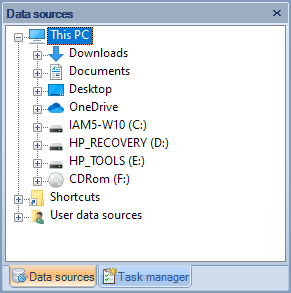
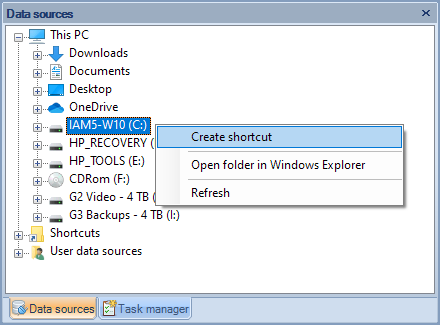
You can access local locations (such as hard drives, removable disks, local network drives, etc.) through the “This PC” branch in the “Data sources” panel of Spatial Manager Desktop™. Here you will also find access to common folders, such as Downloads, Documents, OneDrive, etc. The contextual (right-click) options in this area will allow you to create shortcuts (see next paragraph) and run many other disk- and folder-related functions.
Shortcuts
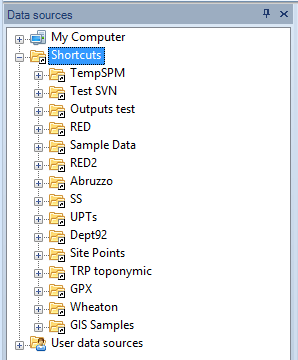
The shortcuts in Spatial Manager Desktop™ are the way you can reference any folder on a physical or network drive, or the drive itself, and they allow you quick access to its path. You can access the shortcuts through the “Data sources” panel.
Create a new Shortcut
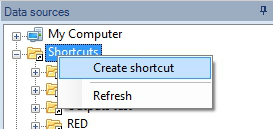
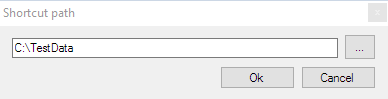
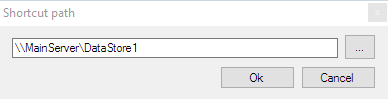
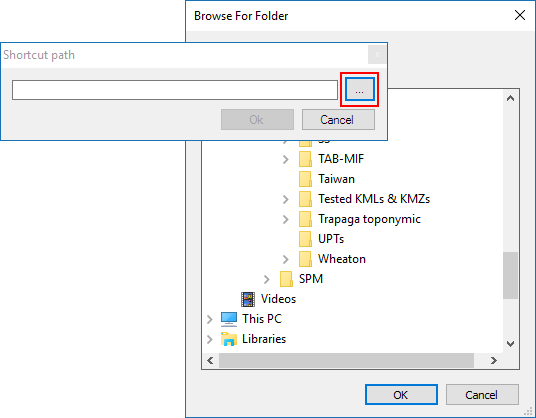
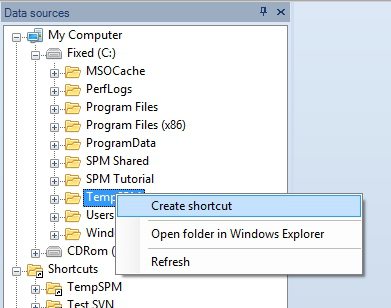
You can create new shortcuts in Spatial Manager Desktop™ using the right-click menu over the “Shortcuts” paragraph in the “Data sources” panel, typing a path (local or network) or choosing a folder or drive. You can also create a new shortcut using the right-click menu over any folder or drive item that you see in the “Data sources” panel to reference the path of this folder or drive.
Edit a Shortcut
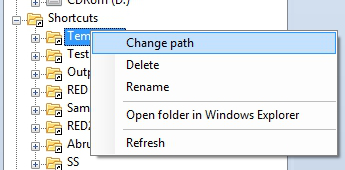
You can edit a shortcut in Spatial Manager Desktop™ using the right-click menu over the item in the “Data sources” panel to change the path of the folder or drive referenced. You will see a warning window if the shortcut is referenced by any task (“Professional” edition only).
Other functions for the Shortcuts
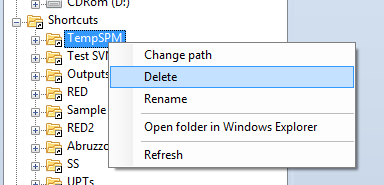
In Spatial Manager Desktop™ you can delete (a warning window will be displayed if the shortcut is referenced by any task — “Professional” edition only) or rename the shortcut. You can also refresh the folder or drive content, and you can open Windows Explorer for the folder or drive referenced by the shortcut. All these functions are available using the right-click menu over the shortcut item in the “Data sources” panel.
Disclaimer:
- Some components shown here (providers, names, window styles, etc.) may differ slightly from those on your computer.
- Certain features require Internet access. If you experience issues, check with your network administrator about a possible Proxy server. You can configure the Proxy settings in the application options.
- Some geographic data providers (Geocode, image maps, etc.) may require a user account, which you can set up in the Service Provider API Keys section of the application options.