
Export
Read and write spatial data using a wide range of file formats and spatial servers.
Export Features
There are several ways to export Features and their associated data in Spatial Manager Desktop™.
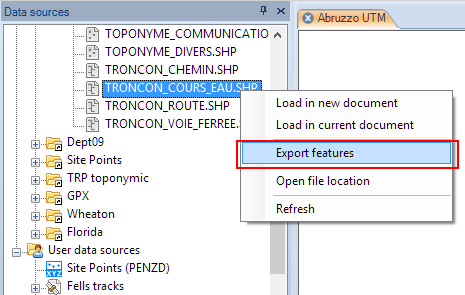
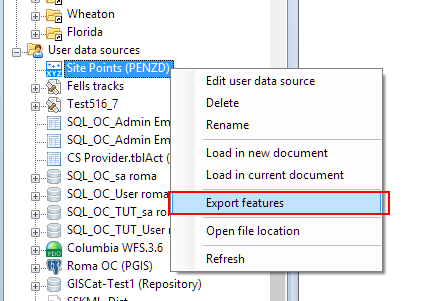
- Export a whole Table: by right-clicking on the Table itself in the “Data sources” panel (drive/folder, Shortcut or UDS - “Standard” and “Professional” editions only).
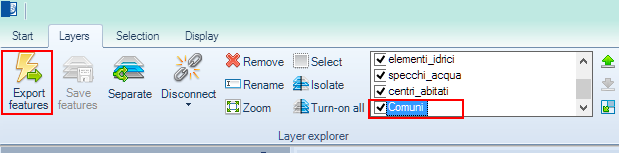
- Export a Layer in a Map: by selecting the Layer and using the function “Export features” in the “Layers” ribbon.
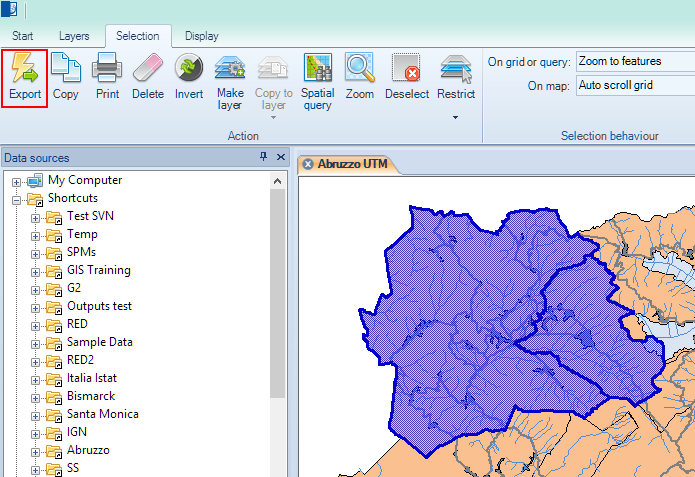
- Export a Selection of Features in a Map: by selecting the Features in the Map and using the function “Export” in the “Selection\Tools” ribbon.
Note: Be aware that, in order to avoid forgetting features, if polygonal features are exported to a polyline-type target, the polygon contours will be exported as polylines.
In all cases the “Export” wizard will be launched to guide you through the steps necessary to export a set of Features.
- Set up the parameters of the source connection (if any), which will depend on the data Provider of the source connection.
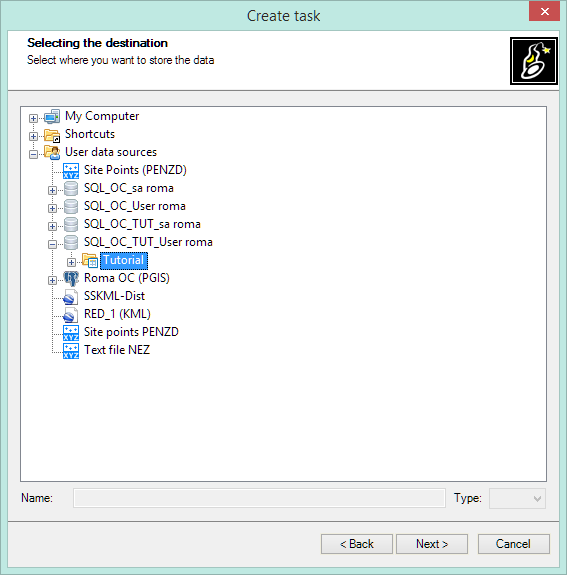
- Choose the target for the exporting process (this step will also define the target data Provider). You have to choose:
- A folder, or a Shortcut to a folder. In this case, you must also choose the type of target file by expanding the dropdown list of valid extensions to export.
- A container for Tables (usually a Schema).
- A file to replace (directly or through a UDS - “Standard” and “Professional” editions only).
- A Table to replace (inside a container of Tables; usually a Schema).
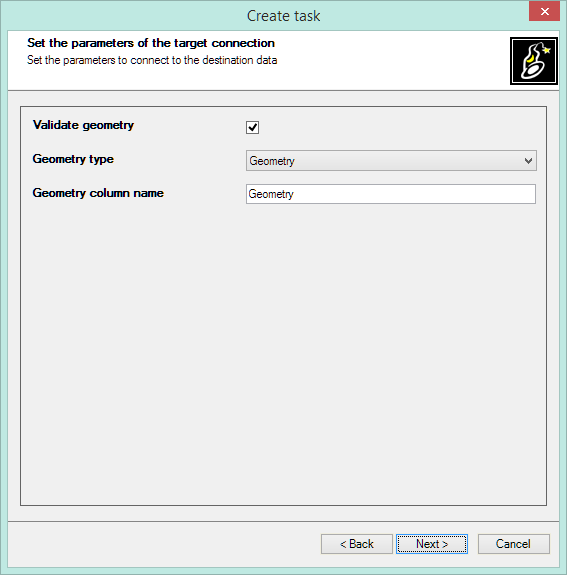
- Set up the parameters of the target connection (if any), which will depend on the data Provider of the target connection.
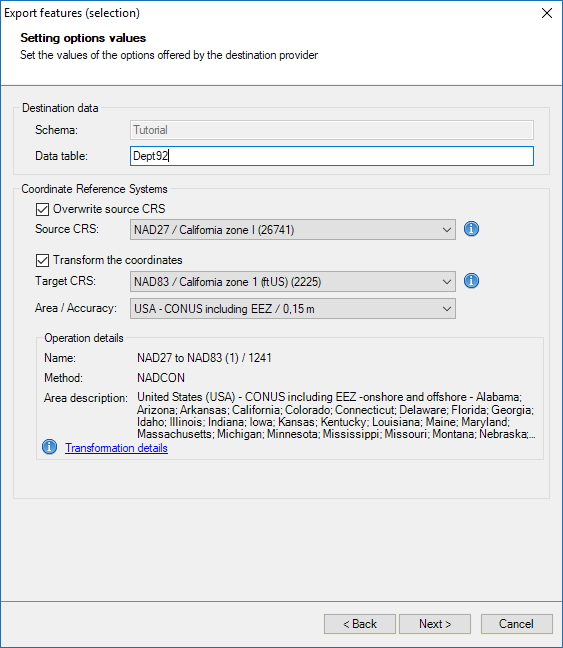
- Choose the options offered by the target connection data Provider, such as Overwrite the target or Transform the coordinates.
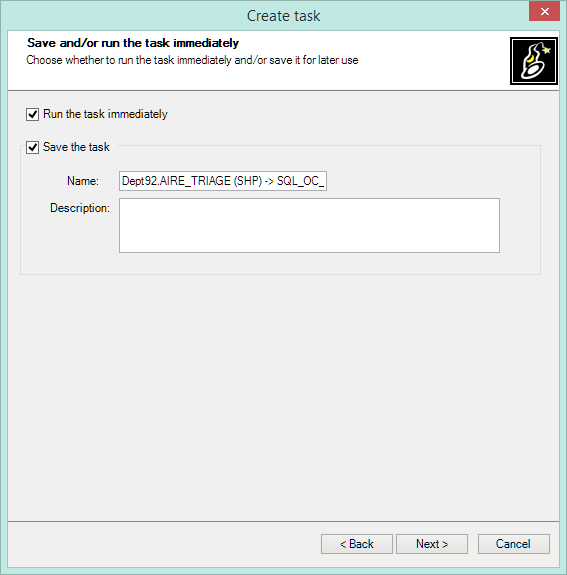
- Choose if you want to Run now and/or to Save a Task (except when exporting a Layer or when exporting a Feature Selection) (“Professional” edition only).
Note 1: Upon completion of any export process to a file you can directly open the file location. Furthermore, if you are exporting to a KML or KMZ file and Google Earth is installed in your computer, you can open it using a button in the Export report window. Note 2 (“Standard” and “Professional” editions only): if the source or the target connection comes from a UDS, some parameters may be “caught” from the UDS itself (depends on the data Provider of the UDS) and you will not need to reenter them.
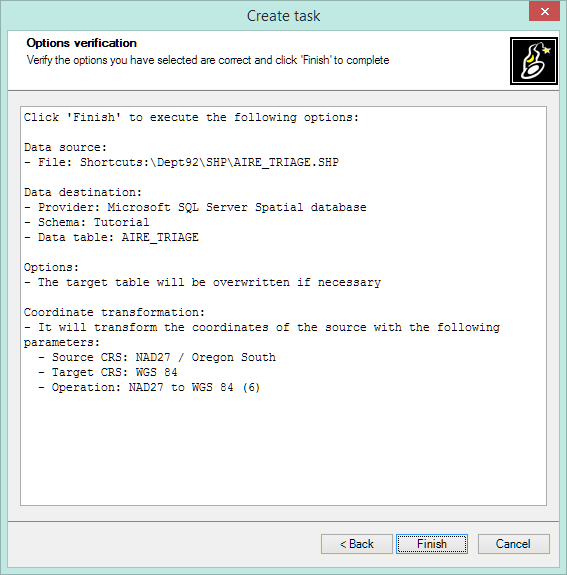
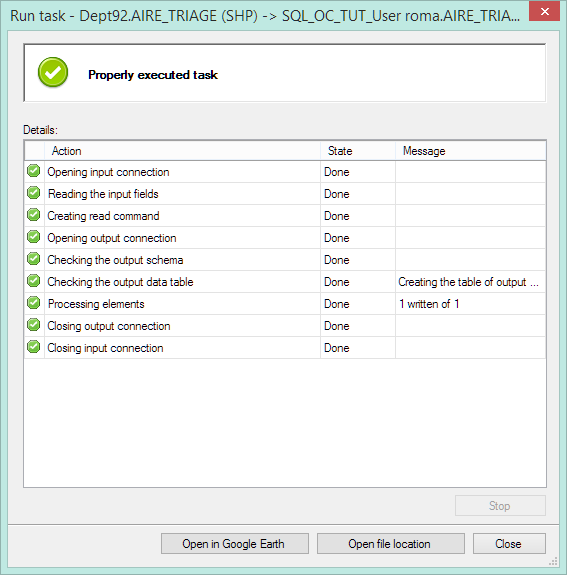
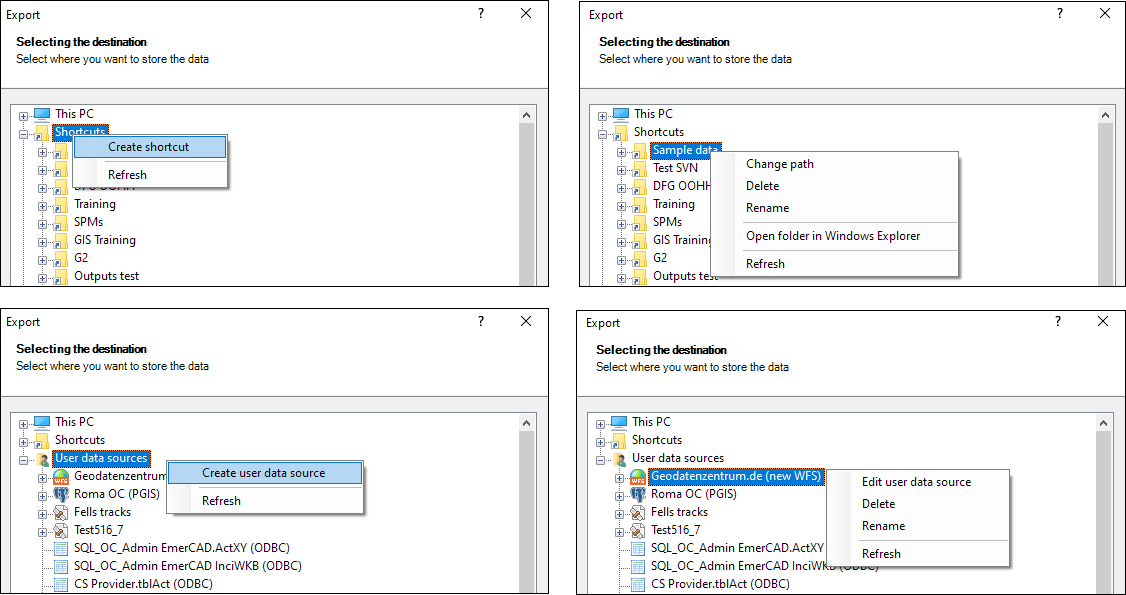
Note: Although the Data sources panel is the primary tool to manage resources and accesses, create/edit Shortcuts and User Data Sources (UDS), and other related functions, the context menus (right-click) in this Export window will also allow you to execute many of these functions “on the fly”, without having to return to the “Data sources” panel.
Disclaimer:
- Some components shown here (providers, names, window styles, etc.) may differ slightly from those on your computer.
- Certain features require Internet access. If you experience issues, check with your network administrator about a possible Proxy server. You can configure the Proxy settings in the application options.
- Some geographic data providers (Geocode, image maps, etc.) may require a user account, which you can set up in the Service Provider API Keys section of the application options.