
Import
Read and write spatial data using a wide range of file formats and spatial servers.
Import Features
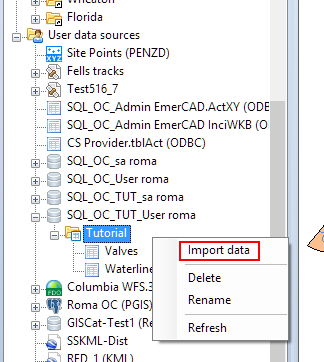
You can import Features in Spatial Manager Desktop™ by right-clicking on a container (usually a Schema) of Tables in the “Data sources” panel. The import process is similar to any export process but, in this case, the target for the process is known and you have to first choose the source data to import.
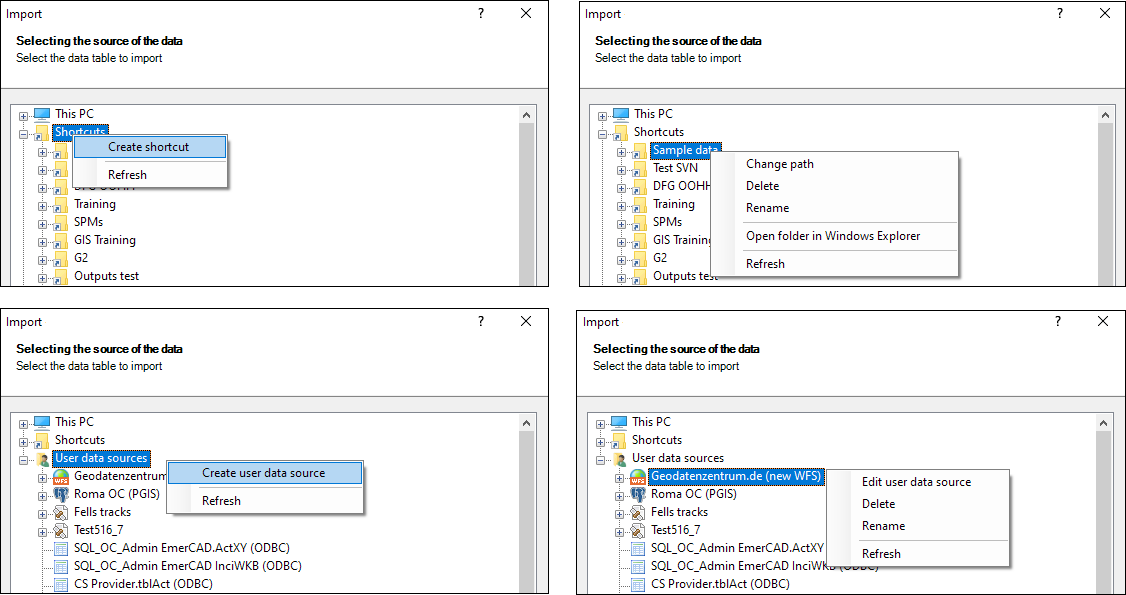
Note: Although the Data sources panel is the primary tool to manage resources and accesses, create/edit Shortcuts and User Data Sources (UDS), and other related functions, the context menus (right-click) in this Import window will also allow you to execute many of these functions “on the fly”, without having to return to the “Data sources” panel.
Disclaimer:
- Some components shown here (providers, names, window styles, etc.) may differ slightly from those on your computer.
- Certain features require Internet access. If you experience issues, check with your network administrator about a possible Proxy server. You can configure the Proxy settings in the application options.
- Some geographic data providers (Geocode, image maps, etc.) may require a user account, which you can set up in the Service Provider API Keys section of the application options.