
Tasks
Spatial Manager Desktop™ includes the ability to save Tasks that make it easy to run repetitive import and export processes.
What are the Tasks
The Tasks in Spatial Manager Desktop™ are the way you can save any import/export process and its parameters, allowing you to run repetitive processes whenever needed.

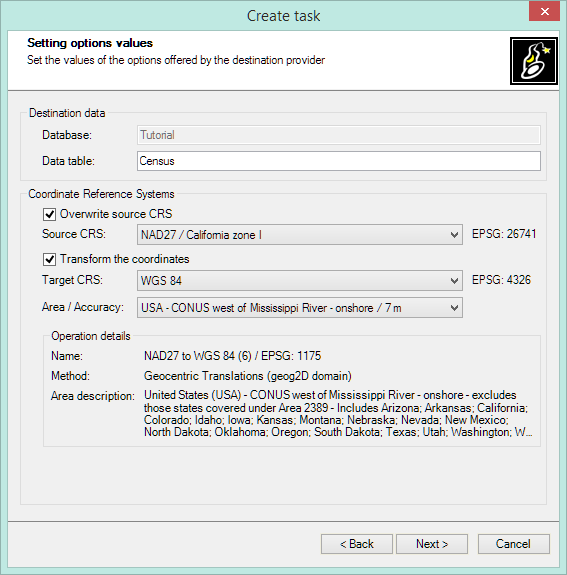
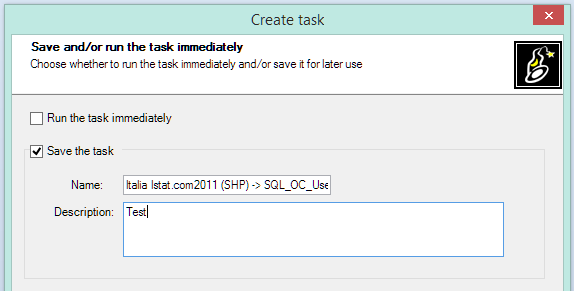
Create a new Task
You can create new Tasks using the “New task” button in the “Task manager” panel.


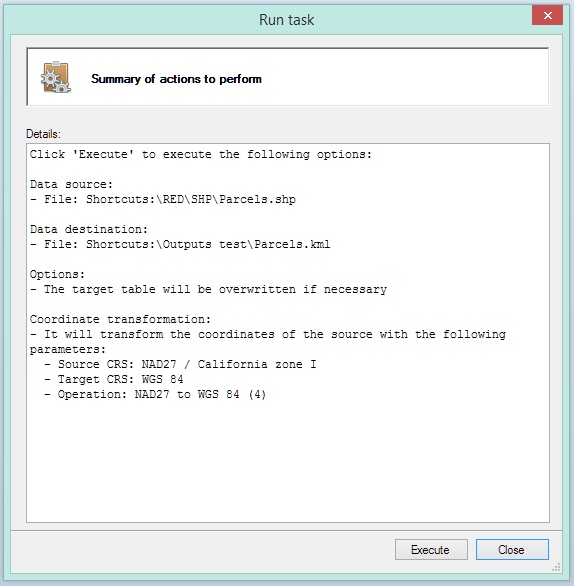
Execute one or more Tasks
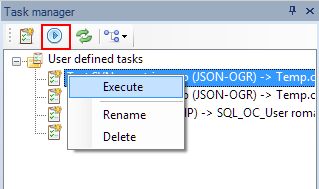
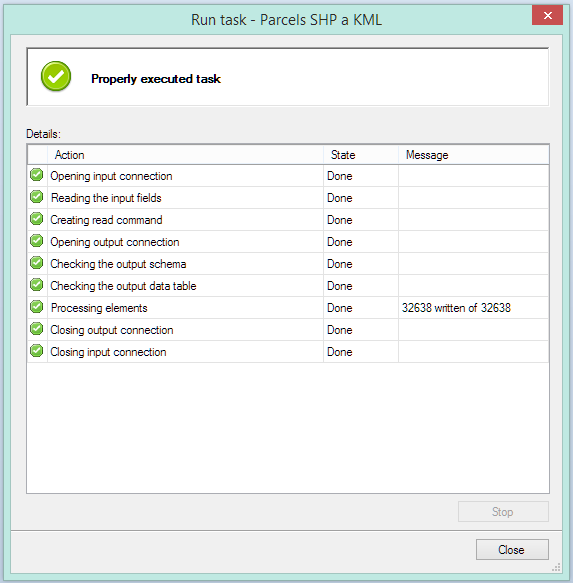
Two ways:
- From the application UI.
- From the operating system command window using
SpmCmd.

Review the Properties of a Task
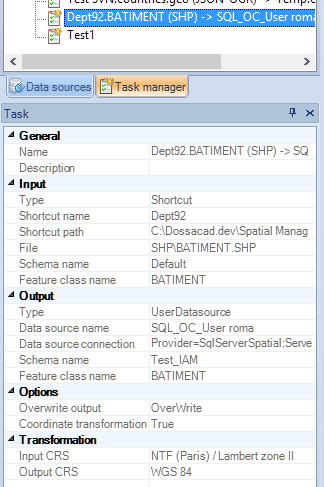
In the “Properties” panel.
Sort the Tasks
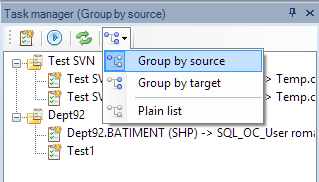
- Group by source.
- Group by target.
- Plain list.
Additional functions for Tasks
- Delete.
- Rename.
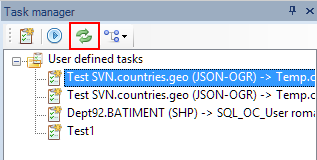
- Refresh.

Disclaimer:
- Some components shown here (providers, names, window styles, etc.) may differ slightly from those on your computer.
- Certain features require Internet access. If you experience issues, check with your network administrator about a possible Proxy server. You can configure the Proxy settings in the application options.
- Some geographic data providers (Geocode, image maps, etc.) may require a user account, which you can set up in the Service Provider API Keys section of the application options.