
Search locations
Spatial Manager Desktop™ include functions to geo-locate in your drawing postal addresses, streets, neighborhoods or other geographical objects.
Search for locations of geographical objects
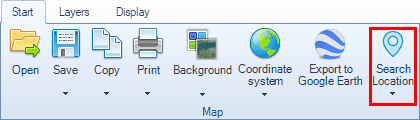
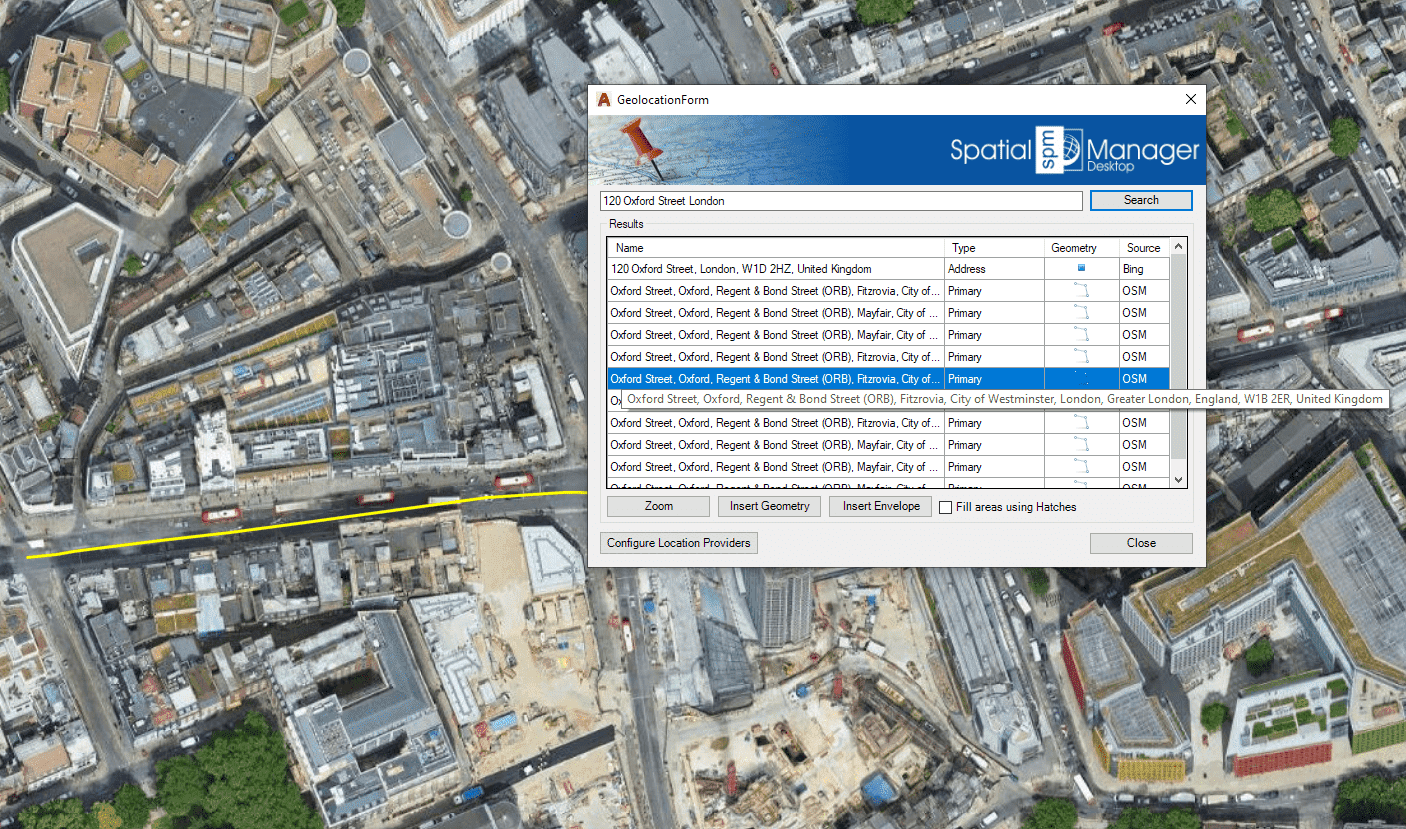
Spatial Manager Desktop™ includes the ‘Search Location’ function that allows you to search for locations through Internet location services based on your search text. Once you enter the search text (the more precise, the more accurate the location) and click “Search” (or press Enter), the results returned by these services (if found, one or more results) will be shown in the search window and include the following information:.
- Name: Full location name. Although you can resize the window if you want, if the full text does not fit, scroll over and a tooltip will be shown.
- Type: Location type. According to the classification provided by the localization service.
- Geometry: Geometry type. Point, Line-string, Polygon, Multi-Polygon, etc. The icon represents in a simplified way the geometry type, but you can scroll over it and a tooltip including the geometry type text will be shown.
- Source: Location service source. The name of the Internet location service that returned the result.
- Note: Certain location service providers (such as Google) may require special terms of use for the users of this service. You can configure any special setting for such providers through the button “Configure Location Providers” or the Service Provider API Keys in the application Options. If this is not done, the results corresponding to these providers will not appear in the results table as they will not be available for query.
You can sort the result rows according to the “Name”, “Type” or “Source” columns (direct or inverse order) by clicking on the column title.
Use the results shown in the ‘Search Location’ window
The Spatial Manager Desktop™ ‘Search Location’ window allows you to select any shown result in order to:
- Zoom to the location. By using the “Zoom” button or by double-clicking on the chosen result.
- Insert the Geometry in your map, and zoom to the Geometry. Points, Polylines, Polygons, etc., depending on the geometry type.
-
Insert the geometry Envelope, and zoom to the Envelope. Internet location services usually also return a rectangular envelope of the geographic object found. This option allows you to insert this rectangle in your map.
- Notes:
- The ‘Search Location’ window remains open until you close it so that you can repeat the actions with the results you want. In fact, you can navigate through the map, access the Data grid, etc., while the window is still on screen..
- You can use the ‘Search Location’ function even without any map document open. In this case, the insertion of features or envelopes will be processed in a new blank document..
Disclaimer:
- Some components shown here (providers, names, window styles, etc.) may differ slightly from those on your computer.
- Certain features require Internet access. If you experience issues, check with your network administrator about a possible Proxy server. You can configure the Proxy settings in the application options.
- Some geographic data providers (Geocode, image maps, etc.) may require a user account, which you can set up in the Service Provider API Keys section of the application options.