
Coordinate system
Calculate geometric transformations of the features in the import and export processes.
Choose the Coordinate System for a Map or a Layer
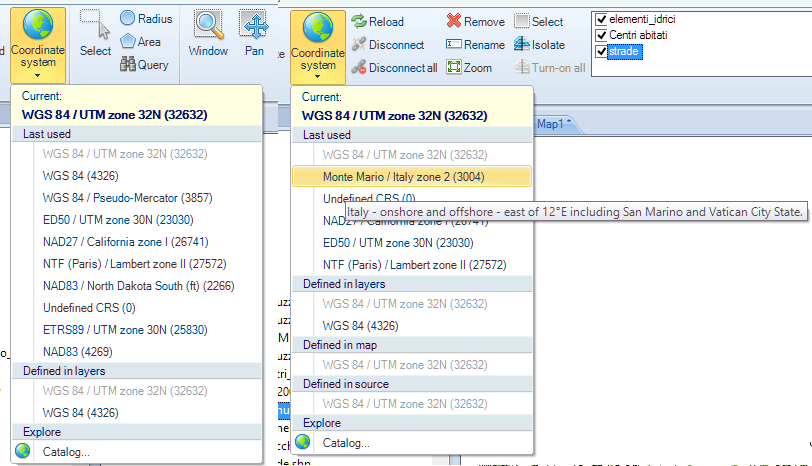
You can choose the Coordinate System (CRS) for a Map in Spatial Manager Desktop™ using the “Coordinate system” function in the “Start” ribbon, and for a Layer you will use the “Coordinate system” function in the “Layers” ribbon. Both functions expand menus to select the CRS as follows:
- Map
- Information only: the current CRS defined for the Map. If the Map has not defined a CRS, you will see it as “Undefined”. If the current CRS shown is not “Undefined”, be careful when modifying it because there must be some reason for this value.
- The “Favorite” (last used) Map CRS list (if any).
- The list of the CRSs defined for all the Layers in the Map (if any).
- Access to the CRS Catalog of the application.
Note: To unassign (undefine) the Coordinate System of the Map, choose “Undefined CRS” (EPSG 0).
- Layer
- Information only: the current CRS defined for the selected Layer. If the selected Layer has not defined a CRS, you will see it as “Undefined”. If the current CRS shown is not “Undefined”, be careful when modifying it because there must be some reason for this value.
- The “Favorite” (last used) Layer CRS list (if any).
- The list of the CRSs defined for all the Layers in the Map (if any).
- The CRS defined for the Map (if the Map has a CRS defined).
- Only for External Layers: the CRS defined for the data source of the Layer (if any).
- Access to the CRS Catalog of the application.
Note: To unassign (undefine) the Coordinate System of a Layer, choose “Undefined CRS” (EPSG 0).
For each CRS in these menus you will see:
- The name of the CRS.
- The EPSG number for the CRS (in brackets).
- A tooltip showing the complete description of the CRS.
Note: If the name and the EPSG number of a CRS are greyed in the lists, this means that it is the same CRS as that already selected for the Map or the Layer.
- Notes:
- To learn more about the use of the CRS Catalog, you can read this paragraph here: Transformation of coordinates.
- When a Map has no CRS defined, it will take the CRS from the first Layer which has a CRS defined, so:
- If you are loading new Layers in a Map, the first Layer with a defined CRS will define the CRS for the Map.
- If you have a Map without a CRS defined and the Layers neither have their CRSs defined, when you choose a CRS for a Layer, this CRS will also apply to the Map.
- Projection on the fly behavior:
- As Spatial Manager Desktop™ projects on the fly the Features in the Layers according to their CRSs and the CRS of the Map, when you modify these parameters, you will see graphical changes in the Workspace. Be careful when choosing CRSs for the Map and for the Layers because you can apparently “lose” Features of some Layers in the Workspace if you make wrong or inappropriate selections for these parameters.
- The Features in Layers without a CRS defined will not be projected on the fly.
- If the Map has no CRS defined, no Features will be projected on the fly. Although usually you should not want to do it, you can disable the “projection on the fly” behavior by selecting the CRS “Undefined CRS” (EPSG 0) for the Map. You can select the “Undefined CRS” (EPSG 0) each time you want to unassign (undefine) the Coordinate System of a Map or a Layer.
- The base Map backgrounds are only available with projected Coordinate Reference Systems.
- Coordinate Systems and Transformation details.
- Coordinate Systems objects available in the current version.
Disclaimer:
- Some components shown here (providers, names, window styles, etc.) may differ slightly from those on your computer.
- Certain features require Internet access. If you experience issues, check with your network administrator about a possible Proxy server. You can configure the Proxy settings in the application options.
- Some geographic data providers (Geocode, image maps, etc.) may require a user account, which you can set up in the Service Provider API Keys section of the application options.