
Layers
Arrange your maps in Layers that can be fully managed by the application.
Types and status for the Layers in a Map
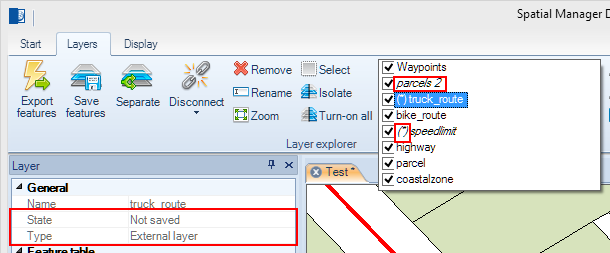
In a Map of Spatial Manager Desktop™ you can find these types of Layer (you can view this property in the “Properties” panel when you select a Layer).
- “External Layer”: when it is a Layer loaded from an external source (a table from a file, data server, data store, etc.).
- “Embedded in the Map”: when the Layer content is located inside the Map (SPM) file. You may note that this type of Layer is in italics in the list of the ribbon “Layers”.
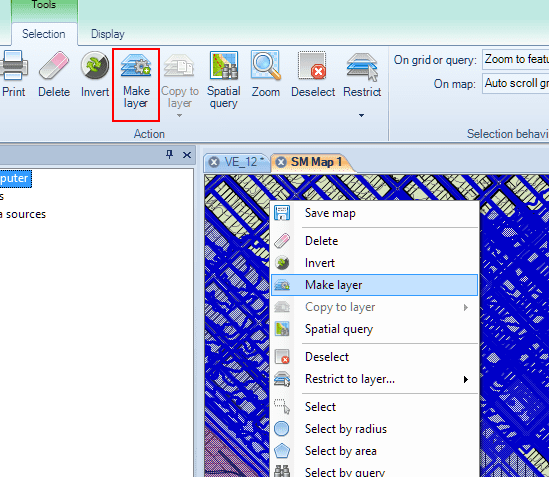
- “New”: when it is a Layer created in the Map, always by copying Features selected from other Layers, and the Map has not been saved after it is created. It is a special case of “Embedded in the Map” Layers.
‘‘Note: Creating a new Layer is a valid operation even when the selected Features belong to more than one Layer, but be careful because the Data grid of the new Layer will include the fields of all the Layers in the selection.’’
- “New”: when it is a Layer created in the Map, always by copying Features selected from other Layers, and the Map has not been saved after it is created. It is a special case of “Embedded in the Map” Layers.
And you can find these statuses for a Layer:
- Considering its ‘‘saving status’’ (you can view this property in the “Properties” panel when you select a Layer):
- “Saved”: when the Layer content is currently saved.
- For “External Layers”, this means that the Layer content is the same as the content in the external data source.
- For “Embedded in the Map” Layers, this means that the Layer content is the same as the content in the Map (SPM) file.
- “Not saved”: when the Layer content is not currently saved. You may note that the Layer name is preceded by an asterisk in the list of the ribbon “Layers” for this type of Layer.
- For “External Layers”, this means that the Layer content has been modified and it is not the same as the content in the external data source.
- For “Embedded in the Map” Layers, this means that the Layer content has been modified and it is not the same as the content in the Map (SPM) file.
- “Saved”: when the Layer content is currently saved.
- Considering its ‘‘editing status’’:
- “Non editable”: when the Layer is an “External Layer” and has been loaded from a read-only data source. When you select a “Non editable” Layer, you will see all the values grayed in the Data grid because these values cannot be modified.
- “Editable”: all the other Layers (all “Embedded in the Map” Layers and all “External” Layers loaded from a read-and-write data source).
Change the type or the status of a Layer
There are several ways to change the type or the status of a Layer in Spatial Manager Desktop™.
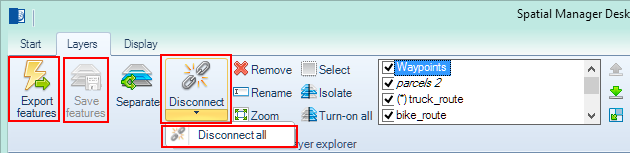
- To convert an “External Layer” to an “Embedded in the Map” Layer: you have to use the “Disconnect” function to disconnect one Layer or the “Disconnect all” function to disconnect all the Layers in a Map. You cannot undo these operations, so you should avoid saving the original Map. It is recommended to save the modified Map using another name or in another location.
- To convert an “Embedded in the Map” Layer to an “External Layer”: there is no direct way to do it, but you can “Export” the Features of the Layer to an external table (choosing the best data Provider for you), load this table in the Map, and then remove the original Layer.
- To “Save” a “Not saved” Layer:
- For “External Layers”: you have to “Save features”, by using this function or by “Saving” the Map.
- For “Embedded in the Map” Layers: you have to “Save” the Map.
- To convert a “Non editable” Layer to an “Editable” Layer: there is no direct way to do it, but you can “Disconnect” a “Non editable” Layer from its read-only source, or you can select all Features in the Layer and “Make” a new Layer including a copy of the selected objects.
Sort the relative position of the Layers in a Map
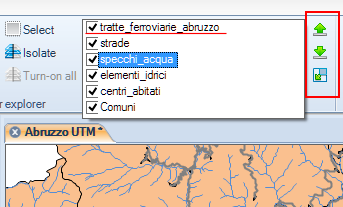
You can sort the position of the Layers in a Map in Spatial Manager Desktop™ simply by selecting the Layer to move and dragging and dropping it on the Layer list of the ribbon “Layers”. You can also select the Layer to move and use the up and down arrows at the right of the Layer list. The content of the upper Layers will be drawn above the content of the lower Layers in the Maps.
Expand the list of Layers in a Map
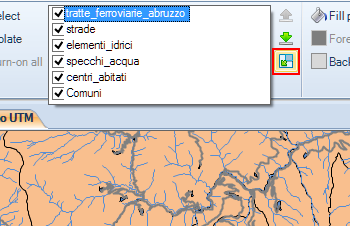
If you need to expand the list of Layers in a Map in Spatial Manager Desktop™, click on the “Drop down layer list” button next to the Layer list. You can also select or sort Layers in the expanded list.
Select a Layer in a Map
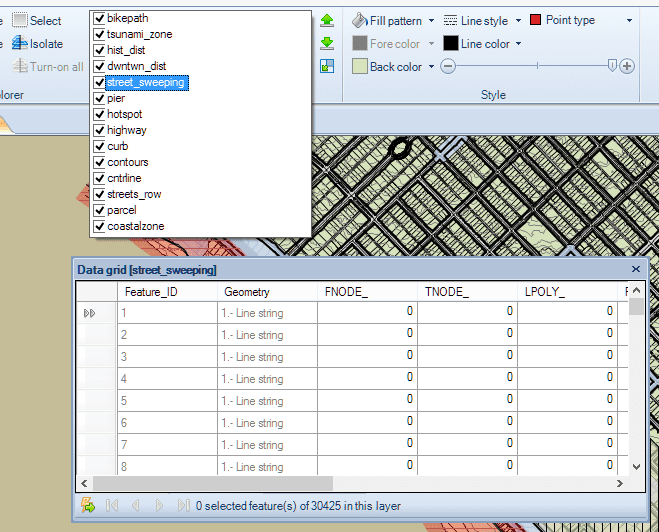
You will select a Layer in a Map in Spatial Manager Desktop™ by clicking on its name in the list of Layers in the “Layers” ribbon. There will be only one selected Layer in the Map at the same time, and the Data grid will show the data of the Features in this Layer. Most functions in the ribbon “Layers” apply only to the selected Layer.
Turn on or off a Layer in a Map
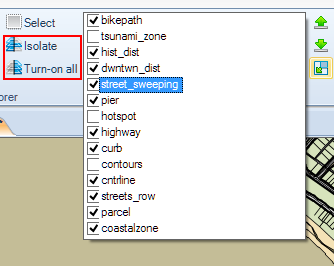
You can turn on or off a Layer in Spatial Manager Desktop™ by clicking on the little box next to the Layer name in the list of Layers in the “Layers” ribbon. You can also use the function “Isolate” in this ribbon to turn off all Layers except the selected Layer, or the function “Turn on all” to turn on all Layers in the Map.
There must always be one selected Layer, and the selected Layer cannot be turned off. If you turn off the current selected Layer, the first Layer turned on in the Layer list (if any) will now be the selected Layer.
Separate a Layer into other Layers for thematic or data discrimination analysis
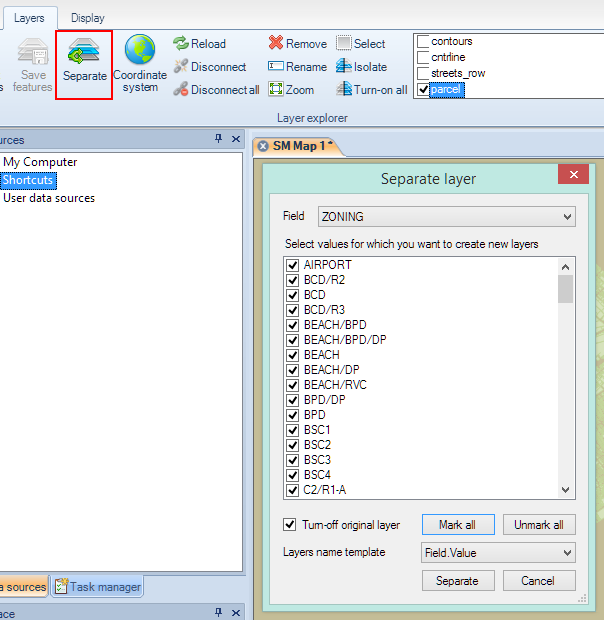
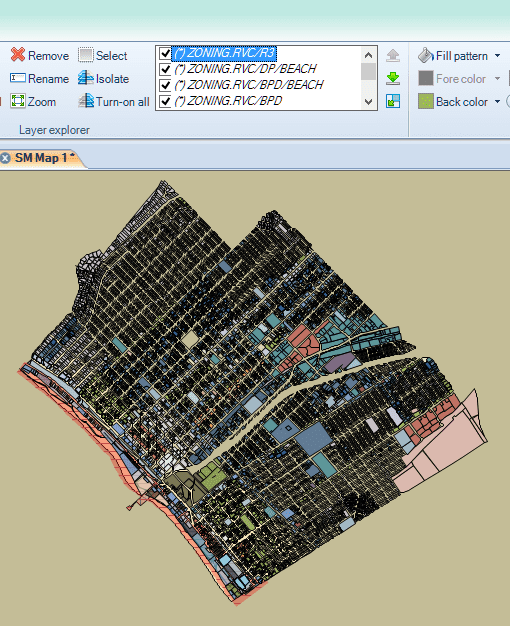
You can create new Layers from another Layer according to the values of a field in Spatial Manager Desktop™. To do it, select the Layer to separate and use the “Separate” function in the “Layers” ribbon. You can select a field of the selected Layer to separate, choose the values in this field to create new Layers, and the template of the new Layers’ names. You will get a warning about the amount of new Layers to create before continuing with this process. Also, you can turn off the Layer to separate it in the same process.
Rename or remove a Layer of a Map
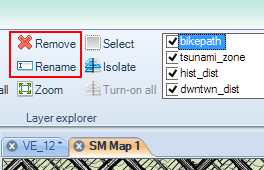
You can rename or remove a Layer of a Map in Spatial Manager Desktop™ by selecting the Layer to rename or remove from the Layer list and by using any of these functions in the “Layers” ribbon.
Change the location or rename the data sources of external Layers in a Map
You can change the location or rename the data sources of external Layers in a Map in Spatial Manager Desktop™, as the application includes smart technology which makes it easy to find the changed sources of external Layers when loading the Map. This is how this technology works:
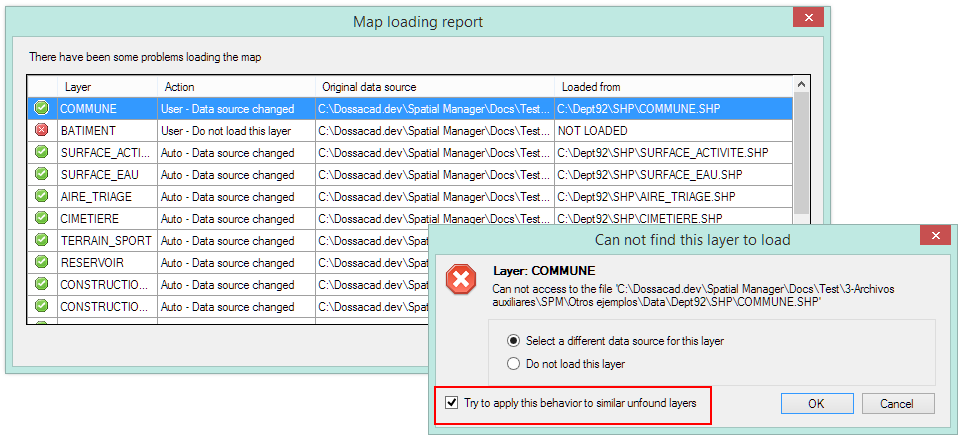
- You can always select a new location for a data source not found (moved or renamed) when loading a Map.
- You can set the application to perform an automatic search for similar data sources not found (moved or renamed) when loading a Map and try to find them, based on the following principles:
- Files: when the original path for two files is the same and the new data source is:
- A file in a folder: the application replaces the path of the file with that of the new file.
- A file in a Shortcut: the application looks for the file in the selected folder within the new Shortcut.
- Shortcuts: when the original Shortcut for two files is the same and the new data source is:
- A file in a folder: for the following cases, the relative path within the original Shortcut is taken into account to search for the file in the folders.
- A file in a Shortcut: the original Shortcut is replaced by the new Shortcut.
- User Data Sources (UDS) (“Standard” and “Professional” editions only): it is only solved if another UDS is selected.
- Files: when the original path for two files is the same and the new data source is:
- The application informs you by showing a table including the locations of the found or not found data sources when the loading of the Map is finished. In addition, you can see in this table if the changes of the locations have been performed by the user or automatically by the application.
- Finally, the application asks the user to save the Map when the loading of the Map is finished, including the new data sources’ locations.
Disclaimer:
- Some components shown here (providers, names, window styles, etc.) may differ slightly from those on your computer.
- Certain features require Internet access. If you experience issues, check with your network administrator about a possible Proxy server. You can configure the Proxy settings in the application options.
- Some geographic data providers (Geocode, image maps, etc.) may require a user account, which you can set up in the Service Provider API Keys section of the application options.