
Open
Arrange your maps in Layers that can be fully managed by the application.
Open a Map
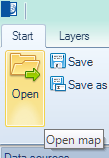
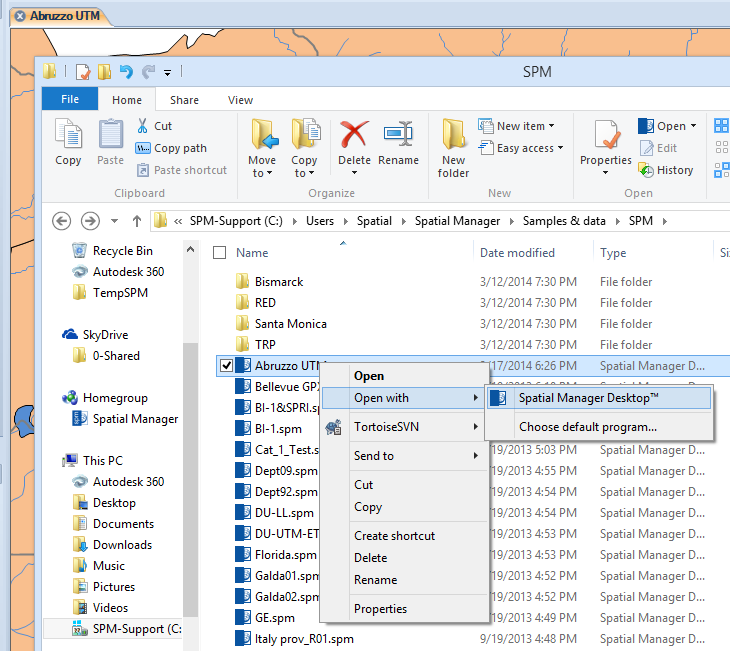
You can open a Map in Spatial Manager Desktop™ by using the function “Open” in the “Start” ribbon and selecting the file *.spm to open, by double-clicking on an *.spm file in Windows Explorer, or by right-clicking on an *.spm file and selecting “Open” in Windows Explorer.
Spatial Manager Desktop™ uses *.spm as the Map file extension, and the internal structure of these files is based on SQLite database files.
Handle one Map or multiple Maps
You can keep open as many Maps as you want in Spatial Manager Desktop™ (only limited by the amount of your system memory), each one located inside its own Workspace. Using the tabs in the Workspaces, you can:
- Sort the Workspaces: by dragging and dropping the tab of a Map to the desired location.
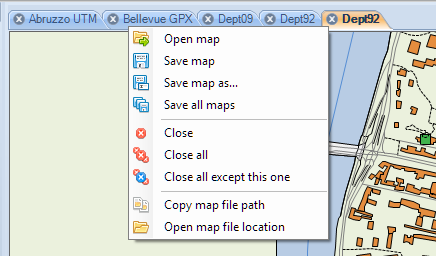
- Use the Workspaces contextual menu (mouse right-click on the tab) to:
- Open another Map (Open map). It will be opened in a new Workspace.
- Save the Map under your right-clicked tab (Save map).
- Save the Map under your right-clicked tab using a different name and/or at another location (Save map as).
- Save all open Maps (Save all maps).
- Close the Map under your right-clicked tab (Close). You will get a warning if this Map has changed.
- Close all open Maps (Close all). You will get a warning for every modified Map to close.
- Close all open Maps except the one under your right-clicked tab (Close all except this one). You will get a warning for every modified Map to close.
- Copy the file path of the Map under your right-clicked tab to the Windows clipboard (Copy map file path). This function will be disabled if the Map is a new Map and has not been saved yet.
- Open the folder containing the file of the Map under your right-clicked tab (Open map file location). This function will be disabled if the Map is a new Map and has not been saved yet.
Disclaimer:
- Some components shown here (providers, names, window styles, etc.) may differ slightly from those on your computer.
- Certain features require Internet access. If you experience issues, check with your network administrator about a possible Proxy server. You can configure the Proxy settings in the application options.
- Some geographic data providers (Geocode, image maps, etc.) may require a user account, which you can set up in the Service Provider API Keys section of the application options.