
Styles
Arrange your maps in Layers that can be fully managed by the application.
Stylize a Map
You can stylize the Layers in a Map and the Map background in Spatial Manager Desktop™. These parameters will be saved when you save the Map.
- To stylize a Layer in the Map, go to the “Layers” ribbon, select a Layer, and apply styles as follows:
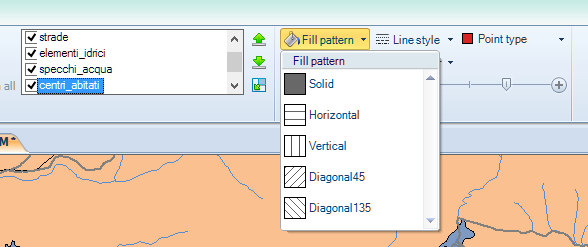
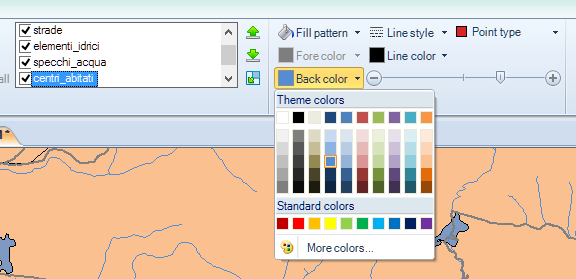
- Set up the fill style parameters for polygonal-type Features (if any in the Layer):
- Select the fill pattern.
- Select the foreground color (except if you have chosen the “Solid” pattern).
- Select the background color.
- Select the opacity/transparency for the background.
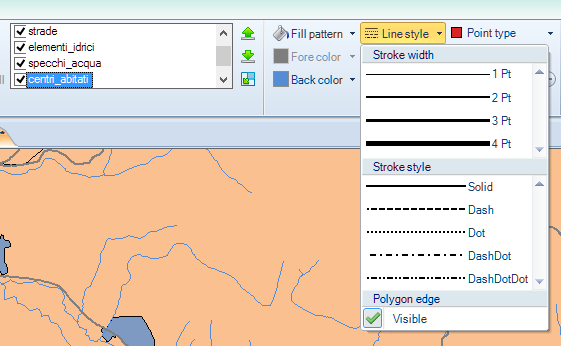
- Select the line style for the edge (stroke width and stroke style), and select whether or not you want to draw the edge.
- Set up the line style parameters for linear-type Features (if any in the Layer):
- Select the line style (stroke width and stroke style).
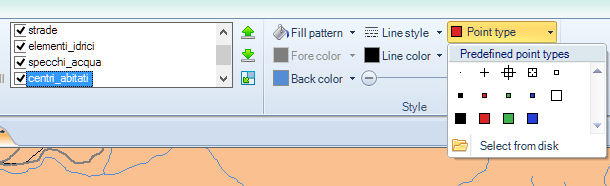
- Set up the point style for point-type Features (if any in the Layer):
- Select the point type from the predefined point types list or by selecting an image from disk and defining its insertion base. This image will remain in the point type list, along with the current instance of the application, to select it whenever you want.
- Set up the fill style parameters for polygonal-type Features (if any in the Layer):
- To change the Map background, go to the “Start” ribbon. You can choose:
- A preset or user-defined base map from some base map providers (requires an Internet connection).
Note: To use a base map as Map background, the Map must have defined a Coordinate System. - A solid color.
- Restore the default solid color set in the application configuration.
- A preset or user-defined base map from some base map providers (requires an Internet connection).
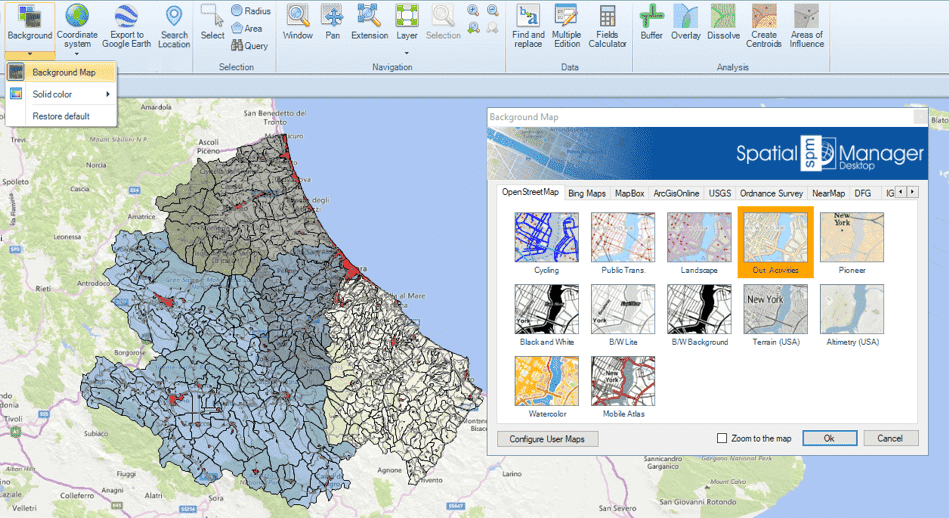
The option “Zoom to the map” automatically changes the Map view to the ‘Background Map’ extent defined in the server.
To learn more about ‘Background Maps’ and how to configure User maps, take a look at the Background Maps.
Set up any default style value for new Maps or new Layers
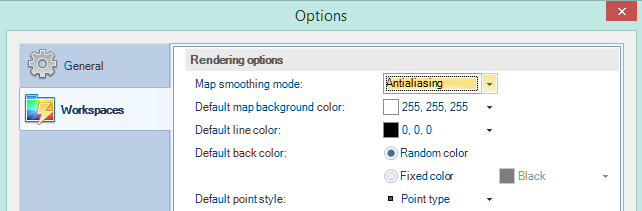
In the “Options\Workspaces” window of Spatial Manager Desktop™, you can set up some default style values for new Maps or new Layers:
- Default Map background solid color.
- Layer style defaults:
- Default line color.
- Default fill background color. For this parameter, you can choose a “Fixed color” or the “Random color” option, which lets the application apply random background colors for polygons in new Layers.
- Default point style, which you can choose from the predefined point types list. Furthermore, you can choose the “Antialiasing” option to display the Maps on the screen using a smoothing mode.
Disclaimer:
- Some components shown here (providers, names, window styles, etc.) may differ slightly from those on your computer.
- Certain features require Internet access. If you experience issues, check with your network administrator about a possible Proxy server. You can configure the Proxy settings in the application options.
- Some geographic data providers (Geocode, image maps, etc.) may require a user account, which you can set up in the Service Provider API Keys section of the application options.