
View
Arrange your maps in Layers that can be fully managed by the application.
Change the view of a Map in a Workspace
You can change the view of a Map in Spatial Manager Desktop™ by choosing different ways to make zooms and pans inside the Workspace:
- Zoom in or zoom out:
- Turn the mouse wheel over the place that you want in the Map. One direction of rotation will zoom in, and the opposite will zoom out.
- Click on the “Zoom in” or the “Zoom out” functions in the ribbon (“Start\Navigation”) and select the place in the Map to do it.
- Zoom in by rectangular window:
- Click on this function in the ribbon (“Start\Navigation”) and define the window to zoom in.
- Click on this function in the contextual menu (right-click) of the Workspace and define the window to zoom in.
- Zoom to the Map extension:
- Click on this function in the ribbon (“Start\Navigation”).
- Click on this function in the contextual menu (right-click) of the Workspace.
- Click twice on the mouse wheel when the cursor is over the Map.
- Zoom to a Layer:
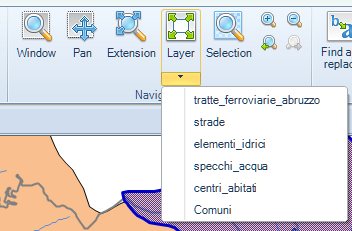
- Click on this function in the ribbon (“Start\Navigation”) and select the Layer that you want to zoom.
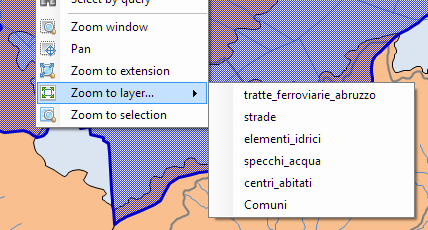
- Click on this function in the contextual menu (right-click) of the Workspace and select the Layer that you want to zoom.
- Click on this function in the ribbon (“Layers\Layer explorer”) to zoom to the selected Layer.
- Zoom to the Features selection (if any):
- Click on this function in the ribbon (“Selection-Tools\Action”) to zoom to the current Features selection.
- Click on this function in the contextual menu (right-click) of the Workspace to zoom to the current Features selection.
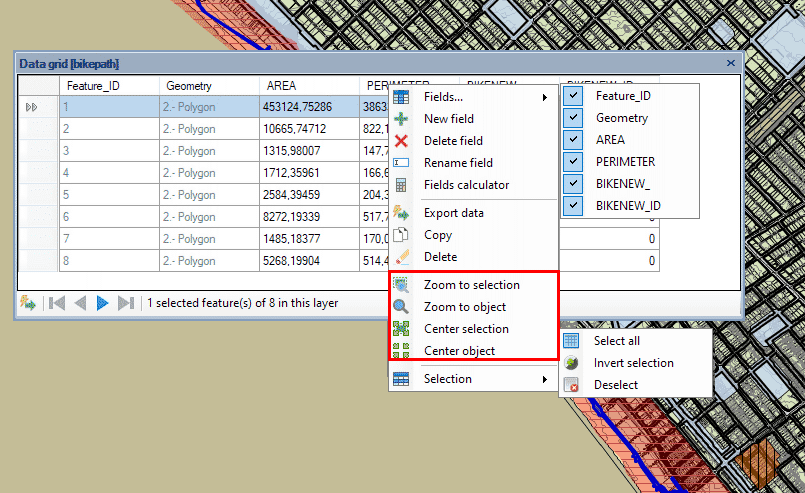
- Clicking on the function “Zoom to selection” in the Data grid right-click menu will also zoom to the current Features selection.
- The function “Zoom to feature” will zoom to the Feature below the cursor in the Data grid at the right-click time, regardless of which features are selected.
- Clicking on the function “Zoom to selection” in the Data grid right-click menu will also zoom to the current Features selection.
- Center the Features selection (if any):
- Click on the function “Center selection” in the Data grid right-click menu to center the view on the current Features selection.
- The function “Center to feature” will center the view on the Feature below the cursor in the Data grid at the right-click time, regardless of which features are selected.
- Click on the function “Center selection” in the Data grid right-click menu to center the view on the current Features selection.
- Pan:
- Click on this function in the ribbon (“Start\Navigation”) and drag the cursor through the Workspace.
- Click on this function in the contextual menu (right-click) of the Workspace and drag the cursor through the Workspace.
- Press the mouse wheel and drag the cursor through the Workspace.
- Go to the “Previous view” (if any) or the “Next view” (if any): click on these functions in the ribbon (“Start\Navigation”).
Some other functions, such as selecting Features in the Data grid or by queries, can make changes in the view of the Map depending on the application configuration.
Disclaimer:
- Some components shown here (providers, names, window styles, etc.) may differ slightly from those on your computer.
- Certain features require Internet access. If you experience issues, check with your network administrator about a possible Proxy server. You can configure the Proxy settings in the application options.
- Some geographic data providers (Geocode, image maps, etc.) may require a user account, which you can set up in the Service Provider API Keys section of the application options.