
Features
Manage the alphanumeric data attached to the elements, design and edit the structure which will be used to store the data.
Select Features of a Map
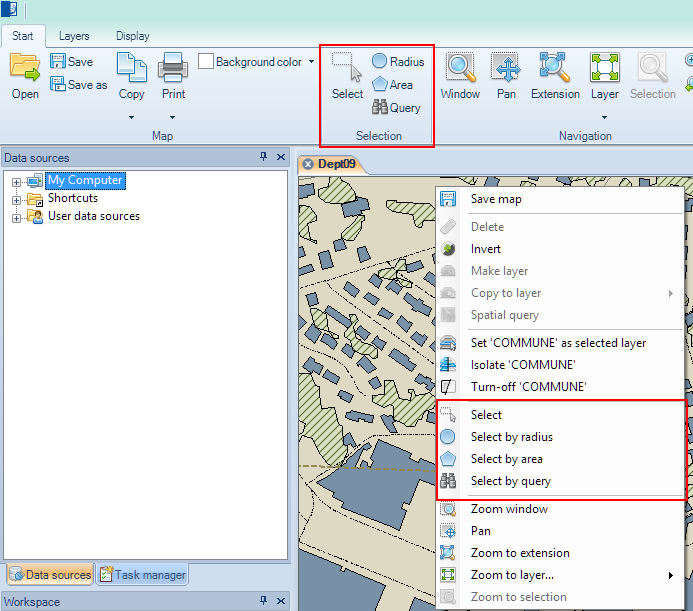
There are multiple methods to select Features in Spatial Manager Desktop™.
- Graphical selections in the Map.
- Single selection: by clicking on a Feature in the Map.
- Rectangular selection:
- By dragging the cursor left to right over the Map to define a rectangle (blue) and selecting all Features completely included in this rectangle.
- By dragging the cursor right to left over the Map to define a rectangle (green) and selecting all Features completely or partially included in this rectangle.
- Radius selection:
- By dragging the cursor left to right over the Map to define a circle (blue) and selecting all Features completely included in this circle.
- By dragging the cursor right to left over the Map to define a circle (green) and selecting all Features completely or partially included in this circle.
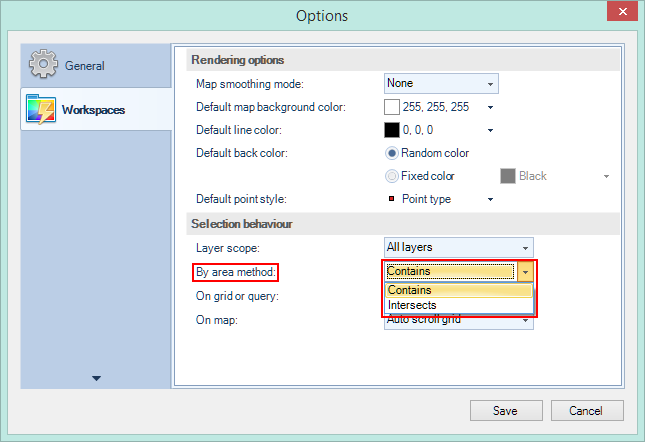
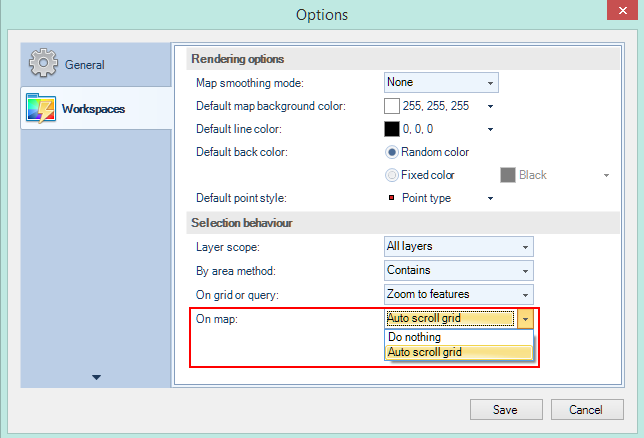
- Polygonal area selection: by defining a polygonal area in the Map. To finish this area definition, you must double-click over the last vertex of the polygon. In “Options\Workspaces” you can configure if you want to select all Features completely included (Contains) in this area, or select all Features completely or partially included (Intersects) in this area.
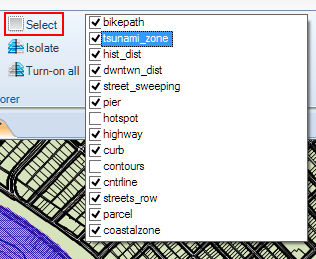
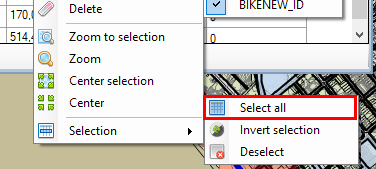
- Select a whole Layer:
- You can select all the Features in the selected Layer by using the “Select” function in the “Layers” ribbon. You can also perform this operation from the Data Grid right-click menu.
- Selection queries:
- You can select Features in a Layer (or in all Layers) by querying their data. You can define simple or complex queries by choosing the “or”/”and” operators, and you can apply the query to all the Features in the Layer (or in all Layers) or to the current selection only. As you will see below, the option “Keep current selection” allows you to add the Features resulting from the query to the current selection. You cannot choose the option “Apply to current selection” if you choose “Keep current selection” and vice versa.
- You can choose and search among the available values for a Field.
- The function keeps the list of query conditions used the last time it was executed.
- If there are no results during a query, the function window is shown again, keeping the list of query conditions.
- You can use the Clean button (the “broom”) to remove all query conditions from the list.

- Data grid selection:
- You can select a row in the Data grid by clicking on this row. If you want to add rows to the selection, you can use the CTRL or SHIFT keys.
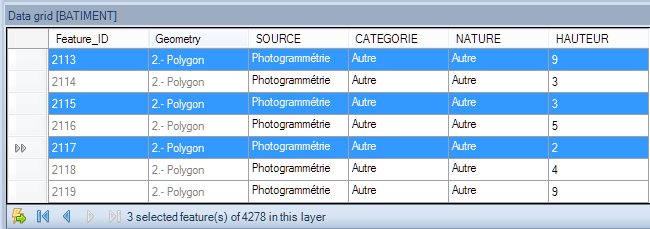
Notes:
- When you apply any graphical selection method, you can control the Data grid behaviour in “Options\Workspaces” and in the “Selection\Tools” ribbon.
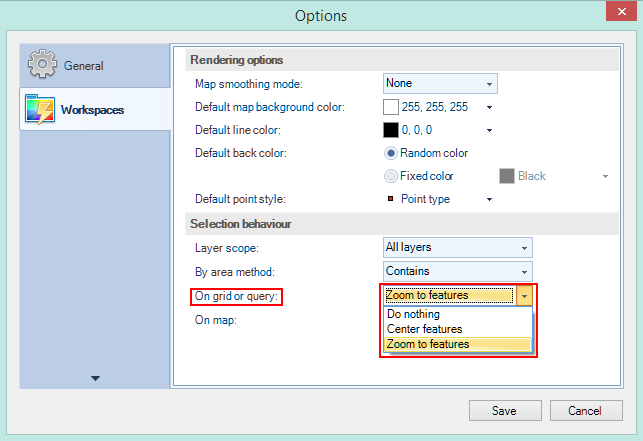
- When you apply query or Data grid selection methods, you can control the Map view behaviour also in “Options\Workspaces” and in the “Selection\Tools” ribbon.

Disclaimer:
- Some components shown here (providers, names, window styles, etc.) may differ slightly from those on your computer.
- Certain features require Internet access. If you experience issues, check with your network administrator about a possible Proxy server. You can configure the Proxy settings in the application options.
- Some geographic data providers (Geocode, image maps, etc.) may require a user account, which you can set up in the Service Provider API Keys section of the application options.