
Spatial queries
Query selections by performing geometric operations to locate features that interfere with other features under certain conditions (intersects, touches, within, contains, disjoint, overlaps or crosses).
What are Spatial queries
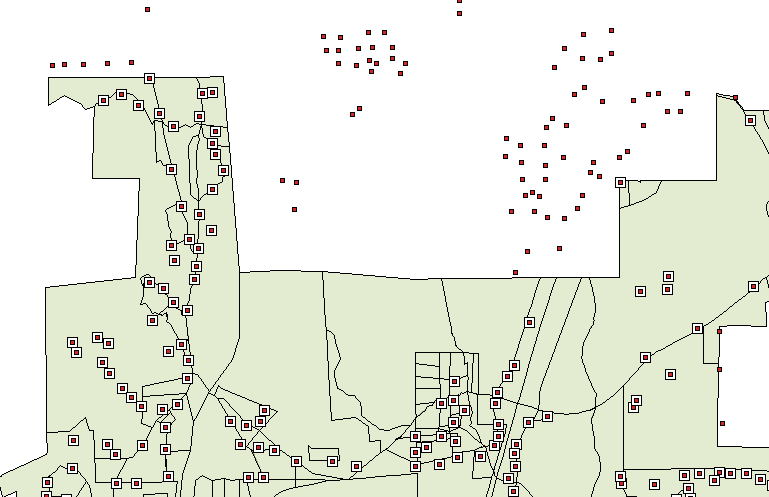
Spatial queries are geometric operations that Spatial Manager Desktop™ can perform to help you locate Features that interfere with other Features under certain conditions. For example, as you can see in the next picture, to locate which points of a Layer are found within the polygons of another Layer.
Define a Spatial query
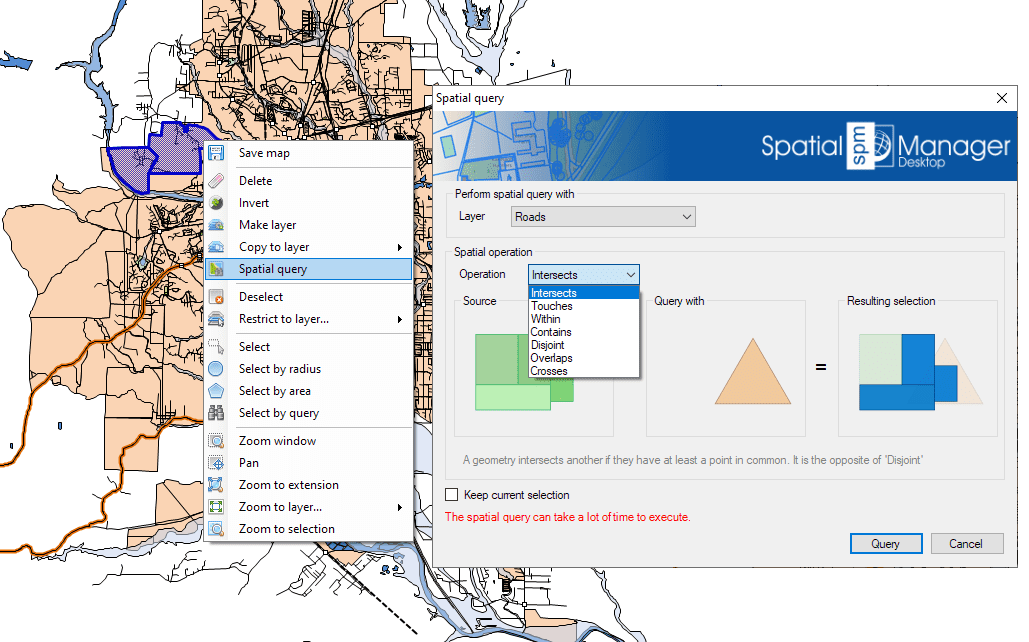
To define a Spatial query in Spatial Manager Desktop™, you need to define the base of the query first by selecting the Features to operate. Next, you must select the “Spatial query” function, and then choose a Layer to query and the type of operation to perform. When you select the Features to operate, you can select a full Layer if you want to perform an interference operation between two full Layers. In addition, the selection resulting from the operation can be added to the Features already selected.
Operations for Spatial queries
The list of operations that Spatial Manager Desktop™ can perform using Spatial queries is the following:
- Intersects: A geometry intersects another one if they have at least one point in common. It is the opposite of ‘Disjoint’. For example, combined with Buffers, features that are located at a certain distance from other features, which will normally be points or linear features (such as buildings located at a certain distance from road or street axes, etc.).
- Touches: A geometry touches another one if they have common points only at their boundaries, without intersection, and neither contains or is equal to the other. For example, buildings touching another building within a block of contiguous buildings (the map must be very precise because no intersections should occur).
- Within: A geometry is within another one if it is completely inside or they are equal. It is the inverse of ‘Contains’. For example, to select points representing pharmacies within a neighborhood, polygons representing hospitals within a municipality, or buildings within a parcel, etc.
- Contains: A geometry contains another one if the second one is completely inside the first one or they are equal. It is the inverse of ‘Within’. For example, to select all the parcels in a municipality that contain one or more buildings.
- Disjoint: A geometry is disjoint from another one if they do not have any points in common (that is, “out of”: It does not intersect and does not touch). It is the opposite of ‘Intersects’.
- Overlaps: A geometry overlaps another one if they have areas in common, but neither is fully inside the other and they are not equal. For example, polygons that intersect but none of them are completely inside each other, i.e., “they cross”. A practical case could be the selection of buildings in one municipality that are located partially within the boundary of the municipality and partially within the boundary of another adjacent municipality.
- Crosses: A geometry (linear feature) crosses another one if it has at the same time parts inside and outside the second one. For example, to select road sections that are partially located within the boundaries of two or more municipalities.
Disclaimer:
- Some components shown here (providers, names, window styles, etc.) may differ slightly from those on your computer.
- Certain features require Internet access. If you experience issues, check with your network administrator about a possible Proxy server. You can configure the Proxy settings in the application options.
- Some geographic data providers (Geocode, image maps, etc.) may require a user account, which you can set up in the Service Provider API Keys section of the application options.