
Tools
Add/remove Features to/from a selection
- To add Features to a selection in Spatial Manager Desktop™:
- Press the CTRL key when you use any graphical selection method.
- Press the CTRL or SHIFT keys when you click on rows in the Data grid.
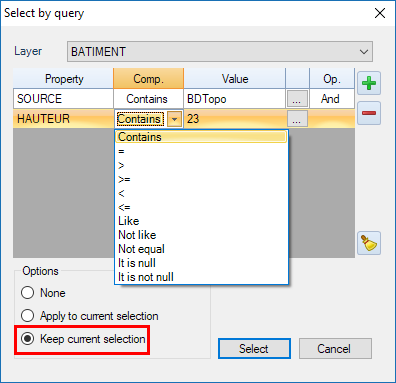
- Click the option “Keep current selection” when you perform a “Selection by query” (you can also find this option when performing “Spatial queries” — “Standard” and “Professional” editions only). As you can see above, the option “Apply to current selection” allows you to apply a query only to the selected Features. You cannot choose the option “Keep current selection” if you choose “Apply to current selection” and vice versa.
- To remove Features from a selection in Spatial Manager Desktop™:
- Press the CTRL key when you click on a Feature in the Map.
- Press the CTRL key when you click on a row in the Data grid.
Invert a selection
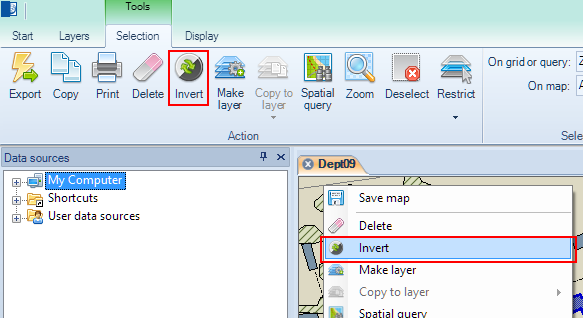
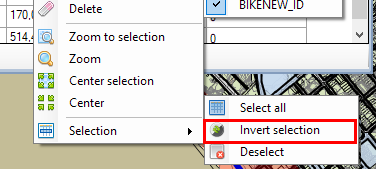
To invert a selection in Spatial Manager Desktop™, you must use the “Invert” function. You will get selected all Features not selected previously in the Map and vice versa. You can also use the Data grid right-click menu to invert a selection.
Deselect all the selected Features
There are four methods to deselect all selected Features in Spatial Manager Desktop™:
- Press the ESC key.
- Click anywhere empty in the Map.
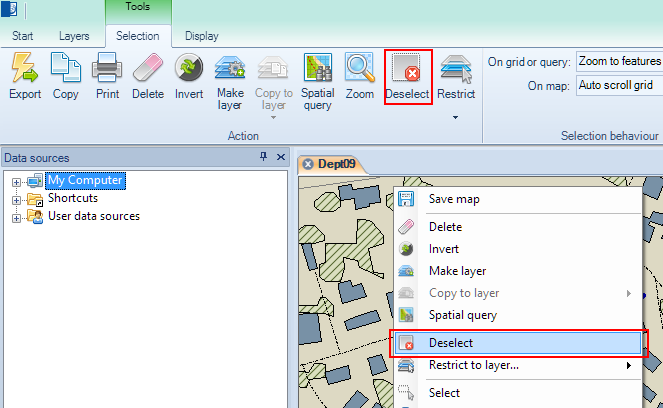
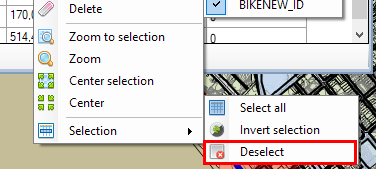
- Use the “Deselect” function.
- You can also access this function from the Data grid right-click menu.
Filter selections by Layer
You can use two ways to filter selections by Layer in Spatial Manager Desktop™:
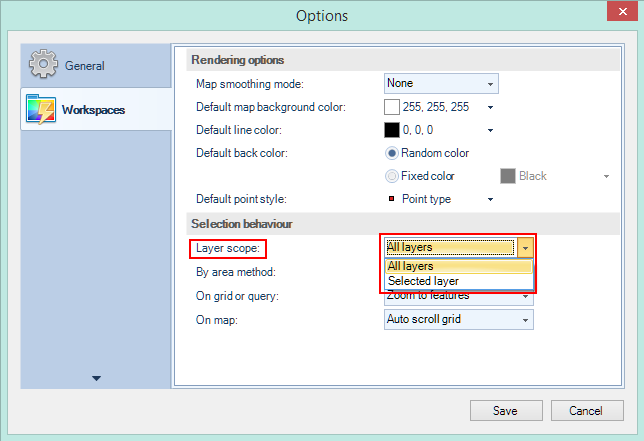
- By setting the “Layer scope” parameter in “Options\Workspaces”, so the graphical selections will apply to all Layers in the Map or to the selected Layer only.
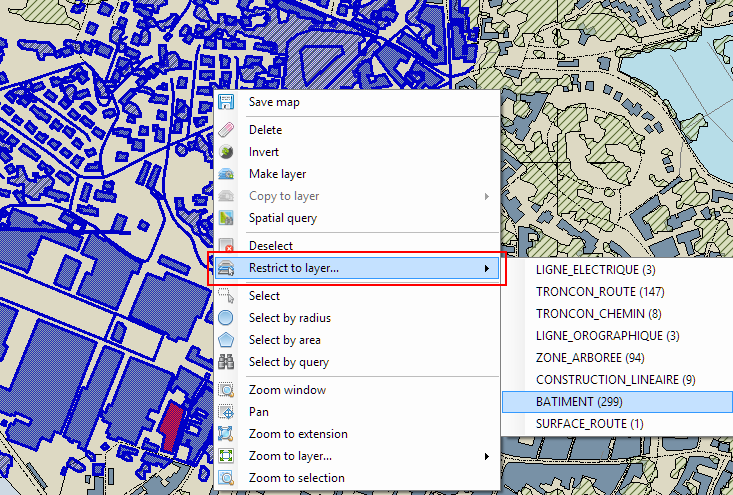
- Use the function “Restrict to layer” to limit the current selection to a single Layer. You can also use this function to find out how many Features are now selected in every Layer of a selection.
Disclaimer:
- Some components shown here (providers, names, window styles, etc.) may differ slightly from those on your computer.
- Certain features require Internet access. If you experience issues, check with your network administrator about a possible Proxy server. You can configure the Proxy settings in the application options.
- Some geographic data providers (Geocode, image maps, etc.) may require a user account, which you can set up in the Service Provider API Keys section of the application options.