
Advanced
Choose in AutoCAD from among a lot of dynamic Backgrounds Maps from providers such as Google Maps, OpenStreetMap, Bing, MapBox, Ordnance Survey, etc. or configure your own maps.
Enhance the quality of the ‘Background Maps’
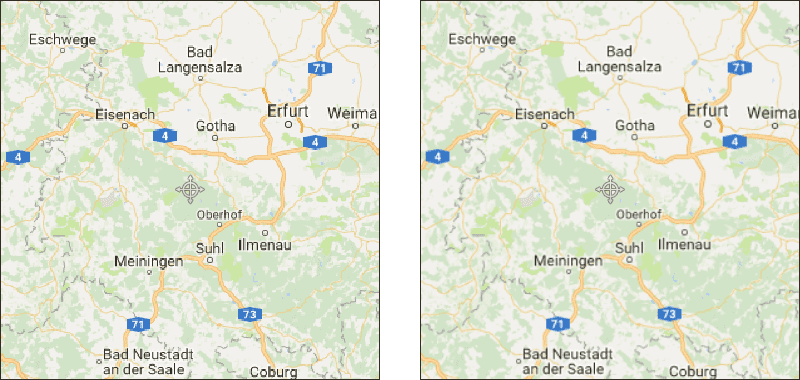
In Spatial Manager™ for AutoCAD you can increase or reduce the map images quality (at the cost of losing or gaining performance) through the “Images quality” option that you will find in the “Background Maps” section of the application Options (SPMOPTIONS).

Notes:
- The quality improvement will be more appreciable depending on your graphic system, the zoom level, and the selected ‘Background Map’.
- In addition, as discussed above, the quality improvements may be more necessary if the CRS of the map must be transformed, as the resulting map images will be obtained by deforming rectangular frames.
- The AutoCAD command ‘IMAGEQUALITY’ (Draft/High) can also affect the ‘Background Maps’ quality.
- Please read also the next article.
Improve the performance of the ‘Background Maps’ in AutoCAD
If you find bugs or decreases in the performance of Spatial Manager™ for AutoCAD when showing ‘Background Maps’, you can try to turn off the AutoCAD ‘Hardware Acceleration’. This setting may be essential when your system incorporates some specific graphic cards.
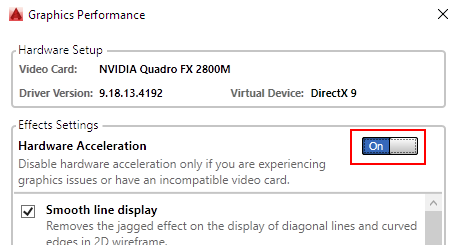
‘Hardware Acceleration’ switch in AutoCAD 2016. This setting may be different in other AutoCAD versions.
Use the ‘Background Maps’ and the ‘Online Maps’ of AutoCAD
AutoCAD includes the option to display ‘Online Maps’ (from 2014 version) in a similar way to Spatial Manager™ for AutoCAD when showing ‘Background Maps’. The technologies used in both cases are slightly different. The Spatial Manager™ for AutoCAD ‘Background Maps’ can be selected from many more map providers, and the application of these maps in the drawings will be easier to use for most basic and medium users. Using the ‘Background Maps’ of Spatial Manager™ for AutoCAD will not prevent you from also working with the AutoCAD ‘Online Maps’. Use one or the other, whichever you prefer at any given time.
AutoCAD includes a Ribbon Tab named ‘Geolocation’ to control the ‘Online Maps’, as well as any other available AutoCAD geographic tool.

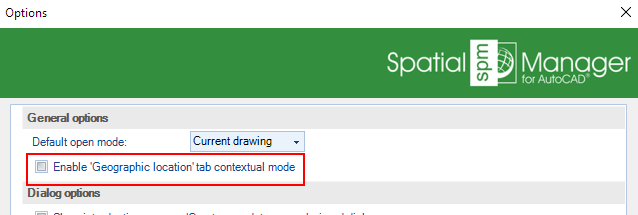
This tab is automatically loaded and displayed every time you access a geographic command in a contextual mode, which can be disruptive to your workflow. When you install Spatial Manager™ for AutoCAD this feature is disabled by default, but you can:
- Open the tab only when you need it through the right-click menu of the AutoCAD Ribbon:

- Or restore the AutoCAD default behavior in the Spatial Manager™ for AutoCAD Options (Exit/Enter AutoCAD to take effect):
Disclaimer:
- Some components shown here (providers, names, window styles, etc.) may differ slightly from those on your computer.
- Certain features require Internet access. If you experience issues, check with your network administrator about a possible Proxy server. You can configure the Proxy settings in the application options.
- Some geographic data providers (Geocode, image maps, etc.) may require a user account, which you can set up in the Service Provider API Keys section of the application options.