
Spatial files
Access to a data table inside a spatial file
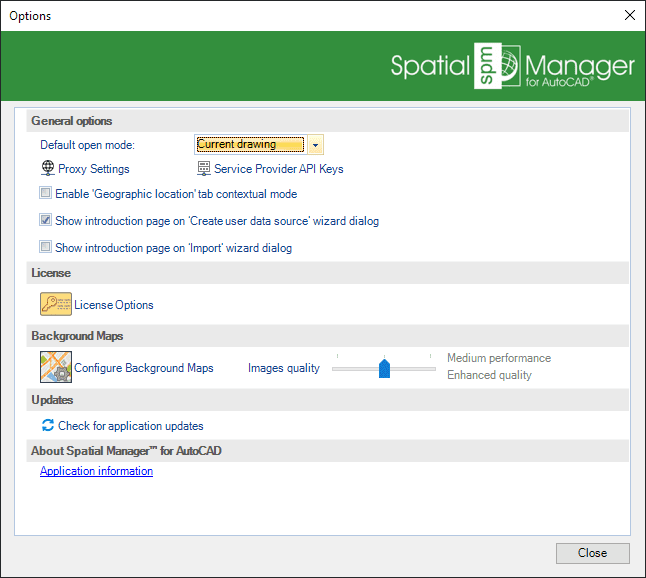
In Spatial Manager™ for AutoCAD you can access a data table from a spatial file using the right-click menu over the file item itself, over a table from the file, or over any UDS (“Standard” and “Professional” editions only) that refers to the file, in the ‘SpatialManager’ palette, to import its content into a new or the current AutoCAD drawing. You can also double-click the file item itself, a table from the file, or any UDS (“Standard” and “Professional” editions only) that refers to the file, in the ‘SpatialManager’ palette, to access and import its content into a new or the current AutoCAD drawing (this behaviour may be configured through the “Spatial Manager” tab in the “Options” window of AutoCAD or by running the SPMOPTIONS command).
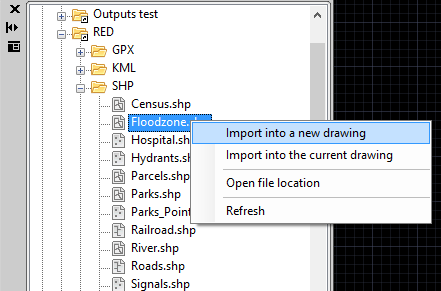
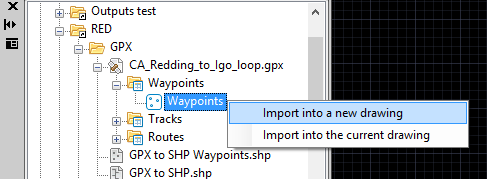
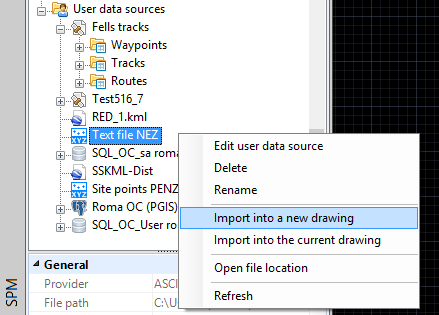
To perform the import process of the data table, see: Import.
Open directly the folder containing a file
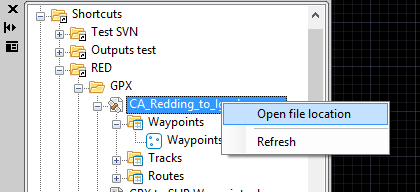
To open a file location in Spatial Manager™ for AutoCAD, use the right-click menu over the file item in the ‘SpatialManager’ palette.
Recognize each different type of file and its properties
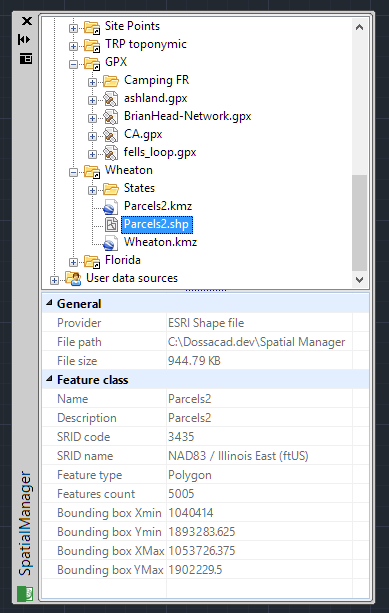
To recognize each different type of file, you will see the different icons used for each data provider in the “Data sources” area of the ‘SpatialManager’ palette in Spatial Manager™ for AutoCAD. In addition, when you select any file, you will see its properties in the “Properties” area of the ‘SpatialManager’ palette.
Disclaimer:
- Some components shown here (providers, names, window styles, etc.) may differ slightly from those on your computer.
- Certain features require Internet access. If you experience issues, check with your network administrator about a possible Proxy server. You can configure the Proxy settings in the application options.
- Some geographic data providers (Geocode, image maps, etc.) may require a user account, which you can set up in the Service Provider API Keys section of the application options.