
Zoom tools
Zoom to the objects on the selected layers, to the objects on the layers of selected objects, to the objects resulting from the last import process or to the selected objects.
Visualization tools
Spatial Manager™ for AutoCAD includes several commands that allow you to process zooms on selections, imports, etc.


- Zoom to Layer (SPMZOOMTOLAYER): Zoom to the objects on the selected layers (by default on the current layer).
- Zoom to Selection Layers (‘SPMZOOMTOSELECTIONLAYER’): Zoom to the objects on the layers of selected objects.
- Zoom to Import (‘SPMZOOMTOIMPORT’): Zoom to the objects resulting from the last import process.
- Zoom to Selection (‘SPMZOOMTOSELECTION’): Zoom to the selected objects.
Locate on the screen the selected objects
The Spatial Manager™ for AutoCAD SPMZOOMTOSELECTION command zooms to the current selection extent so you can locate all the selected objects in an optimal size view.


In addition, you can display on the screen all the objects included in the layers corresponding to the selected objects using the Spatial Manager™ for AutoCAD SPMZOOMTOSELECTIONLAYER command.

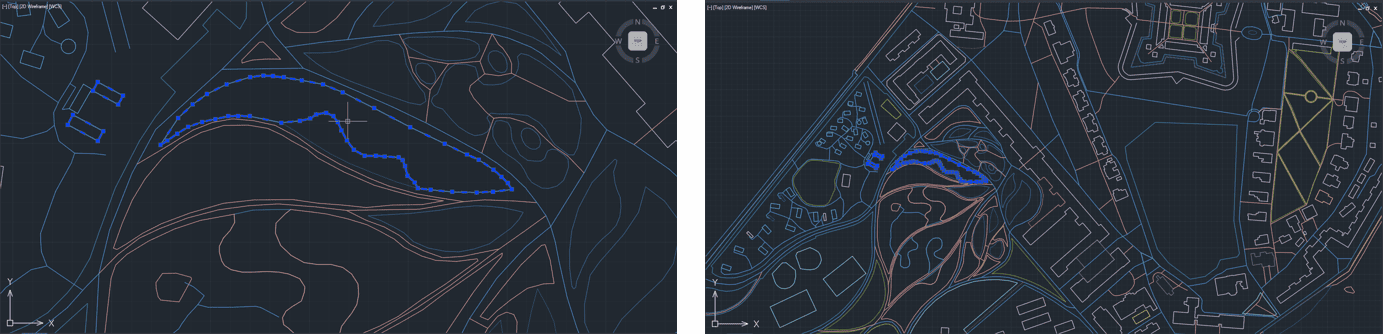
Note: These functionalities can be very handy as complements to the previous selection commands, but also if they are used with other AutoCAD selection functions.
Disclaimer:
- Some components shown here (providers, names, window styles, etc.) may differ slightly from those on your computer.
- Certain features require Internet access. If you experience issues, check with your network administrator about a possible Proxy server. You can configure the Proxy settings in the application options.
- Some geographic data providers (Geocode, image maps, etc.) may require a user account, which you can set up in the Service Provider API Keys section of the application options.