
Coordinate transformations
Export objects from AutoCAD to spatial files or databases, and saves their Extended Entity Data (EED/XDATA) as alphanumeric data tables.
Define a transformation of coordinates when exporting
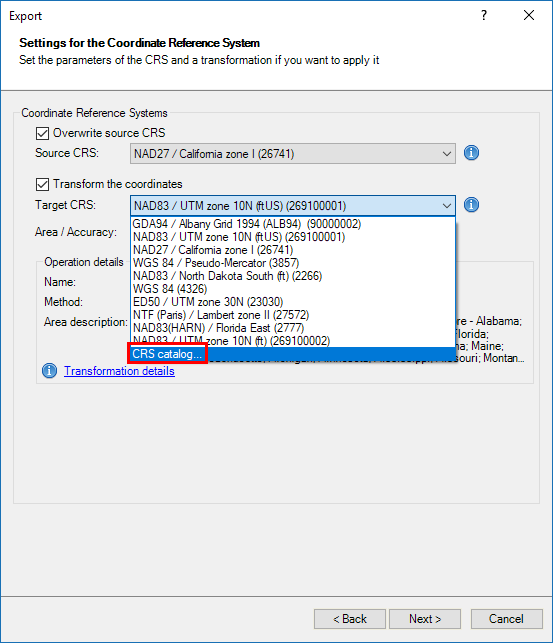
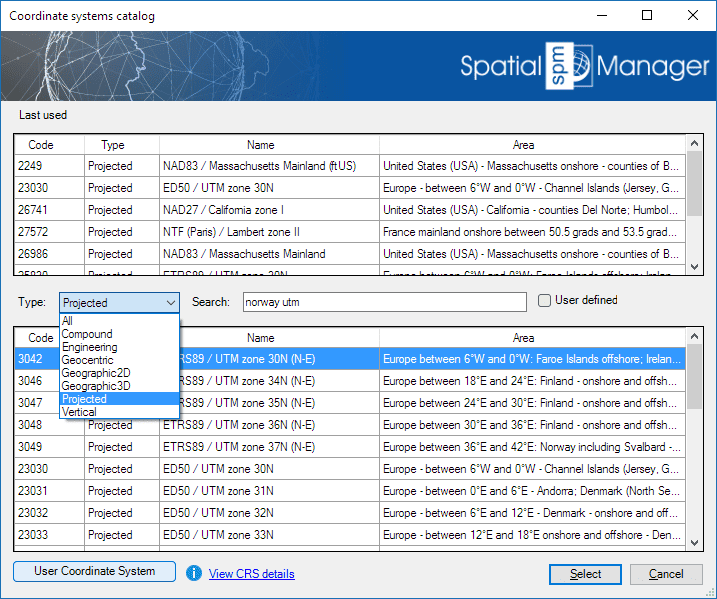
When you are exporting AutoCAD objects as spatial features using Spatial Manager™ for AutoCAD, you will see that you can choose a transformation of coordinates from the source to the target in the “Export” wizard. This means that the application will calculate a geometric transformation between the source and the target data, which will depend on the chosen CRS for the source (drawing) and for the target (outgoing features) data. You can choose the appropriate CRSs by clicking on “CRS catalog…” in the CRS dropdown list for the source or for the target data. In the CRS Catalog you can:
- Filter the CRSs by type (Geocentric, Projected, etc.).
- Choose a CRS by clicking on its row in the catalog.
- Search CRSs by typing the search criteria in the “Search” box. You can type as many words as you like here, separated by blanks. The application will find all the rows that include all these words in any column of the catalog.
After choosing a pair of valid CRSs for a transformation, you can choose the geographic area to apply it to (the application will choose by default the most common area for this transformation).
If the application “knows,” “guesses” or “can assume” the CRS of the source and/or the target data, they will be chosen by default. You will be able to modify this choice except in cases where only one CRS is valid; for example, for a KML or a KMZ file the only valid choice is the CRS WGS84 (SRID 4326), because these types of file are always defined using this CRS.
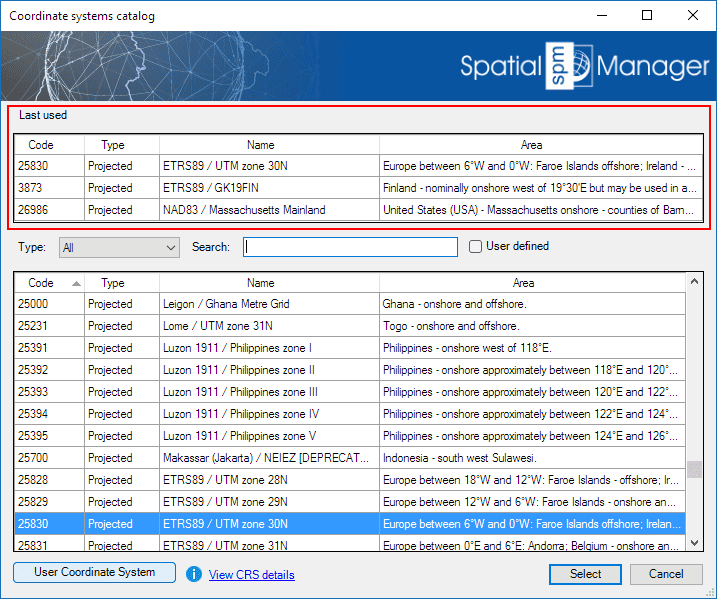
You can assign a CRS to the drawing, or modify it, using the command SPMSETCRS. By executing this command, you will access the CRS Catalog of the application, described in the previous lines. In this case, the type “Projected” will be selected by default because it is the most common choice.
- When exporting:
- Those objects without an assigned CRS will adopt the CRS of the drawing in the transformation of coordinates.
- If all the objects to export have the same assigned CRS and the drawing does not have an assigned CRS, the transformation of coordinates will take the CRS of the objects as the source CRS by default. Note: To unassign (undefine) the coordinate system of the drawing, choose “Undefined CRS” (EPSG 0).
- Notes:
- To unassign (undefine) the coordinate system of the drawing, choose “Undefined CRS” (EPSG 0).
- As you will see, the CRS dropdown lists will include more and more CRSs as they have been previously chosen in other transformation operations, so that you can choose your “last-used” CRSs directly from the dropdown list without having to access the CRS Catalog all the time. In addition, the CRS Catalog window shown when you execute SPMSETCRS to assign a CRS to the drawing, or modify it, also includes a list of the “last-used” CRSs (if any) in the upper zone.
- Coordinate Systems and Transformation details.
- Coordinate Systems objects available in the current version.

- Notes about transformation Grid files:
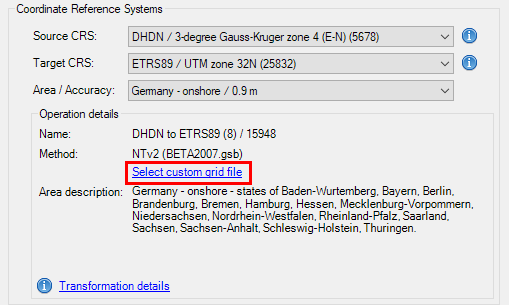
- Some coordinate transformations (NTv2, etc.) require one or more Grid files in order to be processed. Some of the most commonly used Grid files worldwide are included in the application, but you will see that some others instruct you on where to download Grid file(s) not included with the application (usually a download URL).
- On the other hand, even if the required Grid file(s) already exist (included as standard in the application, or previously downloaded by the user), the application allows the user to choose alternative Grid file(s) so that more accurate or updated Grid transformations can be used when more appropriate files are available. This custom choice for a Grid file is kept by default for a work session but will not be memorized when exiting and re-entering the application.
User coordinate systems: You can create new user coordinate systems based on any existing one, review the custom section of coordinate management for more details.
Disclaimer:
- Some components shown here (providers, names, window styles, etc.) may differ slightly from those on your computer.
- Certain features require Internet access. If you experience issues, check with your network administrator about a possible Proxy server. You can configure the Proxy settings in the application options.
- Some geographic data providers (Geocode, image maps, etc.) may require a user account, which you can set up in the Service Provider API Keys section of the application options.