
Publish to Google Earth
Export all or part of the objects in the visible Layers from AutoCAD and their data to a KML or KMZ file.
Export the current drawing status (Publish) to Google Earth
Regardless of the advanced export capabilities of Spatial Manager™ for AutoCAD which can be found in the “Professional” edition, the “Standard” and “Professional” editions of the application include a specific command (SPMCREATEKML) designed to export all or part of the objects in the drawing and their data to a KML or KMZ file (Google Earth) through a one-click operation. This exportation process considers the current layers organization and the properties of the layers and objects.
- The elements in the KML/KMZ file will assume the colors, line weights, etc. of the objects in the drawing. A subdivision based on the type(s) of the objects in the layers will also be created for each layer, allowing you a high level of visibility control in Google Earth.
- The values for the NAME and DESCRIPTION of the elements in the KML/KMZ file will be automatically taken from the data fields “Name” and “Description” if those exist.
- The Text objects will display their content as a label in Google Earth (automatic field “TxtString”).

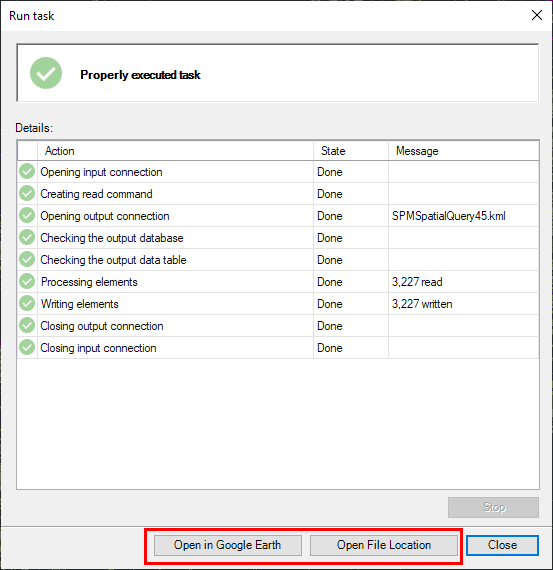
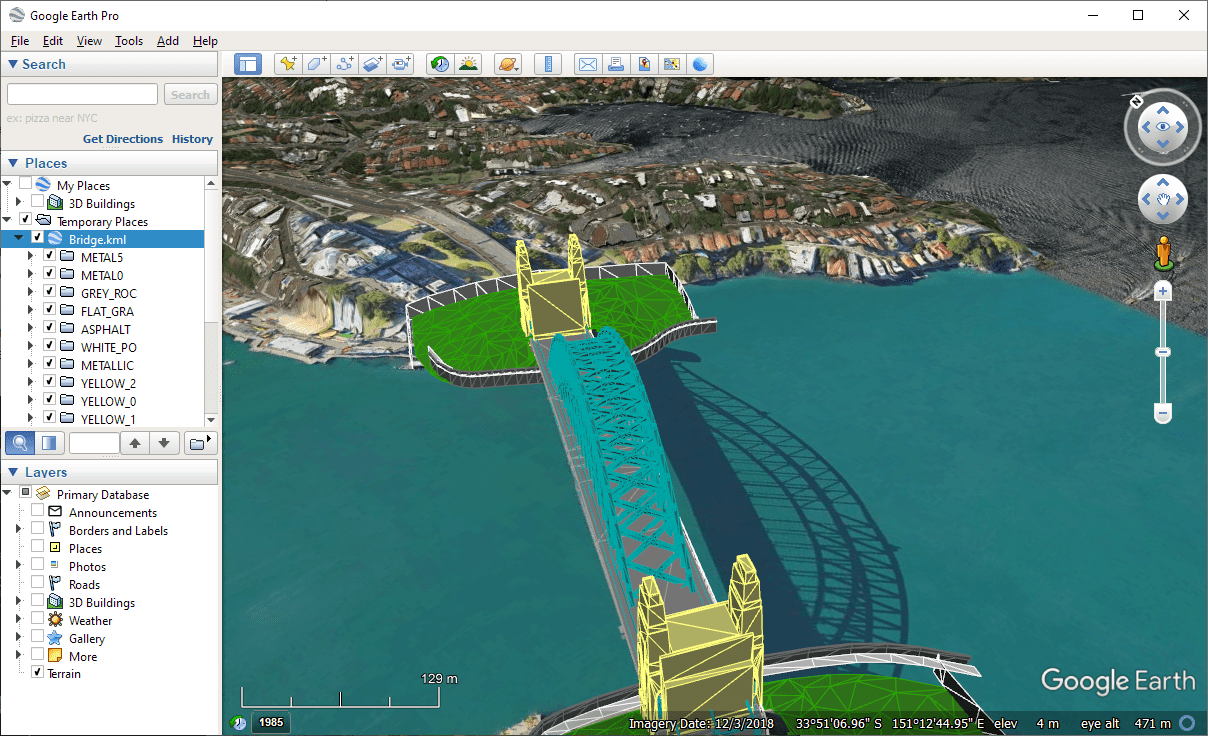
The exported (KML/KMZ) file can now be opened in Google Earth. As an extra, if Google Earth is installed on the computer where the export process was performed, you can even open it using a button in the export report window. Nevertheless, upon completion of the export process you can open the file location directly.
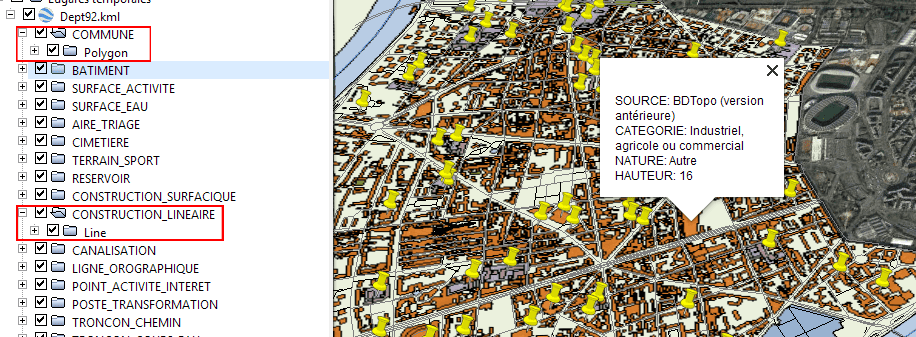
You can export all the objects in a drawing, a selection of objects (Manual, by Query, or by Table), or all the objects in a layer.
- Notes:
- When choosing the option to export all objects in the drawing, those objects that are in locked, off or frozen layers will not be included. If the objects are selected by any means before exporting and the option to export the selected objects is chosen, they will be exported even if they are in locked, off or frozen layers.
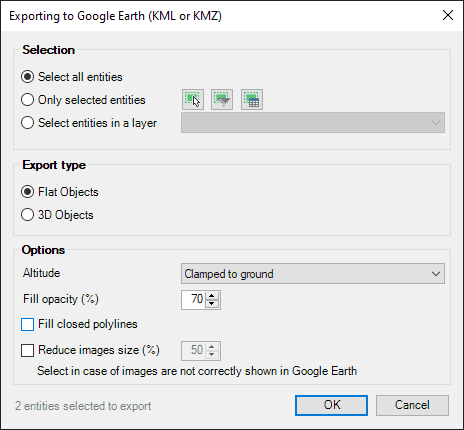
You can choose whether, for objects with elevation or 3D values in their geometry, they are considered 2D (Flat, only their XY coordinates are taken) or 3D. In case Z-values are taken into account in the export, you can decide how the vertical relation of the objects with respect to the terrain (Altitude) is taken into consideration.
You can also specify a fill transparency for objects that can be opaque (Hatches, Faces, Polyfaces, etc.).
As an additional parameter, you can select the option to fill the closed polylines as if they were polygons. Note that if you check this option, and a polyline is already filled in the drawing (using a Hatch, for example), you will get two polygon elements for this polyline in the exported KML/KMZ file.
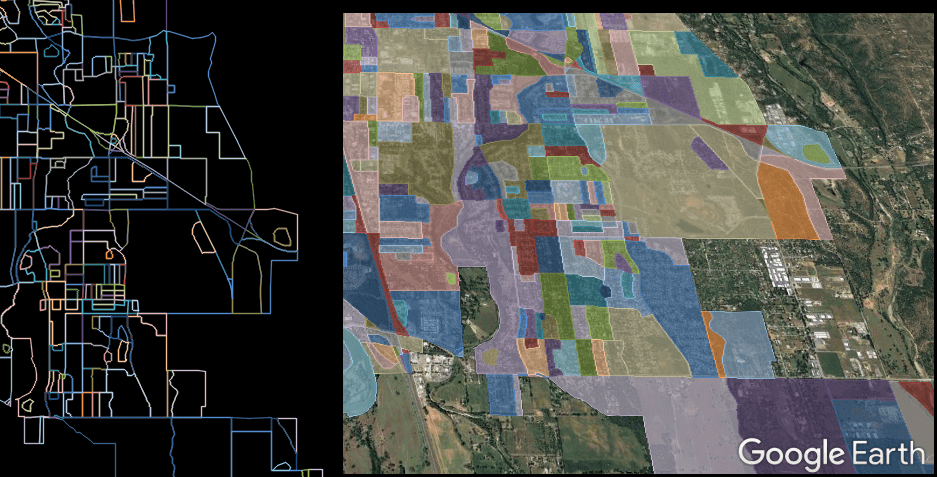
In addition, if the set of objects to be published includes any AutoCAD raster images, you can reduce their size by a percentage while processing. This can help you solve some of the problems in Google Earth concerning large images, which cause them to be missed or cropped.
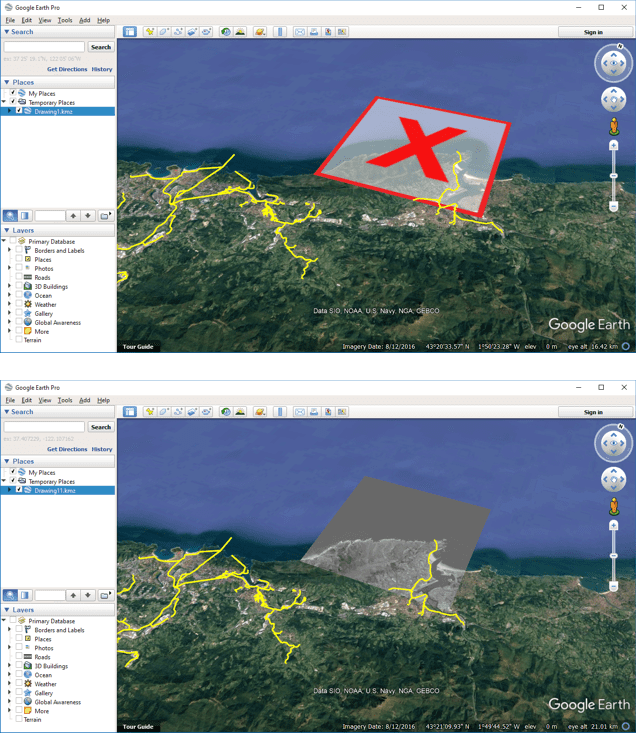
The application needs to know the coordinate system (CRS) of the drawing for exporting, as in most cases this will be necessary to perform an automatic coordinate transformation to the CRS used in Google Earth. You will see a warning window if the process cannot be carried out and you may need to assign a CRS to the drawing.

You can read about CRSs, the CRS Catalog, and the Transformation of coordinates.
Disclaimer:
- Some components shown here (providers, names, window styles, etc.) may differ slightly from those on your computer.
- Certain features require Internet access. If you experience issues, check with your network administrator about a possible Proxy server. You can configure the Proxy settings in the application options.
- Some geographic data providers (Geocode, image maps, etc.) may require a user account, which you can set up in the Service Provider API Keys section of the application options.