
Advanced
Imports spatial data, into new or existing AutoCAD drawings, as AutoCAD objects and Extended Entity Data (EED/XDATA).
Locate on the screen the last imported objects
You can use the Spatial Manager™ for AutoCAD command SPMZOOMTOIMPORT that zooms to all objects in the drawing that were included in the last import process.

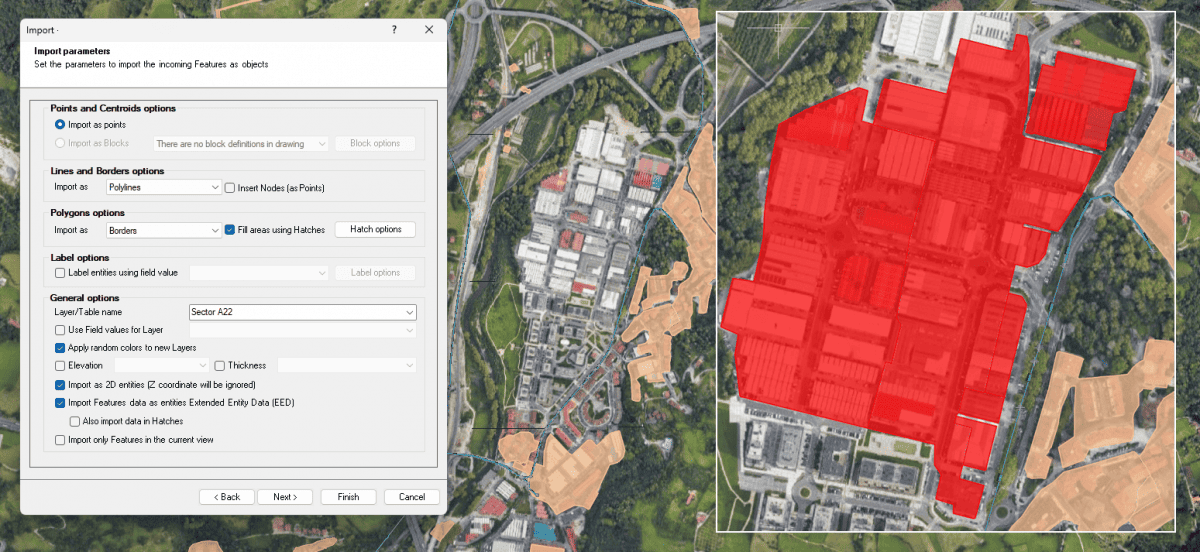
This function can be used at any time during the current work session, even if other commands are executed, since the visual rectangle surrounding the last imported objects is kept in memory until a new import process is executed.
Run Importing processes in the Command Line
Available on editionProfessional
Spatial Manager™ for AutoCAD includes the command -SPMIMPORT that allows you to execute any saved Task in the Command Line.
The command syntax is ‘-SPMIMPORT [Task name]’.
Since the parameter “Task name” supports wildcards, you can process multiple Tasks simultaneously (batch processing) and use it in “AutoCAD Scripts”.

Speed up the starting Import process
Sometimes, depending on the characteristics of the source, the initial reading of the data Fields may take a long time or even block the importing process. Spatial Manager™ for AutoCAD performs this startup reading to allow you to choose certain options relating to this data on the next wizard window, such as the use of the field values to define the target Layers for the imported objects. However, you have a button available to “Skip” this step, which does not affect the imported objects themselves but only certain options that may not be available in the importing process.
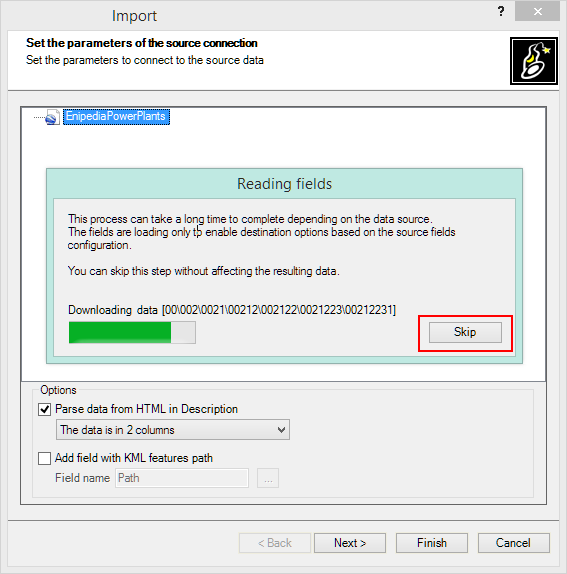
Speed up the Import wizard steps
To speed up the process when you are importing, all the “Import” wizard windows in Spatial Manager™ for AutoCAD include the “Finish” button. By pressing this button, you will directly run the import process. The wizard will assume the default values in each step to be omitted.

Disclaimer:
- Some components shown here (providers, names, window styles, etc.) may differ slightly from those on your computer.
- Certain features require Internet access. If you experience issues, check with your network administrator about a possible Proxy server. You can configure the Proxy settings in the application options.
- Some geographic data providers (Geocode, image maps, etc.) may require a user account, which you can set up in the Service Provider API Keys section of the application options.