
Contours
Create minor and major Contours, label Contour altitudes, separate in different Layers and different color models. Optional attached Data Tables will include Contour elevation values and types.
Create Contours options
In Spatial Manager™ for AutoCAD you can create 2D or 3D Contour Polylines through the Terrain wizard (SPMTERRAIN option ‘3 Terrain Wizard’ - Third button in the “Terrain” group) or directly through the Contours shortcut (SPMTERRAIN option ‘2 Contours’ - Second button in the “Terrain” group). You will find the following available Contour options:
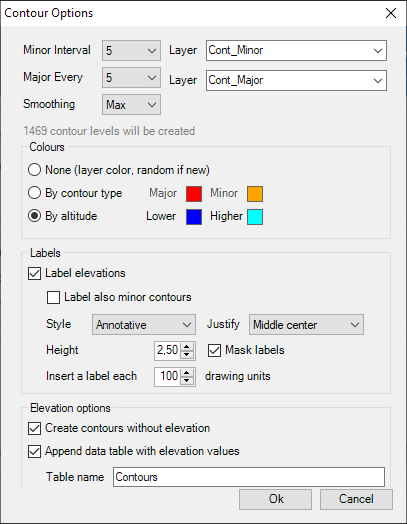
- Top group
- Minor interval. Contours interval (minor contours). In addition to using a fixed interval, you can define custom intervals for contour lines. This allows you to create contours at specific elevations that are important for your project, rather than being limited to regular intervals.
- Major every. Every how many minor contours one is considered a major contour.
- Smoothing. Contour Polylines smoothing level.
- Layer. Layers for minor and major contours.
- Note: At the bottom of this section you will see the total number of Contour Polylines that will be created according to the chosen interval.
- Colours. Colour models. You can choose one of the following options:
- None. By layer. If it is necessary to create new layers according to the ones defined in the previous section, they will be assigned random colors that will be different for the minor and major Contour Polylines.
- By contour type. You can choose the colours for major and minor Contour Polylines.
- By altitude. The Contour Polylines will be created using an automatic colour ramp from which you can choose the colours for the lowest contour and the highest contour.
- Labels. Contour elevation labels.
- Label elevations. Check it if you want labels.
- Label also minor contours. The major contours will be labeled, but you must check this option if you also want to label the minor contours.
- Style, Justify, Height. You can define the style, height and justification of the labels here. Although you can change it as you wish, by default the justification selected is “Middle center” so that the labels are centered with the contours.
- If you select Mask labels, masks will be generated (Wipeout objects, grouped with the labels) and they will trim the contours in the labels’ location in order to improve their readability.
- Insert a label each. You can also specify the separation in drawing units between labels to be repeated along the Contour Polylines.
- Notes:
- The number of decimal places for the numeric values in the labels will be consistent with the contour interval chosen above.
- Label masks may have some functional issues or may not be available in versions earlier than AutoCAD 2017.
- Notes:
- Elevation options
- Create contours without elevation (2D). Contour Polylines will be placed in their corresponding Z elevation (3D contours) unless you check this option to place them in the XY plane regardless of their elevations (2D contours).
- Append data table with elevation values. When checking this option, the Contour Polylines will be attached to a data Table that will include the “Elevation” field. The table will also include another field (“Major”) that will indicate if it is a minor or a major contour. You can specify the data table name below.
Disclaimer:
- Some components shown here (providers, names, window styles, etc.) may differ slightly from those on your computer.
- Certain features require Internet access. If you experience issues, check with your network administrator about a possible Proxy server. You can configure the Proxy settings in the application options.
- Some geographic data providers (Geocode, image maps, etc.) may require a user account, which you can set up in the Service Provider API Keys section of the application options.