
Advanced terrains
3D models generation using 3D Meshes or other CAD/BIM objects from the selected 3D objects
Automatic image projection and fitting of any Background Map (preset or user-configured) on one or more Terrains in their actual location.
Sections in the Terrain wizard
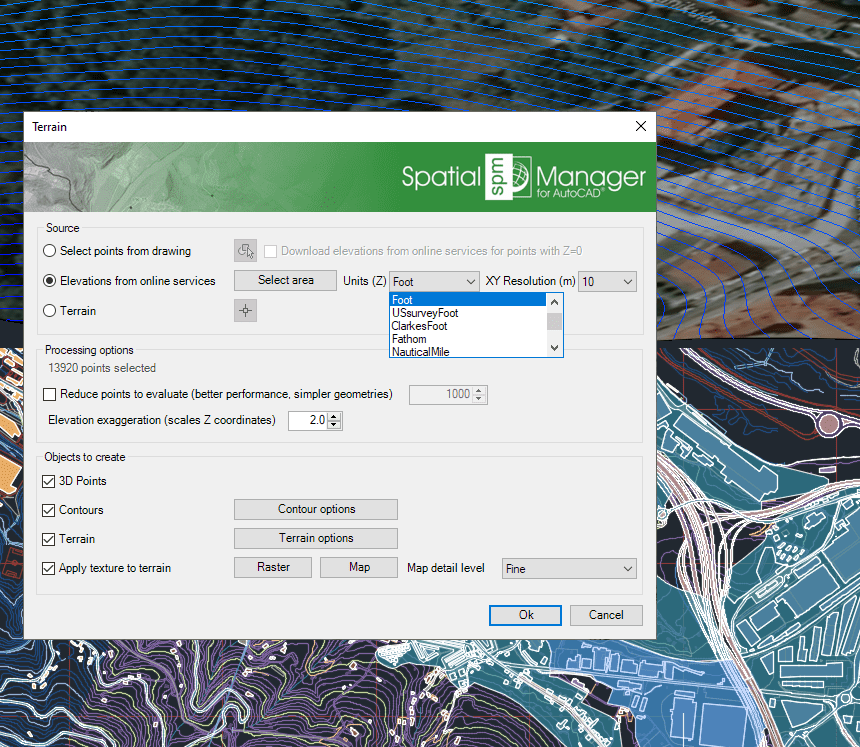
The Spatial Manager™ for AutoCAD Terrain wizard (third button in the “Terrain” group) includes three sections (see the image below):
- Source - Starting data. Select one of the following options:
- Select points from drawing. Allows you to select any number of Points or Block References in your drawing in order to create Contours (Polylines) for this point cloud, and/or create one Terrain 3D model for this point cloud (AutoCAD 2010 and upper), and apply (project and fit) a Raster Image or Background Map texture to this Terrain (AutoCAD 2012 and upper). If before executing the SPMTERRAIN command there are already selected Points in the drawing, this option will be adopted by default and the selection set will include all the already selected Points.
- Download elevations from online services for points with Z=0. This option allows you to get the elevation values (Z-coordinates) for any selected object with Z=0 from Internet elevation providers (Data sources). If all the selected objects have Z=0, a pop-up window will alert you about it and you will be able to activate this option from the warning itself. The drawing must be georeferenced before using this option.
- Elevations from online services. Allows you to define a rectangular area in your drawing for any Earth location in order to create a 3D Points grid from Internet elevation providers in the selected area (Data sources), and/or create Contours (Polylines) for this point cloud, and/or create one Terrain 3D model for this point cloud (AutoCAD 2010 and upper), and apply (project and fit) a Raster Image or Background Map texture to this Terrain (AutoCAD 2012 and upper).
- Notes:
- Select the elevation (Z) units. The options available in the drop-down menu will display all the units available in the Coordinate Systems objects list.
- You can also choose the grid resolution in meters. Available values are proposed and limited according to the resolution returned by the elevation service.
- The drawing must be georeferenced before using this option.
- Notes:
- Terrain. Allows you to select one or more Terrain 3D models in your drawing in order to extract their 3D point geometries (vertices) and create a 3D points cloud, and/or create Contours (Polylines) for this point cloud, and/or create one Terrain 3D model for this point cloud (AutoCAD 2010 and upper), and apply (project and fit) a Raster Image or Background Map texture to the selected or created Terrain(s) (AutoCAD 2012 and upper).
- Select points from drawing. Allows you to select any number of Points or Block References in your drawing in order to create Contours (Polylines) for this point cloud, and/or create one Terrain 3D model for this point cloud (AutoCAD 2010 and upper), and apply (project and fit) a Raster Image or Background Map texture to this Terrain (AutoCAD 2012 and upper). If before executing the SPMTERRAIN command there are already selected Points in the drawing, this option will be adopted by default and the selection set will include all the already selected Points.
- Processing options
- Reduce points to evaluate.
- If you selected 3D Points in the previous section (from the drawing or by creating a grid), here you can reduce the number of points used in the calculation of objects in the next section (3D Points and/or Contours and/or Terrain).
- A reduction of points will improve the speed of objects generation but will result in objects with simpler geometry.
- Elevation exaggeration.
- This factor will multiply the resulting Z-coordinates of objects calculated in the next section (3D Points and/or Contours and/or Terrain).
- The exaggeration does not affect the numerical values that may result from the calculation, such as the elevation labels or the values in the elevation table of the contour lines.
- Note: You will see at the top of this section the total number of objects currently selected.
- Reduce points to evaluate.
- Objects to create - Resulting objects. Depending on the option you have chosen in the first section, you will be able to select one or more of the objects to be created in the process.
- 3D Points.
- Contours. See the Contour options.
- Terrain. You can choose what AutoCAD 3D object will be used to create the Terrain 3D model (AutoCAD 2010 and upper). The available options depend on each AutoCAD version.
- Apply texture to terrain. You can select any Raster Image in the drawing or any available Background Map (preset or user-defined) whose images will be projected and fitted to one or more Terrains, as well as the desired map detail level (AutoCAD 2012 and upper).
- Notes:
- If you choose the “Map” option and any Background Map is shown on the drawing, this will be automatically selected although you can select any other.
- The drawing must be georeferenced and saved in order to apply this option. A “material” PNG image of the map will be saved in the same folder as the drawing.
- The drawing Visual Style will be automatically changed to “Realistic” when you select this option.
- Notes:
Disclaimer:
- Some components shown here (providers, names, window styles, etc.) may differ slightly from those on your computer.
- Certain features require Internet access. If you experience issues, check with your network administrator about a possible Proxy server. You can configure the Proxy settings in the application options.
- Some geographic data providers (Geocode, image maps, etc.) may require a user account, which you can set up in the Service Provider API Keys section of the application options.