
Custom maps
Connect to your preferred local map provider and work with the most common geospatial data sources, including WMS/OGC API Maps, WMTS/OGC API Tiles, XYZ/TMS services, and Cloud Optimized GeoTIFFs (COG).
Configure custom Web Map Services as ‘Background Maps’
Spatial Manager™ for ZWCAD includes the option to define “User Background Maps” in order to enable access to more Mapping Services (XYZ / TMS, WMTS/OGC API Tiles, WMS/OGC API Maps).
Enter the parameters needed to define a new “User Background Map” through the option “Configure Background Maps” in the application Options (SPMOPTIONS), or through the “Configure Background Maps” button in the ‘Background Maps’ selection window (SPMSPMBGMAPSHOW). As you will see, you can also Edit or Delete any existing “User Background Map” through the same option.
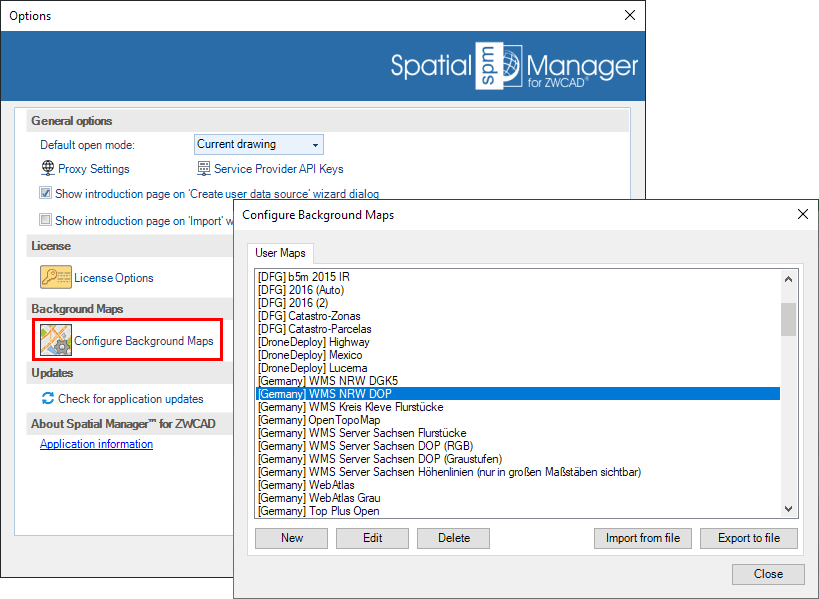
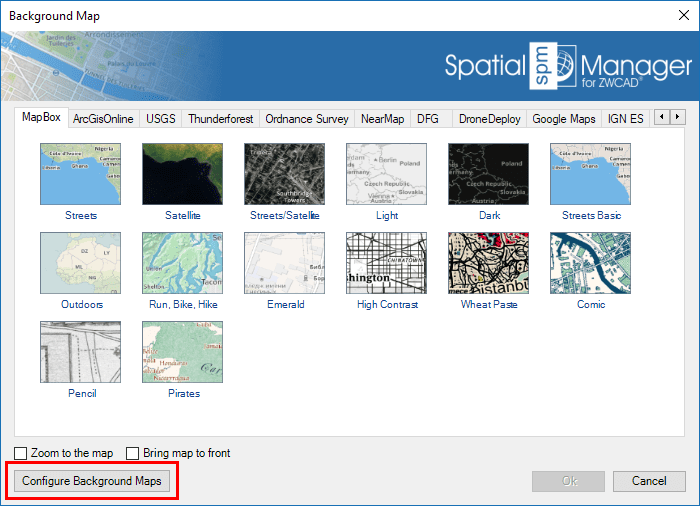
Through the “Configure Background Maps” window you can also Export/Import “User Background Maps” to/from a ‘Background Map Definition’ file (*.bmd). This kind of file includes the definition of one or more ‘Background Maps’ as well as the Group(s) where they are or will be placed. You can export as many Maps as you want to a single file and, if you are importing already existing Maps, you can choose to either ignore the import of these Maps or rename them using automatic consecutive numbering.
Note: This functionality allows you to share Background Maps between computers or users and helps organize user Background Map definitions. In addition, you will be able to import Maps from services such as DroneDeploy and others.
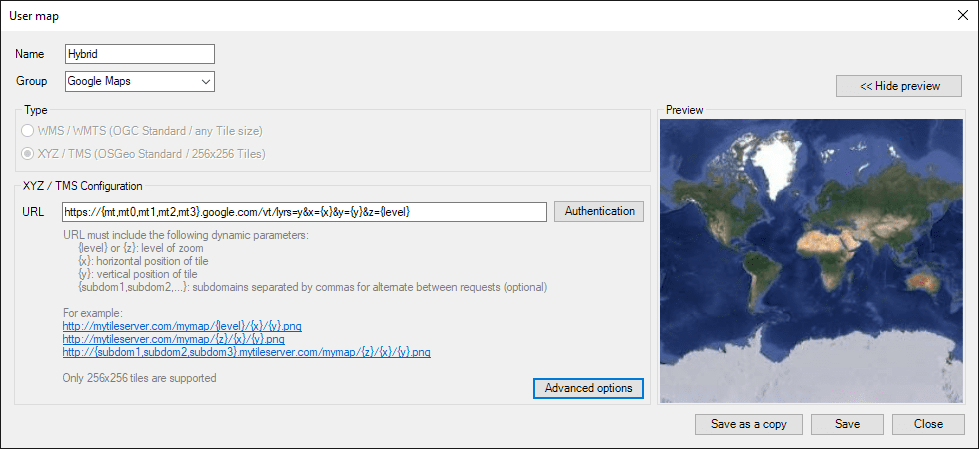
XYZ / TMS Type Maps (OSGeo Standard / 256x256 tiles)
- The Name of the Map.
- Each Map will have its own unique Identifier, so you can apply the same Name to different Maps in different Groups.
- The Group (Tab) where you want to place the Map. If it is a new Group, it will be automatically created. You can drop down the list of Groups to place the Map into an existing Group.
- The Type of the Map (XYZ / TMS in this case).
- The URL to access a specific valid Map in a valid Map Server. The URL must include the dynamic parameters specified in the application window.
- Authentication: To enter the login data to access the service, if needed (Available security protocols SSL3, TLS, TLS1.2).
- Advanced options:
- Coordinate System (CRS). Be careful when changing this setting because most XYZ/TMS servers use the default value “WGS84 Pseudo-Mercator (EPSG 3857)”, so change it only if you are sure another CRS is required.
- Tiles origin (Top-left or Bottom-left).
- Note: You can also define XYZ/TMS User Background Maps on a local path.
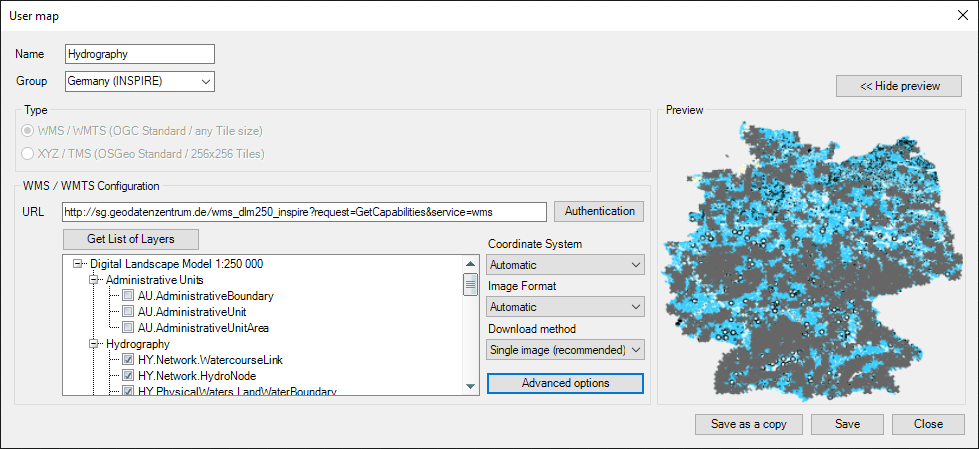
WMS/OGC API Maps or WMTS/OGC API Tiles Type Maps (OGC Standard / any tile size)
- The Name of the Map.
- The application will propose a name for the Map based on the selected Layer(s) in the server (see below), but you can modify it if you want to.
- Each Map will have its own unique Identifier, so you can apply the same Name to different Maps in different Groups.
- The Group (Tab) where you want to place the Map. If it is a new Group, it will be automatically created. You can drop down the list of Groups to place the Map into an existing Group.
- The Type of the Map (WMS/WMTS in this case).
- The URL to access a valid Map Server.
- Authentication: To enter the login data to access the service, if needed (Available security protocols SSL3, TLS, TLS1.2).
- The Layer(s) that you want to include in the ‘Background Map’. Click the “Get List of Layers” button and select the Layer(s) from the tree showing the complete Layers structure available in the Map Server.
- The Coordinate System (CRS) for the selected Layer(s). Choose an available CRS or “Automatic” from the “Coordinate System” dropdown.
- The default “Automatic” option automatically configures the Map CRS, trying to find the best choice by following this process:
- The same CRS as the current drawing CRS.
- If not available, then “WGS 84 / Pseudo-Mercator (SRID 3857)”.
- If that is not available either, then the first CRS available in the server list.
- Note: This setting is dynamic because the application reloads the map whenever there are changes to the drawing CRS.
- The default “Automatic” option automatically configures the Map CRS, trying to find the best choice by following this process:
- The Image Format for the selected Layer(s). Choose an available Format from the “Image Format” dropdown.
- The default “Automatic” option automatically sets the most suitable image format by following this process:
- PNG.
- If PNG is not available, then any PNG variant (PNG8, etc.).
- If not, then JPG.
- If JPG is not available, then the first format available in the server list.
- The default “Automatic” option automatically sets the most suitable image format by following this process:
- The Download method from the server: “Single image (recommended)” or “Image tiles grid” (WMS only).
- Advanced options:
- WMS/WMTS options:
- Ignore axis orientation (needed for some map servers).
- Invert axis orientation (same as previous).
- The Map Background Color (solid or transparent) (only for WMS servers that support it).
- Transparent maps: See the next section.
- WMS/WMTS options:
- The Coordinate System (CRS) for the selected Layer(s). Choose an available CRS or “Automatic” from the “Coordinate System” dropdown.
Notes about the WMS/WMTS ‘Background Maps’ performance:
- Whenever possible, select the Coordinate System (CRS) assigned to the drawing in the ‘Background Map’ configuration.
- No CRS Transformation implies avoiding the deformation of the Map images while maintaining their original visual quality.
- In most cases, the default “Automatic” option (see above) is the best one.
- When configuring the “Download method” for a WMS ‘Background Map’, choose the default option “Single image (recommended)” whenever possible.
- The image quality is optimum.
- This choice ensures that texts or other elements are not shown repeated multiple times when they appear in more than one image tile.
- The alternative “Image tiles grid” should be used only when the “Single image” option becomes too slow.
- Select any compressed image format (PNG, JPG, etc.) if available.
- The images will be smaller, resulting in shorter download times.
- In most cases, the default “Automatic” option (see above) is the best one.
- See also How can I improve the performance of the ‘Background Maps’ in ZWCAD?.
When configuring a User Map, clicking the “Show Preview” button will display an image of the Map extension to help verify if all settings are correct. The “Preview” image will automatically update when you modify any configuration parameter.
Click the “Save” button to save the Map and exit, or click “Save as a copy” to save the Map and stay on this window. This option allows you to quickly create various Maps using similar configurations without reopening the dialog repeatedly. For example, in the case of WMS/WMTS Maps, it is very useful for easily creating different Maps that include different Layer(s) of the same source.
Disclaimer:
- Some components shown here (providers, names, window styles, etc.) may differ slightly from those on your computer.
- Certain features require Internet access. If you experience issues, check with your network administrator about a possible Proxy server. You can configure the Proxy settings in the application options.
- Some geographic data providers (Geocode, image maps, etc.) may require a user account, which you can set up in the Service Provider API Keys section of the application options.