
Multiple maps
Display and manage multiple background maps across views and viewports.
Use and management of several Maps (Background and/or Foreground) in the drawing
You can have several Background and/or Foreground Maps in your drawing and set at any time their status (shown or hidden) and their display order through the “Imagery” branch in the “Explorer” tab of the main application palette (SPM command). This not only allows you to enable or disable the display of any of the Maps shown in the drawing, but also to simultaneously display several Maps and decide their display order, which makes more sense when some of the Map(s) has (have) transparent areas (learn more about Transparent ‘Background Maps’ support).
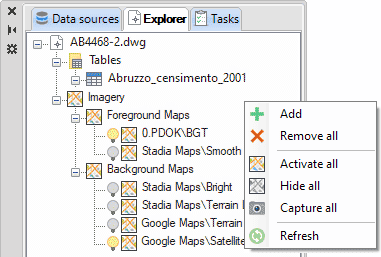
Every time you show a Map, it will be added to the Map tree (in the Background or Foreground branch, as appropriate) and will be activated by default. You can also show a Map from the context menu of the “Imagery” branch. You can show or hide Maps through the “light bulb” icon, sort their relative display positions by dragging the Maps in the branch, and you also have other options in the context menus, such as “Remove All” Maps, “Activate (Show) or Hide All” Maps, Capture (snapshot of static image) All” Maps, or “Refresh” the display of the drawing and the currently shown Maps.
Disclaimer:
- Some components shown here (providers, names, window styles, etc.) may differ slightly from those on your computer.
- Certain features require Internet access. If you experience issues, check with your network administrator about a possible Proxy server. You can configure the Proxy settings in the application options.
- Some geographic data providers (Geocode, image maps, etc.) may require a user account, which you can set up in the Service Provider API Keys section of the application options.