
Include and publish background maps in printed drawings.
Special consideration when Printing or Plotting ‘Background Maps’
When printing or plotting from ZWCAD you have to be aware that the only way to be sure about the appropriate printed results is by running the process from the Model Space and selecting “Display” as the “Plot area” (see the first image below). In other cases, the results may not be correct and it would be necessary to apply the following workaround.
To print or plot any other area of the Model Space, or do it from the Paper Space, or Publishing, etc., the use of the Raster Images captured as indicated in the previous article may be the best solution. In the case of Paper Space Viewports, note that these Raster Images are ZWCAD entities, which will allow you to “play” with different possibilities depending on the Layer where they are included and how this Layer is configured in the different Viewports (see the second image below).

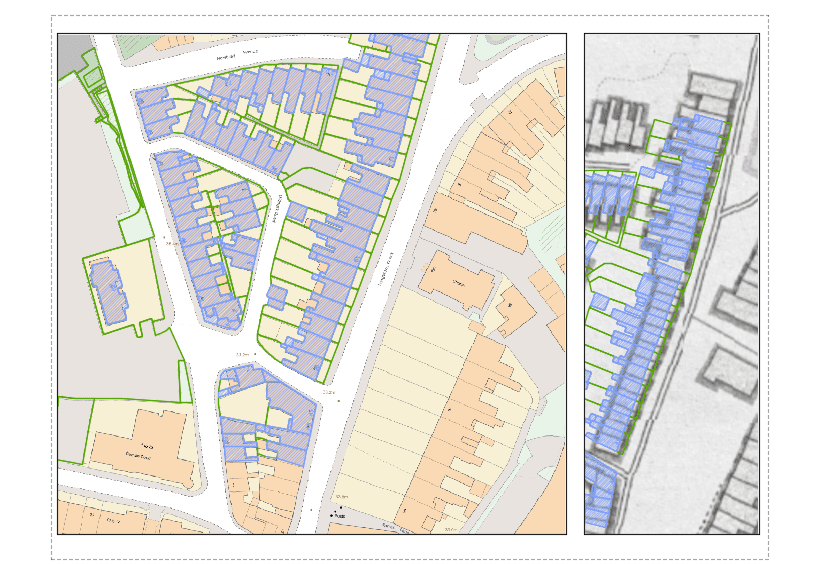
Background Maps Synchronization in Layout Viewports
Background Maps are automatically synchronized with layout viewports based on their individual scales. This powerful feature ensures that:
- Each viewport in a layout displays the Background Map at the appropriate detail level for its scale.
- Maps automatically adjust when you change viewport scales.
- Different viewports can show the same area at different detail levels simultaneously.
- The map content and tile resolution are optimized for each viewport’s scale.
Disclaimer:
- Some components shown here (providers, names, window styles, etc.) may differ slightly from those on your computer.
- Certain features require Internet access. If you experience issues, check with your network administrator about a possible Proxy server. You can configure the Proxy settings in the application options.
- Some geographic data providers (Geocode, image maps, etc.) may require a user account, which you can set up in the Service Provider API Keys section of the application options.