
Data edit
Create, edit or delete Fields in any existing table. You can assign a default value to any Field and select the type of data for the Field (Text, Integer, Date, etc.). As happens with the tables, if any alteration occurs in the Fields of a table, the application will automatically update all the attached objects..
Modify the entities data
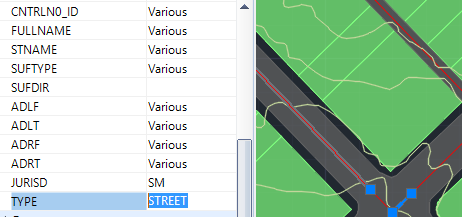
You can directly edit a data field value (XDATA / EED direct data edition) for one or more entities in Spatial Manager™ for ZWCAD by selecting the entity(s) in the drawing and typing the new value for this field in the ‘Properties’ area of the ‘SpatialManager’ palette. You can also delete the field content to get a null value in this field. To validate any modification, you need to press Enter or click on a different field.
Notes:
- The fields whose value starts with “http” are automatically converted into active links.
- Because of performance considerations, the number of entities selected for which their data are shown in the application palette is limited by the system variable PROPOBJLIMIT.
Calculate field values based on values of other fields and/or constants
Available on editionProfessional
The command SPMDATACALCULATOR of Spatial Manager™ for ZWCAD (Fields Calculator) allows you to calculate simple or complex expressions using operators and functions that can be applied to field values in a table and/or to constant values.

- Source: Select the source table in order to apply calculations on field values from this table. You can apply the calculation result only to the selected entities and not to the whole table.
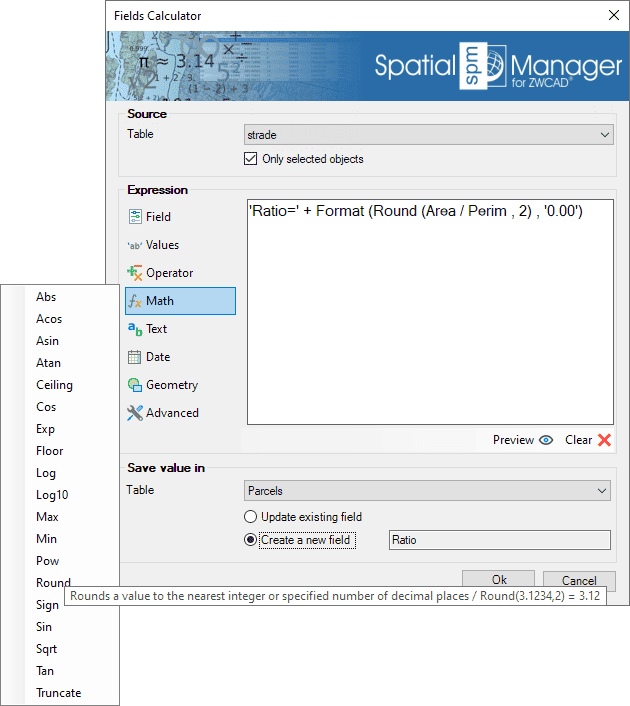
- Expression: In the writing panel of the Fields Calculator window you can create the expression that will be applied as a calculation to a field of the same source table or another table (see below). For example, in the expression that you can see in the image below, a text value will be calculated resulting from concatenating the fixed text “Ratio=” with another text that is the result of converting into text the rounding with two decimal places of the division between the values of the fields ‘Area’ and ‘Perim’.
- You can use the “Clear” button to leave the current expression blank, and the “Preview” button to preview the calculation results in tabular format.
- You can type the operators and functions and the source table fields or constant values to which they apply, and also select them through the sections to the left of the writing panel:
- Field: To select any field name defined in the source table.
- Values: To select any value from a selected field in the source table (you will see the full list of values for the selected field), or some “special” fixed values, such as “NULL”.
- Operator: Arithmetic, logical, comparator or conditional operators. Many of them can be applied to numeric values but also to text, dates, etc. For example, the “+” operator will return the sum of two numeric values, but it will also return the concatenation of two texts.
- Math: Mathematical functions such as logarithmic or trigonometric expressions, rounding, square roots, etc.
- Text: Text functions, such as full or partial text replacement, converting numerical values to text, splitting texts, etc.
- Date: Date functions such as hourly, daily or monthly calculations, etc.
- Geometry: Functions applicable to entity geometries, such as area calculations, elevations, etc. They will be applied to entities attached to the source table.
- Advanced: Set of advanced functions not included in the previous sections, such as creating lists, returning values from one list based on the values of another list, etc.
- Save value in: You can set the field where the above expression will be applied. This field can be an existing or a new field in the source table or in any other defined table.
- Notes:
- When you pass over the operators or functions on the left side, you can see a small help text for each of them as well as an example of use.
- Complex calculations are composed within parentheses and are processed from the inner parentheses to the outer parentheses. For example, in the expression that you can see in the above image, first the division between the values of the fields ‘Area’ and ‘Perim’ is calculated (/), then the rounding of the previous result to 2 decimal places is calculated (ROUND), and finally this result is converted into a text with the format type “0.00” (FORMAT), so that it can be concatenated to the fixed text “Ratio=”.
- Fixed text values or parameters, such as the text “Ratio=” or the “0.00” parameter of the FORMAT function in the above image, must be enclosed in single quotation marks.
- When you run the Fields Calculator function, the expression writing panel will display the last expression you entered during the current work session, if you had already used the function, so that you can correct any previous expression or base a new expression on the whole or part of the last expression used.
- You can get more help and information about the main available operators and functions through the following links:
Disclaimer:
- Some components shown here (providers, names, window styles, etc.) may differ slightly from those on your computer.
- Certain features require Internet access. If you experience issues, check with your network administrator about a possible Proxy server. You can configure the Proxy settings in the application options.
- Some geographic data providers (Geocode, image maps, etc.) may require a user account, which you can set up in the Service Provider API Keys section of the application options.