
Data grid
The Data Grid palette in ZWCAD allows you to view, edit, etc. the objects data for any table in the drawing. You can also select objects from the Data Grid, export the data from the tables and more.
View and edit the entities data in a table form
The command SPMDATATABLEGRID of Spatial Manager™ for ZWCAD opens the ‘Data Grid’ palette where you can view, edit, etc. the entities data in any table in the drawing. You can also select entities from the ‘Data Grid’, export the data from the tables, and more.

Like any ZWCAD palette, the ‘Data Grid’ palette can be arranged, docked, undocked, grouped, self-collapsed, etc., and resized depending on the preferences and needs of each user or each job, by dragging its title bar, double-clicking on its title bar, etc.
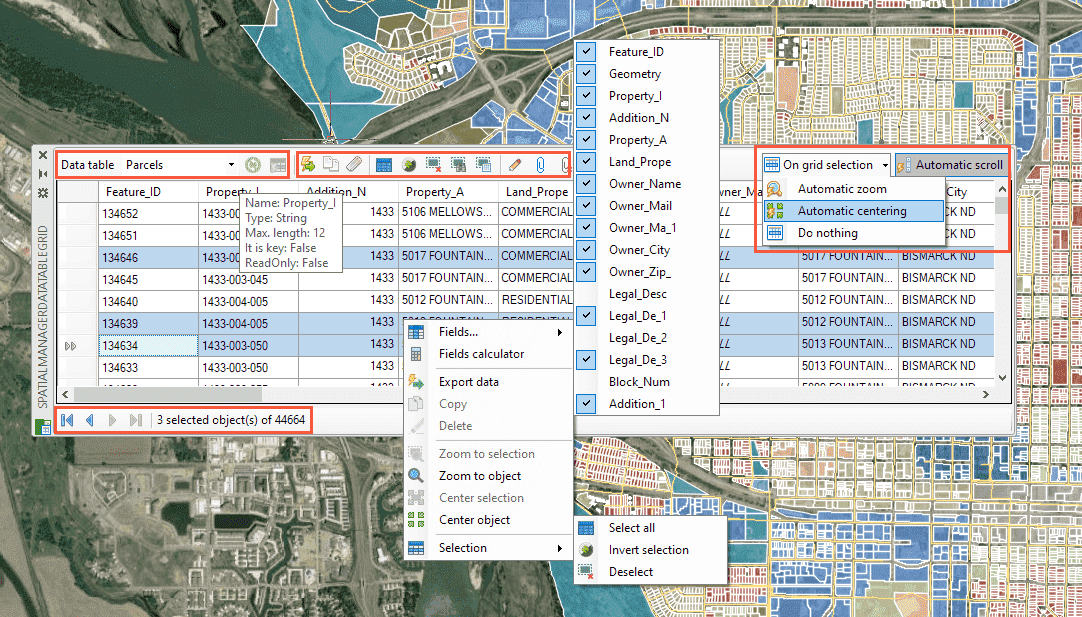
- To choose the drawing data table that you want to show in the ‘Data Grid’, you can use the drop-down list of available tables that can be found in the palette upper left area.
- You can select which table fields you want to display in the ‘Data Grid’ by right-clicking on any grid area.
- You can move the field separation lines in the table header to change the width of the corresponding column.
- A double click on this vertical line (always in the table header) will automatically adjust the corresponding column width to the dimension of the longest value in that field.
- If the value of a field in a given row cannot be seen completely due to the width of the column, placing the cursor over the corresponding cell will display a tooltip showing the full value in that cell. The same applies to the names of the fields in the table header.
- To sort the values of a column alphabetically, click on the column name in the table header. A second click will invert the sorting.
- To move and sort the fields (columns) in the table, you can drag the field name itself in the table header to the left or right.
- If you hover the cursor in the table header over the name of a field, a tooltip with information about the properties of that field (Name, Type, Length, etc.) will be displayed (except when the incomplete name of a field is displayed as a tooltip — see above).
- The ‘Data Grid’ is automatically synchronized with the current drawing.
- You can select entities in the drawing to highlight the corresponding attached rows in the ‘Data Grid’.
- If the “Automatic scroll” option (palette upper right area) is activated, the rows will be automatically scrolled to show the selected entities.
- You can also select rows in the ‘Data Grid’ to select the corresponding attached entities in the drawing. You can use the CTRL and SHIFT keys (alone or in combination) when you want to select multiple rows.
- If the “Automatic zoom” option (palette upper right area) is activated, the drawing view will be adjusted to the selected entities’ extent.
- Use “Zoom to selection” (right-click menu) at any time if you want to do the same thing by hand, or “Zoom to entity” if you only want to zoom to the entity under the cursor in the grid when right-clicking.
- If the “Automatic centering” option (palette upper right area) is activated, the drawing view will be centered on the selected entities without modifying the zoom level.
- Use “Center selection” (right-click menu) at any time if you want to do the same thing by hand, or “Center entity” if you only want to center the entity under the cursor in the grid when right-clicking.
- As long as you are focused on the grid rows, you can use the keyboard (Up, Down, CTRL+Up, etc.) to navigate through the rows, and the SPACE key to select rows (you will see a small “tick” checked on the row header when you select it).
- Use the selection functions (buttons set on top of the palette / right-click menu) if you want to Select All entities attached to the current table, invert the selected entities (see note below), or deselect all selected entities.
- If the “Automatic zoom” option (palette upper right area) is activated, the drawing view will be adjusted to the selected entities’ extent.
- Use “Delete” (buttons set on top of the palette / right-click menu) to delete selected entities and their data from the drawing (see note below).
- You can find information about the number of selected entities and the total number of entities, as well as navigation buttons between the rows selected in the table, in the palette lower left area.
- Under some circumstances, synchronization may be lost. To resynchronize drawing and ‘Data Grid’, use the “Refresh” button next to the tables dropdown (upper left area of the palette).
- For application performance reasons, sometimes a warning will be displayed to indicate that you need to manually refresh the ‘Data Grid’. For example, this may happen when a very large number of entities are deleted in the drawing.
- Also for performance reasons, the selection of entities may need to use the “Activate table of selected entities” button, located to the right of the previous one, in order to update the table shown in the data grid.
- If this button is enabled, the table shown in the grid is not attached to any of the selected entities. Pressing it will display the table attached to the selected entity, or to one of the selected entities if there is more than one.
- When the button is disabled, the table shown in the grid is the table attached to one of the selected entities, or none of the selected entities are attached to any table.
- You can select entities in the drawing to highlight the corresponding attached rows in the ‘Data Grid’.
- To edit the value in a cell, simply double-click on the cell. You can also click or press ENTER on the “active” cell to edit its value. To finish the edition, press the ENTER key or the TAB key (edit next field in the same row), or select any other cell or row in the table. To cancel editing, press the ESC key.
- Pressing CTRL+ENTER will allow you to assign the current value in a cell to all cells in the same column for all selected rows.
- Pressing SHIFT+ENTER will allow you to assign the current value in a cell to all cells in the same column for all rows.
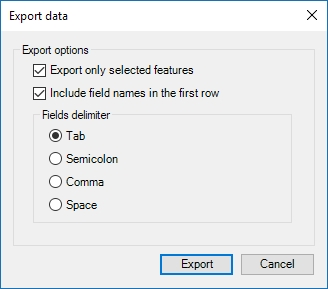
- You can export to an ASCII file the data in the whole table or in the selected rows only by running “Export” (buttons set on top of the palette / right-click menu).
- As you will see, you can include the field names in the export process and choose the field delimiter and the extension of the exported file.
- Alternatively, you can copy the table information to the Windows clipboard by using “Copy” (buttons set on top of the palette / right-click menu) or by pressing CTRL+C.
- The selected rows and headers (field names) will be copied in a tab-separated format, suitable for pasting into a spreadsheet, ASCII editor, etc.
- As an exception, if a field is being edited (see above), only the value of this field will be copied to the clipboard.
- From the buttons set on top of the palette, you can also directly access the tables main management and data-related selection commands.
- Select by query SPMSELECTBYQUERY.
- Select by table SPMSELECTBYTABLE.
- Define table SPMDATATABLEDEFINE.
- Attach SPMDATATABLEATTACH.
- Detach SPMDATATABLEDETACH.
- Fields Calculator (also in the right-click menu) SPMDATACALCULATOR.
- Notes:
- When you use grid functions that affect selected entities (Invert, Delete, etc.), the selection refers only to those entities linked to the current table. For example, when deleting, the entities selected in the current table will be deleted but not other entities selected in the drawing (if any), which will be deselected before the deletion operation.
- The “Feature_ID” column in the tables is a sequential numeric value that is generated in the data tables when elements are inserted. These values cannot be edited.
- If a table to which entities in the drawing are attached does not appear in the table drop-down list, try to “Restore tables”, as these entities may be in the drawing after copying-pasting between drawings, inserting one drawing into another, etc.
- If closed, the application will automatically open the ‘Data Grid’ palette the first time you import any data source that includes a data table (EED/XDATA).
Disclaimer:
- Some components shown here (providers, names, window styles, etc.) may differ slightly from those on your computer.
- Certain features require Internet access. If you experience issues, check with your network administrator about a possible Proxy server. You can configure the Proxy settings in the application options.
- Some geographic data providers (Geocode, image maps, etc.) may require a user account, which you can set up in the Service Provider API Keys section of the application options.