
Databases
Access a data table from a spatial database or data store
Available on editionsStandardProfessional
To access spatial databases or data stores in Spatial Manager™ for ZWCAD, you first need to have defined a User Data Source (UDS). A UDS is a saved connection configuration that stores all the parameters needed to connect to a specific database or data store, so you don’t have to enter them each time. To learn more about UDSs, see: Data sources page.
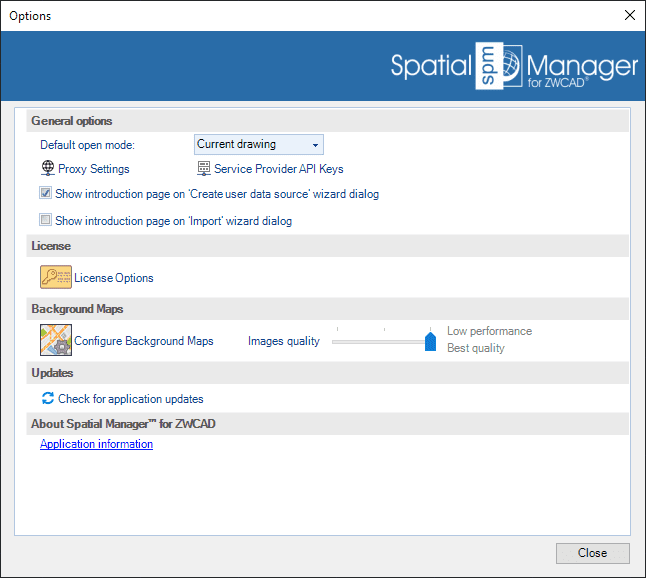
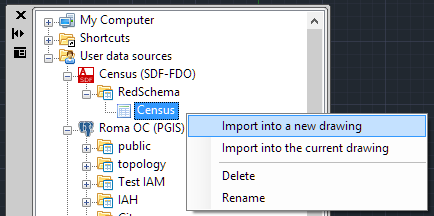
You can access a data table from a spatial database or data store using the right-click menu over the table item itself inside a container of the UDS (usually a schema) in the ‘SpatialManager’ palette, to import its content into a new or the current ZWCAD drawing. You can also double-click the table item itself in the ‘SpatialManager’ palette to access and import its content into a new or the current ZWCAD drawing (this behaviour may be configured through the tab “Spatial Manager” in the “Options” window of ZWCAD or by running the SPMOPTIONS command).
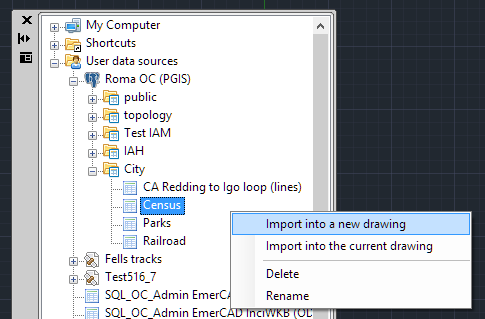
To perform the import process of the data table, see: Import.
Other functions for the tables
Available on editionProfessional
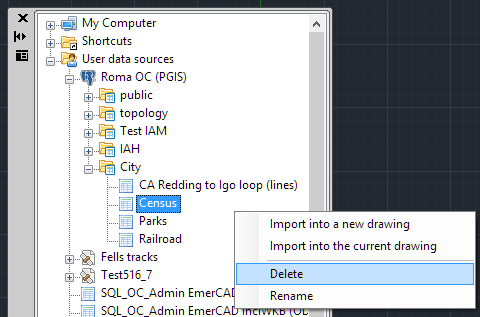
You can delete or rename the tables in Spatial Manager™ for ZWCAD using the right-click menu over the table item itself. This is valid for tables in spatial databases but not for tables in data stores.
Create a schema in a spatial database
Available on editionProfessional
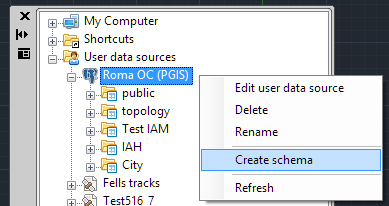
You can create a schema in a spatial database in Spatial Manager™ for ZWCAD using the right-click menu over the UDS. When creating, you can assign a name to the new schema.
Other functions for the schemas
Available on editionProfessional
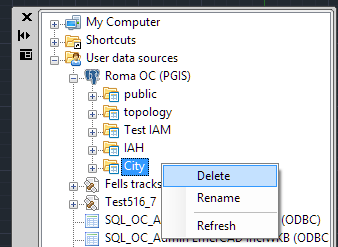
You can delete or rename the schemas and refresh the schema contents in Spatial Manager™ for ZWCAD using the right-click menu over the schema item itself. Be careful when you delete a schema because all the tables that it contains will also be deleted. This is valid for schemas in spatial databases but not for schemas in data stores.
Other kinds of data sources using schemas or tables
You can find some providers using schemas or tables in Spatial Manager™ for ZWCAD, besides spatial databases or data stores, such as some types of files like SQLite and more, or special connections such as ODBC (“Standard” and “Professional” editions only) and more. Everything said here for schemas and tables is valid for these types of data sources.
See the properties of schemas or tables
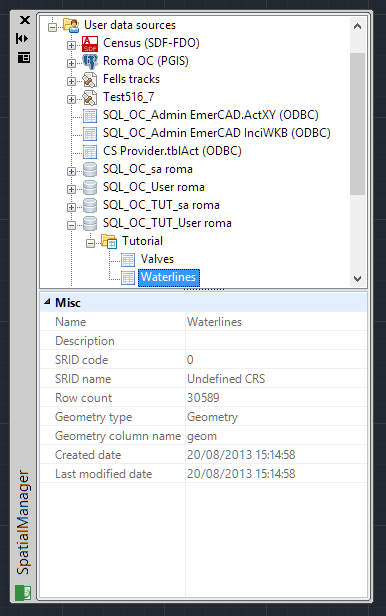
You can see the properties of schemas or tables in the ‘Properties’ area of the ‘SpatialManager’ palette in Spatial Manager™ for ZWCAD when you select any of those items in the ‘Data sources’ area of this palette.
Disclaimer:
- Some components shown here (providers, names, window styles, etc.) may differ slightly from those on your computer.
- Certain features require Internet access. If you experience issues, check with your network administrator about a possible Proxy server. You can configure the Proxy settings in the application options.
- Some geographic data providers (Geocode, image maps, etc.) may require a user account, which you can set up in the Service Provider API Keys section of the application options.