
Advanced
Export objects from ZWCAD to spatial files or databases, and saves their Extended Entity Data (EED) as alphanumeric data tables.
Limitation or modification in the original entities when exporting
There are some limitations and there may also be automatic changes in the entities when they are exported using Spatial Manager™ for ZWCAD.
- Limitations:
- Filtering of incompatible entities: There are a few entity types not supported by the export processes (such as Texts, MTexts or complex 3D entities), which are automatically filtered. The filter result is displayed before exporting on the “Entities report” of the first exporting wizard window.
- Modifications:
- Some entities, such as Blocks or External References, are exported as Point Features (Insertion Points). In the case of the Blocks or XRef, you must explode them before exporting if you want to export their internal entities. The “Entities report” in the first exporting wizard window also warns the user about the number of Blocks and XRef Insertions if any have been selected to export.
- Automatic complex geometric operations: The application will review and edit the selected entities in order to export geometries accommodated in the target format.
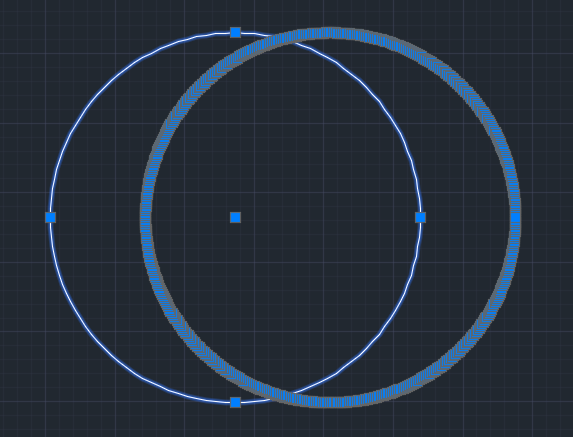
Sample: segmentation of an ZWCAD Circle when exported to a polygons Shapefile (SHP).
Run exporting processes in the Command Line
Spatial Manager™ for ZWCAD includes the command -SPMEXPORT that allows you to execute parameters-driven export processes in the Command Line.
- Command parameters:
- Source (Mandatory):
- All – All entities in the drawing.
- Layer – Entities in a Layer (Layer name).
- Selection – Selected entities.
- Table – Entities attached to a specific data table (Table name).
- Destination (Mandatory):
- User datasource – UDS name, Schema, Feature class.
- File name – Full filename, including the file extension in order to select the data provider that must be used (Sample: C:\Temp\ExportLayer1.shp).
- Geometry type (Optional. If not specified, all possible geometries will be exported — same as “All”):
- All.
- Point.
- Line.
- Polygon.
- Run (Mandatory). To execute the command.
- Source (Mandatory):
- This command allows you to automate the export processes by using it in “ZWCAD Scripts,” Lisp routines, etc. Some samples of the use of this command and its parameters in Lisp:
(command "-SPMEXPORT" "_S" "_A" "_D" "_F" "D:\\SpmExport\\Test.shp" "_R").(command "-SPMEXPORT" "_S" "_L" "Layer005" "_D" "_F" "D:\\ExportTarget\\005.shp" "_R").(command "-SPMEXPORT" "_S" "_L" "Layer005" "_D" "_U" "SERVER112\\SQLSERVER2019 (SQL)" "EXPORT_TEST" "005_TABLE" "_R").(setq LayerToExport (getvar "clayer")) (setq Path (strcat "D:\\ExportTarget\\" LayerToExport ".shp")) (command "-SPMEXPORT" "_S" "_L" LayerToExport "_D" "_F" Path "_G" "_L" "_R").
Disclaimer:
- Some components shown here (providers, names, window styles, etc.) may differ slightly from those on your computer.
- Certain features require Internet access. If you experience issues, check with your network administrator about a possible Proxy server. You can configure the Proxy settings in the application options.
- Some geographic data providers (Geocode, image maps, etc.) may require a user account, which you can set up in the Service Provider API Keys section of the application options.