
Batch import
Imports spatial data, into new or existing ZWCAD drawings, as ZWCAD objects and Extended Entity Data (EED).
Import all files from a folder in a single step
Spatial Manager™ for ZWCAD provides this functionality through the contextual menu of the folders in the application palette.
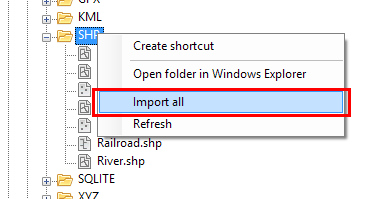
When executing “Import all” you can define some basic parameters:
- Create a layer for each File or Table.
- You may want to mark this option, for example, when the information contained in each file or table is not homogeneous.
- You may want to unmark this option, for example, when you are importing the same class of entities split in a grid.
- When the “Table” option is selected and there are several files to import, the name of the layers will be formed by the file name and the corresponding table name.
- Fill areas using Hatches.
- This option will be applied to all the polygonal entities imported from any file.
- Select a CRS for unreferenced sources.
- Since the “Import all” process will transform the coordinates between the sources and the drawing when needed, you can select a CRS for those sources without a defined CRS (if any). You will find the following options:
- Drawing CRS (if defined).
- CRS defined in another source that has been included in the current “Import all” process (if any).
- Other CRS, which can be selected using the same ways as when you run any import process. Please take a look at this section.
- Since the “Import all” process will transform the coordinates between the sources and the drawing when needed, you can select a CRS for those sources without a defined CRS (if any). You will find the following options:
- Working path.
- Defines a location where the application will save any auxiliary files required throughout the Import-all process.
- For example, raster image files created when importing images that need to be transformed (coordinate transformation, etc.).
- If this parameter is left blank, the application will ask you where to save each auxiliary file when necessary.
- Defines a location where the application will save any auxiliary files required throughout the Import-all process.

Note: When using this function, if the drawing is unreferenced, the most suitable CRS will be automatically assigned to the drawing.
Import all schemas in a User Data Source (UDS) or all tables in a schema or file in a single step
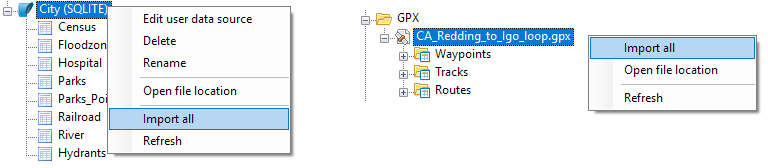
Spatial Manager™ for ZWCAD provides a functionality similar to that of the previous section when it comes to batch importing all schemas from a data source or all tables in a schema or file.
Disclaimer:
- Some components shown here (providers, names, window styles, etc.) may differ slightly from those on your computer.
- Certain features require Internet access. If you experience issues, check with your network administrator about a possible Proxy server. You can configure the Proxy settings in the application options.
- Some geographic data providers (Geocode, image maps, etc.) may require a user account, which you can set up in the Service Provider API Keys section of the application options.