
Display
Visualize objects coloring them depending on their field values in ZWCAD.
Graphically represent in the drawing the Data values attached to the entities
Spatial Manager™ for ZWCAD includes the Thematic Maps functionality, which allows you to temporarily change the entities’ color in the drawing according to their associated alphanumeric data. You can define a new Thematic Map using the SPMTHEMATICMAP command, whose window includes the definition of all the necessary parameters and options, as you can read below.
In a drawing you can define as many Thematic Maps as you wish and activate or deactivate (return the display of entities to their native color) the Maps or any of the Styles. In addition, you can edit the colors and names of the Styles, and the visual update of the entities is dynamic. If data values are modified while a Thematic Map is active, the colors will automatically change to reflect the new values of the affected entities.

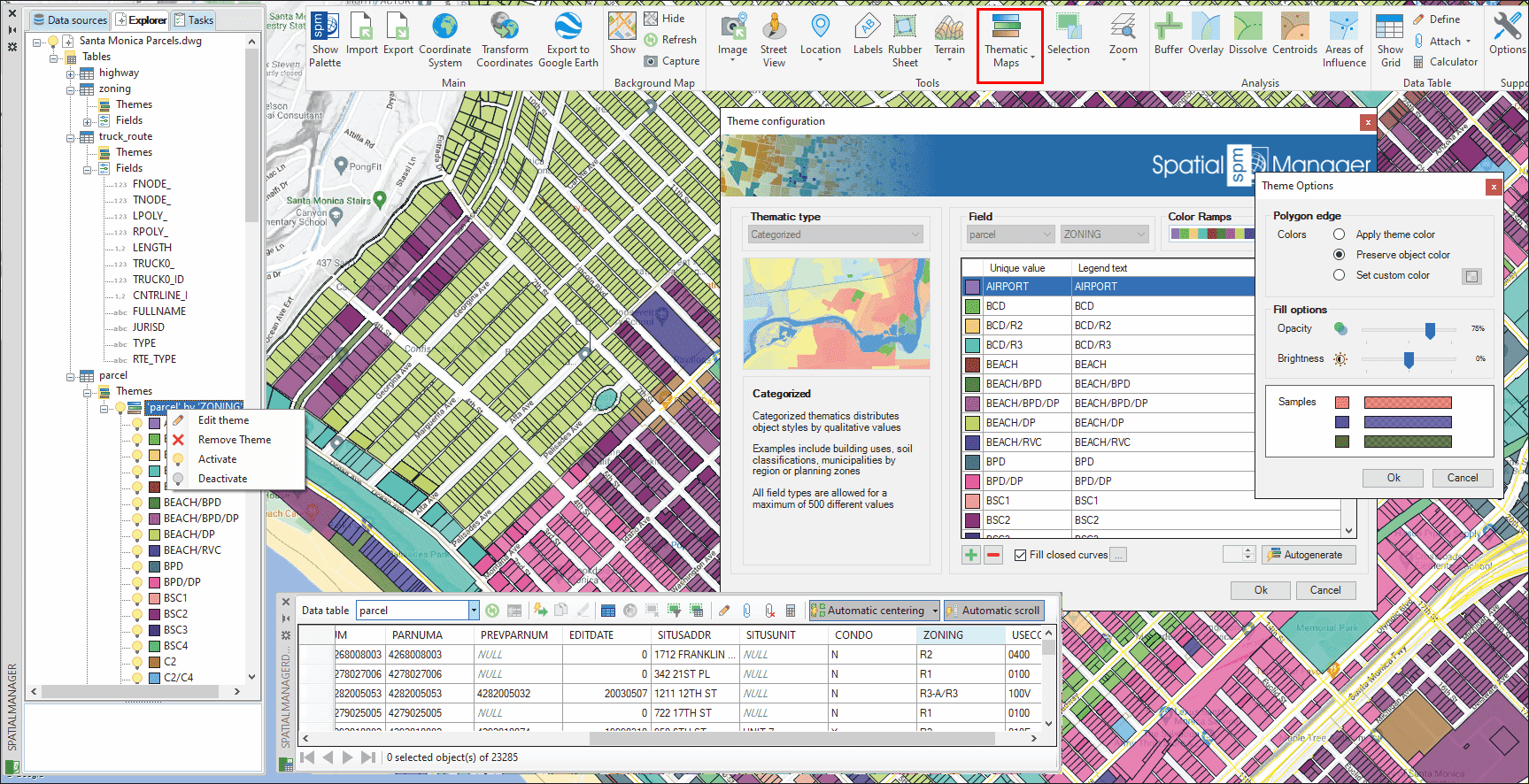
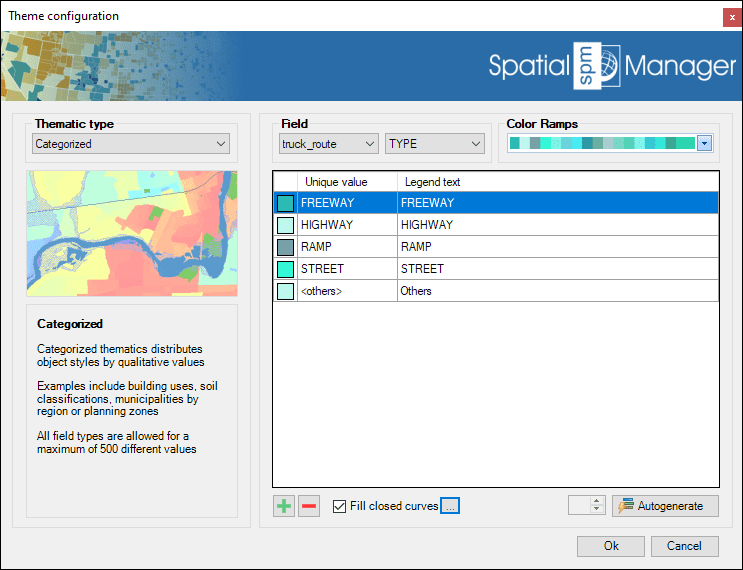
In the Thematic Map definition (and edition) window all the parameters and options of the Map are specified:
- Thematic type
- Categorized: Distributes entity Styles by qualitative values. Examples include building uses, soil classifications, municipalities by region, or planning zones. All field types are allowed for a maximum of 500 different values.
- Graduated: Distributes entity Styles considering value ranges. Examples include rivers by flow, buildings by height, or urban areas by population density. Numeric fields (including date/time) are allowed.
- Graduated Gradient: Distributes entity Styles considering value/color ranges, creating one or more gradients. Examples include altimetry representations or heat maps. Numeric fields (including date/time) are allowed.

- Field
- Field in a Table whose values will be represented by the Thematic Map.
- Color Ramps
- Although you can manually define and edit the colors of each Style, the application includes a large number of predefined color ramps (single colors, gradients, etc.) that can be selected to assign these colors. Even after selecting a color ramp, the colors can be modified by the user for one or more Styles of the Thematic Map.
- Styles table
- Includes the color, value (unique or values range) and legend text for each Style in the Thematic Map. All these parameters can be customized.
- The buttons below this table allow you to manually add or remove Styles. The Autogenerate button will automatically create the Styles of the Thematic Map based on the values of the chosen field. In the case of graduated thematics, it is possible to define the number of “steps” in the range of the field values.
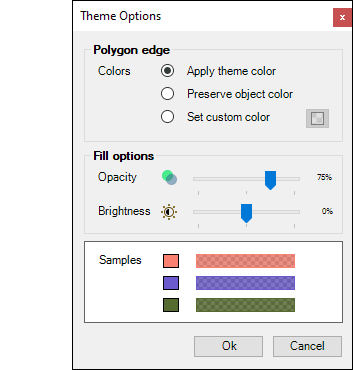
- In addition, it is possible to select whether to automatically fill the closed entities that are part of the Thematic. In this case, the following Theme Options are available:
- Polygon edge
- Apply theme color: The entity edges will be displayed in the color defined in the corresponding Style.
- Preserve entity color: The entity edges will be displayed in their native drawing color regardless of the color defined in the Style that corresponds to them.
- Set custom color: A custom color can be selected for all entity edges regardless of the color defined in the Style that corresponds to them.
- Fill options
- Here you can define the opacity and brightness levels for the resulting hatches.
- Polygon edge
Note: Thematic Maps are only available in ZWCAD 2022 (64-bit) and later 64-bit versions.
Disclaimer:
- Some components shown here (providers, names, window styles, etc.) may differ slightly from those on your computer.
- Certain features require Internet access. If you experience issues, check with your network administrator about a possible Proxy server. You can configure the Proxy settings in the application options.
- Some geographic data providers (Geocode, image maps, etc.) may require a user account, which you can set up in the Service Provider API Keys section of the application options.