
Manage
Visualize objects coloring them depending on their field values in ZWCAD.
Manage Thematic Maps in the drawing
You will find two ways to manage Thematic Maps: from the direct commands or from the application’s Explorer.
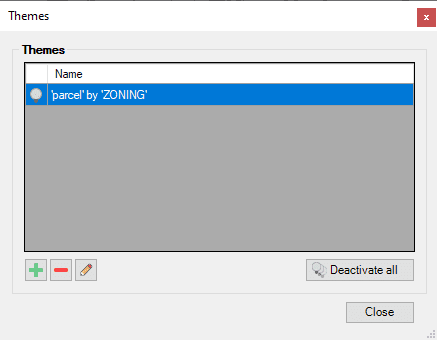
When you run the SPMTHEMATICMAP command, if the drawing has no Thematic Maps defined, the definition window will appear, as you can read in the previous article. But if the drawing already has one or more Thematic Maps defined, the following window will appear, from which you can add a new Thematic and delete or edit any Thematic already defined. From this window you can also deactivate all the Thematic Maps defined in the drawing, which is equivalent to running the command SPMTHEMATICMAPHIDE.
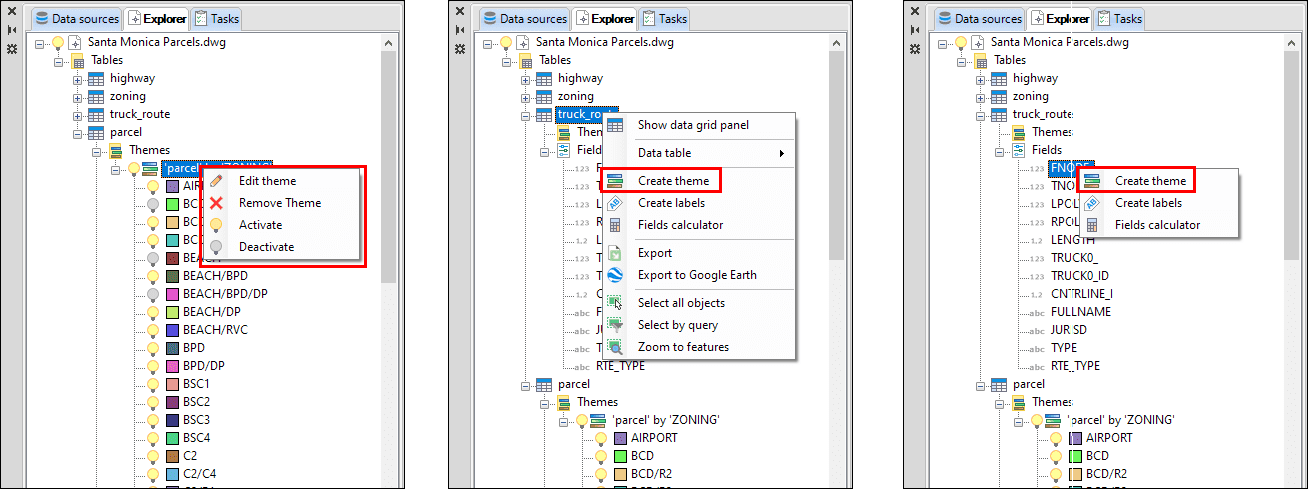
The second alternative, the application Explorer, is the most recommendable since not only will you find many other functions concerning the drawing, tables or fields, but you can also selectively activate or deactivate Styles of a Thematic, all through contextual menus (right-click) and the use of the Thematic or Styles “light bulbs”:
Note: Thematic Maps are only available in ZWCAD 2022 (64-bit) and later 64-bit versions.
Disclaimer:
- Some components shown here (providers, names, window styles, etc.) may differ slightly from those on your computer.
- Certain features require Internet access. If you experience issues, check with your network administrator about a possible Proxy server. You can configure the Proxy settings in the application options.
- Some geographic data providers (Geocode, image maps, etc.) may require a user account, which you can set up in the Service Provider API Keys section of the application options.