
Street view
Google Street View dynamic image browser on any geo-referenced drawing or map in ZWCAD.
Display Street View dynamic images in a drawing
The Spatial Manager™ for ZWCAD SPMSTREETVIEW command allows you to use the ‘Street View’ palette in order to view and navigate Street View images by selecting a drawing point for which such images exist.

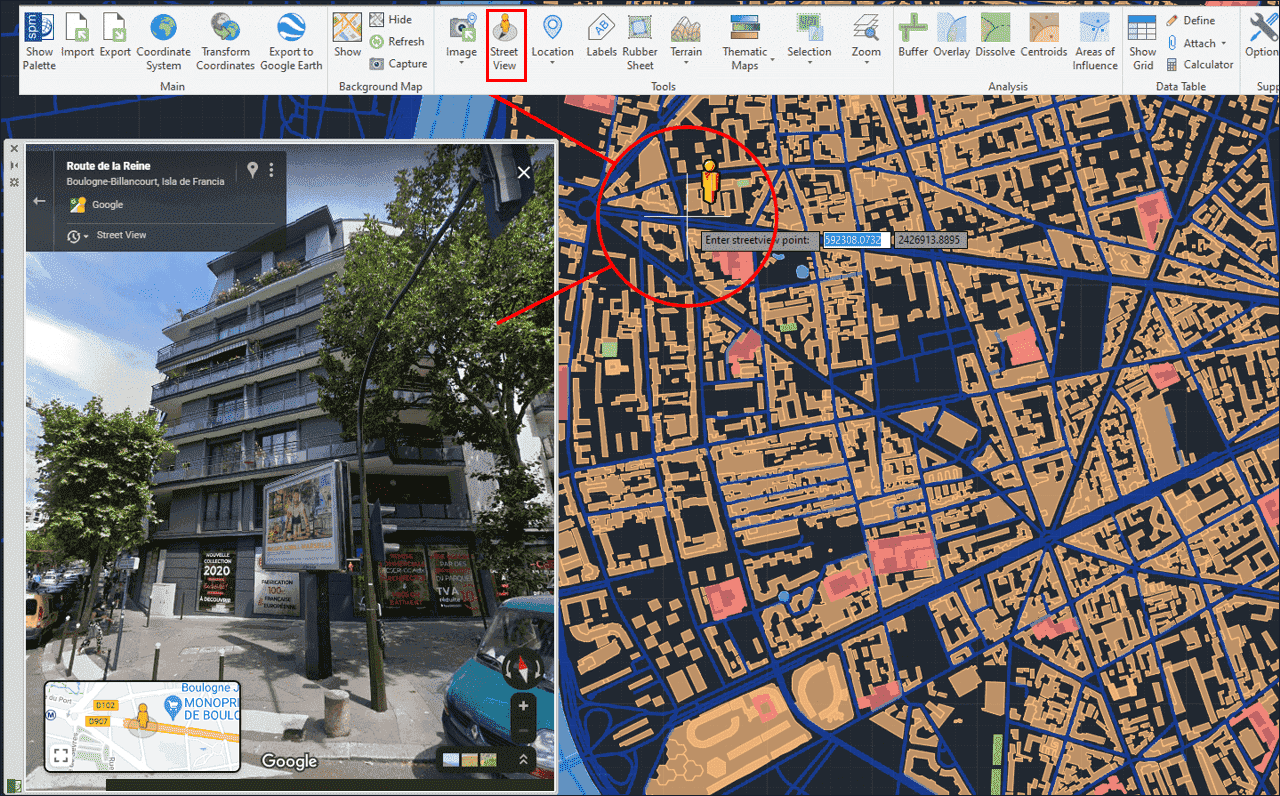
When you execute the SPMSTREETVIEW command, a map of streets and roads for which Street View images are available is displayed on the screen and superimposed on the drawing (blue color). This map is automatically regenerated when the drawing view changes (Pan, Zoom, etc.). As in the Google Street View application, when you approach the cursor to a location near one of these streets or roads, the image of the icon next to the cursor changes and, by selecting the point in the drawing, it opens (if not already open) the Spatial Manager™ for ZWCAD ‘Street View’ palette, showing the available street or road image.
Like any other ZWCAD palette, the ‘Street View’ palette can be arranged, docked, undocked, grouped, self-collapsed, closed, resized, etc., depending on the preferences and needs of each user or each job, by dragging its title bar, double-clicking on its title bar, etc.
Within the palette you will find the classic Street View navigation tools (mouse, mouse wheel, icons on the palette, etc.): Zoom, linear movements, circular camera movements, information about the displayed place, etc. By using any Windows or complementary screen area copying tool, it is very easy to copy and paste images from this palette into the drawing (as raster images, OLE entities, etc.).
In addition to the official Google Street View images, the palette also displays user contributions and spherical photos from different sources, providing greater coverage and more viewing options in areas where official Street View images may not be available.
- Notes:
- If the drawing is not empty when ‘SPMSTREETVIEW’ is executed, it is necessary that the drawing has been assigned a Coordinate Reference System (CRS), learn how to georeference a drawing.
- If the drawing is empty and has no coordinate system assigned to it, when SPMGEOCODING_DIRECT is executed Spatial Manager™ for ZWCAD will assign the CRS Code:3857 (WGS84 / Pseudo-Mercator) to the drawing. This CRS is valid for any Earth area, but may be inaccurate for measurements in some areas.
- The first time you execute this command, the Google Street View terms of use are shown in the palette, which must be accepted in order to use this service.
- The Street View palette will work in ZWCAD 2022 and later versions. Earlier versions will open the Internet browser with Street View instead.
Disclaimer:
- Some components shown here (providers, names, window styles, etc.) may differ slightly from those on your computer.
- Certain features require Internet access. If you experience issues, check with your network administrator about a possible Proxy server. You can configure the Proxy settings in the application options.
- Some geographic data providers (Geocode, image maps, etc.) may require a user account, which you can set up in the Service Provider API Keys section of the application options.