
Palette
The ‘Spatial Manager’ palette includes some of the main commands of Spatial Manager™ for BricsCAD. From here, you will be able to manage your data sources, launch your import processes, define and manage thematic maps, manage the import tasks, and much more. Like any BricsCAD palette, the ‘SpatialManager’ palette can be arranged, docked, undocked, grouped, self-collapsed, etc., and resized, depending on the preferences and needs of each user or each job, by dragging its title bar, double-clicking on its title bar, etc.
You can open this palette in BricsCAD by executing the command SPM (or SPATIALMANAGER), and you can close it by executing the command SPMCLOSE (or SPATIALMANAGERCLOSE).
Application palette
The ‘Spatial Manager’ palette is split into two areas: the upper area is the “Data sources/Explorer/Tasks” area, and the lower area is the “Properties” area. Inside the palette, you can move the split line up or down to distribute the space for both areas as you need.
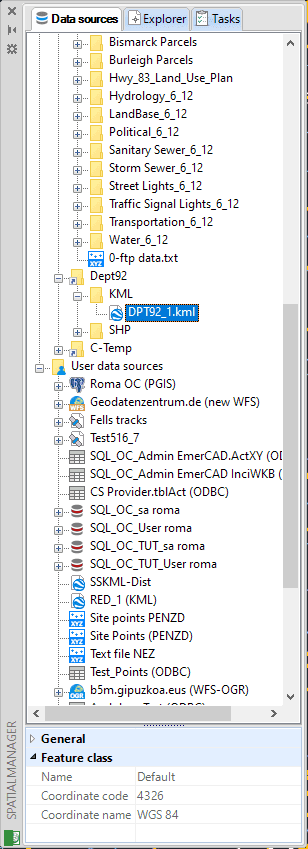
Notes:
- Selection of entities in BricsCAD may be a bit slower when the ‘Spatial Manager’ palette is open, depending on the data of the entities.
- Tasks and Thematic Maps are available in the “Professional” edition only.
Data sources area
In this area you can launch import processes, create, edit, or sort Shortcuts and User Data Sources (UDSs) (“Standard” and “Professional” editions only), etc. This area is shared with the “Explorer” and “Tasks” areas, and you can switch between them by clicking on the “Data sources”, “Explorer”, or “Tasks” tabs.
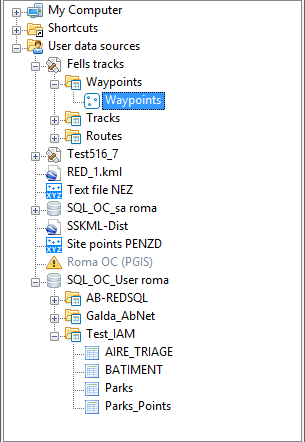
Contextual menus (mouse right-click)
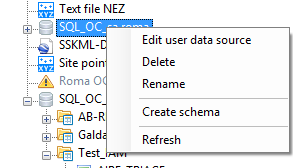
Content varies depending on the selected item.
Explorer area
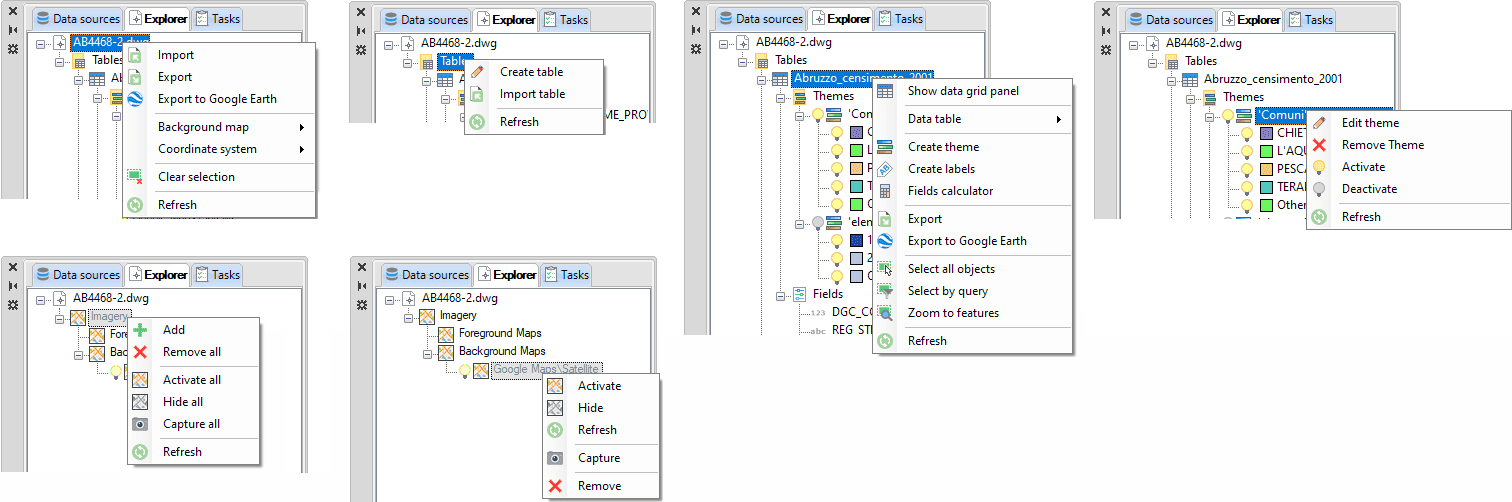
The ‘Spatial Manager’ Explorer shows in tree form specific elements of the application, such as Data Tables (Tables), Thematic Maps (Themes), or Background/Foreground Maps (Imagery). Here, through the different contextual menus, you will be able to access many of the main application functions, manage thematic maps (“Professional” edition only), data tables (“Standard” and “Professional” editions only), or Background/Foreground Maps (“Standard” and “Professional” editions only), etc. This area is shared with the “Data sources” and “Tasks” areas, and you can switch between them by clicking on the “Data sources”, “Explorer”, or “Tasks” tabs.
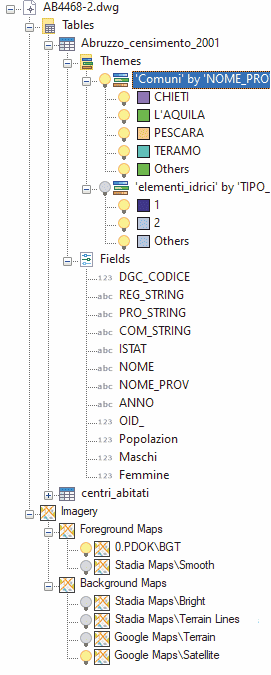
Contextual menus (mouse right-click)
Content varies depending on the selected item.
Tasks area
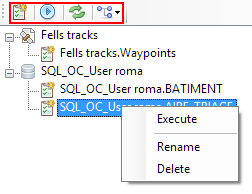
In this area you can save, manage, and execute Tasks (“Professional” edition only), which allow you to replay any import process as many times as desired without needing to enter its parameters again. This area is shared with the “Data sources” and “Tasks” areas, and you can switch between them by clicking on the “Data sources”, “Explorer”, or “Tasks” tabs.
Function buttons and contextual menus (mouse right-click)
Properties area
In this area you can see information about any data source, tasks (“Professional” edition only), and, when you select any entity in your drawing, you will see special information about this entity. If the entity has some data attached, you can also see and edit the entity Extended Entity Data (EED) here (“Standard” and “Professional” editions only).
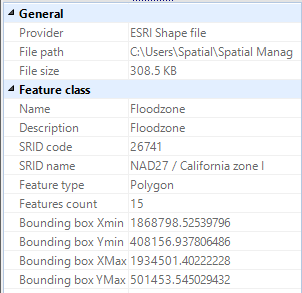
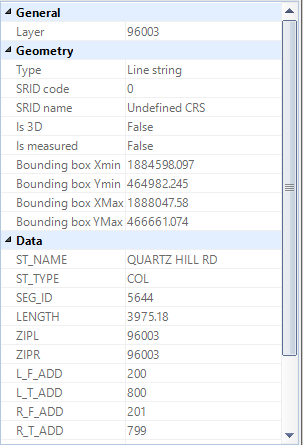
In the Properties area:
- By placing the cursor over any data, if CTRL + C (standard combination for “Copy”) is pressed, the corresponding data goes to the Windows clipboard and can be exploited within the same application or any other, using “Paste” or by pressing CTRL + V.
- If any data is not fully visible due to the width of the Properties area, a tooltip will display by keeping the cursor over this data.
- When editing any field value in this area, you need to press Enter or move to another field in order to validate the changes.
Note: Because of performance considerations, the number of entities selected for which their data are shown in the application palette is limited by the system variable PROPOBJLIMIT.
Disclaimer:
- Some components shown here (providers, names, window styles, etc.) may differ slightly from those on your computer.
- Certain features require Internet access. If you experience issues, check with your network administrator about a possible Proxy server. You can configure the Proxy settings in the application options.
- Some geographic data providers (Geocode, image maps, etc.) may require a user account, which you can set up in the Service Provider API Keys section of the application options.