
Data table
Data tables provide the structure for associating information with drawing objects. They can be attached automatically during import or manually created by adding fields of various data types..
Define data tables in a drawing
The command SPMDATATABLEDEFINE of Spatial Manager™ for BricsCAD lets you create new data tables in a drawing as well as modify them. Also, use this command if you need to rename and delete data tables, or import Entity Data tables from BricsCAD Map drawings. You will find this command in the “Spatial Manager” ribbon, toolbar, or drop-down menu.

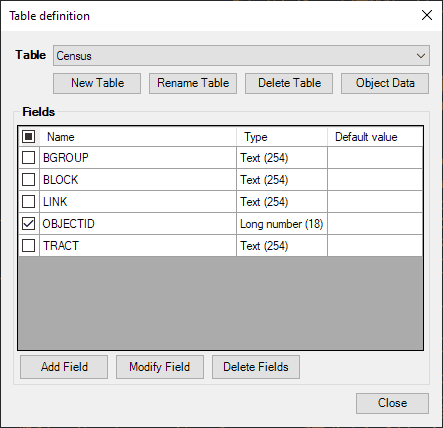
Click on the “New Table” button to create a new (empty) data table. Select a data table in the drop-down list to rename it (“Rename Table” button), delete it (“Delete Table” button), or modify it:
- Add Field. To add a new field in the selected data table.
- Name. The field name, unique in the selected data table.
- Type. You can select the field type in the drop-down list: Text, Integer, Date, etc. The field type cannot be changed if you want to modify the field later.
- Length. For Text-type fields, you can set the maximum field length. The maximum field length cannot be changed if you want to modify the field later.
- Default value. The default value for this field when the corresponding data table is attached to one or more entities.
- Modify Field. To edit the selected field of the selected data table (see “Add Field” above).
- Delete Fields. To delete the selected fields of the selected data table.
Note: In brackets, the length of the field (and the number of decimal places, when applicable).
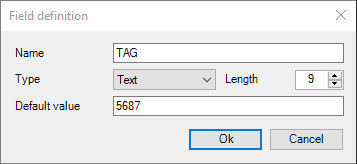
The following is the behavior of the application when you modify a data table that is already attached to one or more entities in the drawing:
- Adding a field: the new field is added to all the attached entities. If a “Default value” has been defined for the field, this will be the value assigned to the field for these entities.
- Modifying a field: only the name of the field (if modified) will be changed for all the attached entities.
- Deleting a field: the field will be erased for all the attached entities.
As you can see in the tables selection dropdown, there is a “scan new tables…” option to retrieve data table structures from the drawing entities. This is useful when copying/cutting and pasting entities from one drawing to another, when saving drawings using WBLOCK, when inserting a drawing into another, etc.
If your drawing includes BricsCAD Map Entity Data tables, you can convert them to ‘Spatial Manager’ data tables by clicking on the “Entity Data” button. Optionally, you can also delete the existing Entity Data tables (all or converted) from the drawing. Since you can attach several tables to any entity (see below), if there are entities linked to several BricsCAD Map Entity Data tables, the required tables and attachments will be generated for each entity.
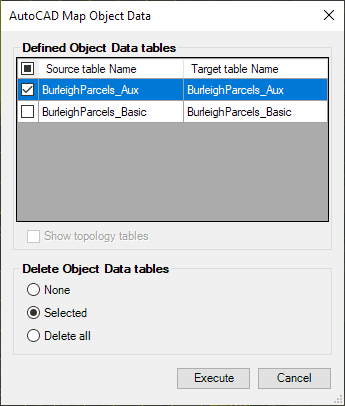
Attach a data table to one or more entities
When you want to attach an existing data table to one or more entities in the drawing, you can execute the command SPMDATATABLEATTACH of Spatial Manager™ for BricsCAD. You will find this command in the “Spatial Manager” BricsCAD ribbon.

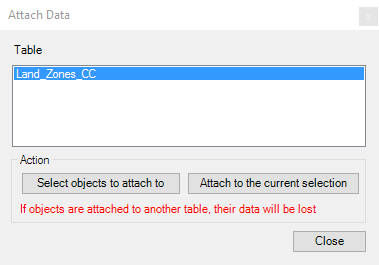
First, choose a data table in the list of defined data tables in the command window. Then, the attach operation can be applied to the selected entities (if any) or to a new entities selection. Note that it is possible to attach several tables to any entity, which allows you to have data organized according to different topics attached to the same entity. For example, you can attach to entities representing parcels a table containing the parcels data and another one containing the parcel owners data.
Detach the data from the entities
Detach any data from one or more entities by executing the command SPMDATATABLEDETACH of Spatial Manager™ for BricsCAD. You will find this command in the “Spatial Manager” BricsCAD ribbon.

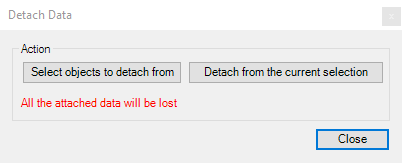
The detach operation can be applied to the selected entities (if any) or to a new entities selection.
WARNING: All the current data attached to the entities (if any) WILL BE LOST.
Disclaimer:
- Some components shown here (providers, names, window styles, etc.) may differ slightly from those on your computer.
- Certain features require Internet access. If you experience issues, check with your network administrator about a possible Proxy server. You can configure the Proxy settings in the application options.
- Some geographic data providers (Geocode, image maps, etc.) may require a user account, which you can set up in the Service Provider API Keys section of the application options.