
Data
Manage the alphanumeric data attached to the objects, design and edit the structure which will be used to store the data in BricsCAD.
Review the data of the imported Features
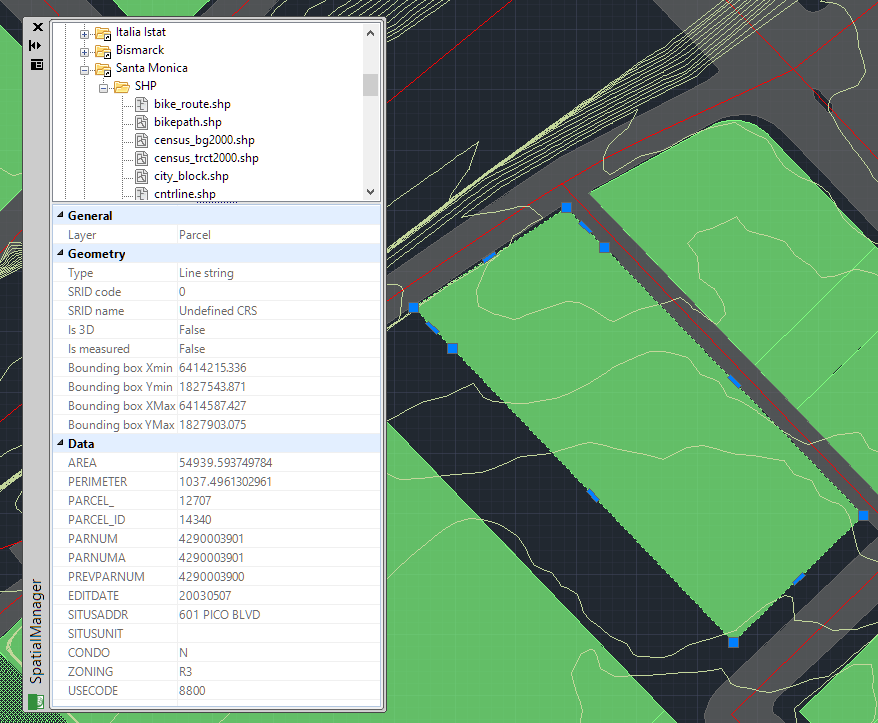
You can see the data of the imported Features in Spatial Manager™ for BricsCAD, because this data is also imported as Extended Entity Data (EED) attached to the resulting entities in the drawing. To see it, select an imported entity in BricsCAD and its data will be shown in the group ‘Data’ of the ‘Properties’ area in the ‘SpatialManager’ palette.
In addition to the Extended Entity Data (EED), you will see some other entity data, such as its Layer or its Bounding box, in other groups, such as “General” or “Geometry”.
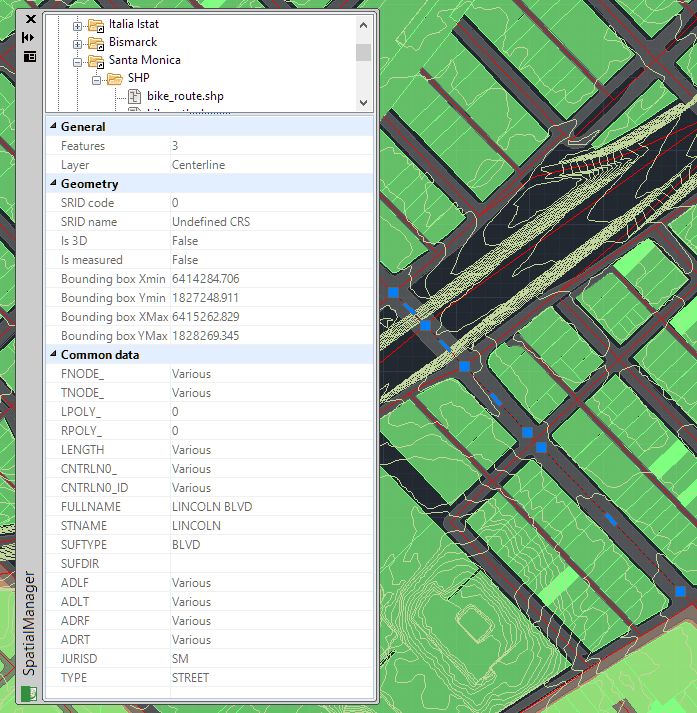
When selecting multiple entities, you will see their common data here. All the data which is not equal for the selection will be shown as “Various”.
Note: Because of performance considerations, the number of entities selected for which their data is shown in the application palette is limited by the system variable PROPOBJLIMIT.
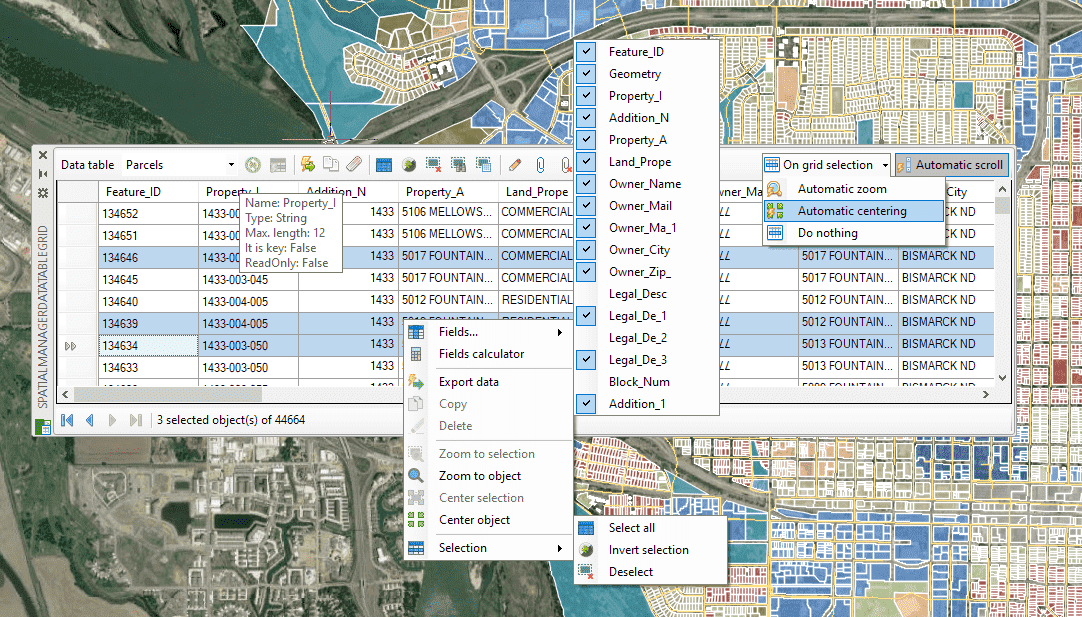
Alternatively, you can use the Spatial Manager™ for BricsCAD ‘Data Grid’ palette (“Professional” edition only) in order to view, edit, select, export, etc. the entities data in a table form.
Learn more about the Data Grid and all its features and functions.
Modify the field values of the entities data
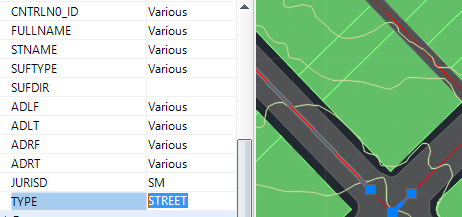
You can directly edit a field value (Extended Entity Data (EED) direct data edition) for one or more entities in Spatial Manager™ for BricsCAD by selecting the entity(s) in the drawing and typing the new value for this field in the ‘Properties’ area of the ‘SpatialManager’ palette. You can also delete the field content to get a null value in this field. To validate any modification, you need to press Enter or click on a different field.
Note: Because of performance considerations, the number of entities selected for which their data is shown in the application palette is limited by the system variable PROPOBJLIMIT.
As you can read in the previous article, you can use the Spatial Manager™ for BricsCAD ‘Data Grid’ palette (“Professional” edition only) in order to view, edit, select, export, etc. the entities data in a table form.
Learn more about the Data Grid and all its features and functions.
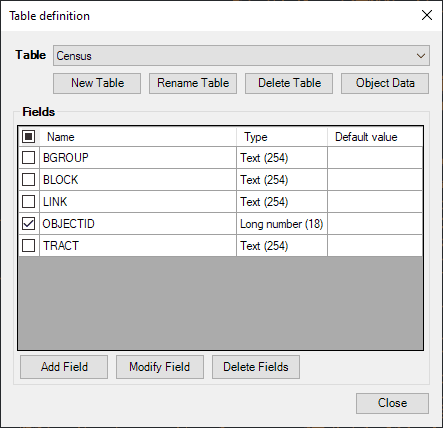
Modify the entities data structure
You can add, modify, or delete fields in a table structure as well as create, restore, edit, rename, and delete data tables. Learn more about the Data Structure Management.
Disclaimer:
- Some components shown here (providers, names, window styles, etc.) may differ slightly from those on your computer.
- Certain features require Internet access. If you experience issues, check with your network administrator about a possible Proxy server. You can configure the Proxy settings in the application options.
- Some geographic data providers (Geocode, image maps, etc.) may require a user account, which you can set up in the Service Provider API Keys section of the application options.