
Trial
Trial version of Spatial Manager™ for BricsCAD
The trial version of Spatial Manager™ for BricsCAD is a limited version which allows you to try out the application for up to 15 days. When this period ends, or if you want to use the unlimited version, you need to purchase a commercial license of Spatial Manager™ for BricsCAD.
Every time you start a process using the trial version of Spatial Manager™ for BricsCAD, you will see a window showing the days left in the trial period and the buttons to purchase a commercial license of Spatial Manager™ for BricsCAD or to activate a license.
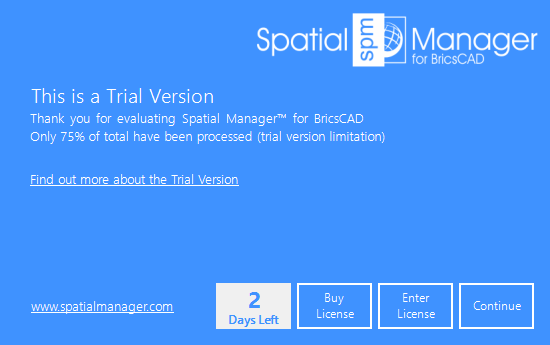
When the trial period has ended, you will see a similar window, but you can no longer “Continue” using the “Trial version”, and you need to activate a commercial license in order to keep working.
During the testing period, you will find the following limitations:
- A maximum number of Entities will be imported (from each incoming table) or exported (from the drawing, when testing the “Professional” Edition). The quantity will be 75% of the total number of Entities to be processed.
- The number of Entities processed if you select the option “Import only Features in the current view” when importing is also conditioned by this limitation.
- A “DEMO” watermark will be added (if you are testing the “Standard” or “Professional” editions):
- When showing any ‘Background Map’.
- When importing geo-referenced raster images. Thus, a new image will be saved on disk even if the imported image is not transformed. The user will be prompted for the location to save the newly generated image.
- If you ‘Import-all’ the images in a folder, the “Working path” will be used to save the new images.
- A maximum number of terrain contours will be created (when testing the “Professional” Edition). The quantity will be 75% of the total calculated contours.
- In addition, if contour elevations are labeled, a portion of the labels (25%) will be shown as “DEMO”.
- When transforming the drawing Coordinate System, a maximum number of Entities will be transformed (when testing the “Professional” Edition). The quantity will be 75% of the total number of Entities to be transformed.
- The following functions are limited to 5 uses per session only:
- Elastic deformation (Rubber Sheet) (SPMRUBBERSHEET) (if you are testing the “Professional” edition).
- Labeling entities (SPMLABEL).
- GIS Analysis tools (SPMBUFFER, SPMOVERLAY, SMPDISSOLVE, SPMCENTROID and SPMINFLUENCEAREAS) (if you are testing the “Professional” edition).
- Street View palette (SPMSTREETVIEW) (if you are testing the “Professional” edition).
- Search for Locations (SPMSEARCHLOCATION) (if you are testing the “Professional” edition).
- Direct and Reverse Geo-coding (SPMGEOCODING_DIRECT and SPMGEOCODING_REVERSE) (if you are testing the “Professional” edition). In addition, these two functions will only return a maximum of 5 results each time they are executed.
- Image tools (SPMIMPORTPHOTO, SPMEXPORTIMAGE, SPMWORLDFILE) (if you are testing the “Professional” edition).
- Fields Calculator (SPMDATACALCULATOR) (if you are testing the “Professional” edition).
- The following functions are limited to 10 uses per session only:
- API functions (if you are testing the “Professional” edition).
- When running some commands or processes, a warning window may appear about a specific limitation of the “Trial version”.
Note: If you think you need an unlimited version for testing, please feel free to contact us (support@spatialmanager.com).
While using the trial version, and whenever you want, you can select the application Edition you would like to try through the application Options (SPMOPTIONS).

Disclaimer:
- Some components shown here (providers, names, window styles, etc.) may differ slightly from those on your computer.
- Certain features require Internet access. If you experience issues, check with your network administrator about a possible Proxy server. You can configure the Proxy settings in the application options.
- Some geographic data providers (Geocode, image maps, etc.) may require a user account, which you can set up in the Service Provider API Keys section of the application options.