
Selection control
Some of the tools described allow entity selections before or during their execution. Even some of them allow you to select two groups of entities to operate between them.
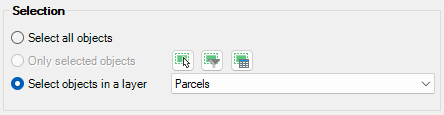
For all of these commands, the following notes and instructions apply:
- Select all entities: All entities in the drawing will be processed.
- Only selected entities: Only a selection of entities will be processed. You can select the entities before executing the commands or by using the Selecting buttons in their corresponding windows.
- Manual selection.
- Select by Query: Select entities according to the result of a simple or compound data query (See ‘Selecting by Query’).
- Select by Table: Select entities which have been previously attached to a specific data table (See ‘Selecting by Table’).
Note: As you can select the entities previously to execute the commands, in addition to the use of the above included selection options or in combination with them, you can make use of some other Advanced selection application tools, select entities in the Data Grid, or any other selection method available in GstarCAD (Quick Select, etc.). Also note that, as most of the advanced application or GstarCAD selection commands will let you apply the selection to the current selection, the number of possible combinations to select what you are interested in is almost unlimited.
- Select entities in a layer: Only the entities included in a GstarCAD layer will be processed. You can select the layer using the drop-down list in this window.
Note: The selection of entities in GstarCAD may be a bit slower when the ‘SpatialManager’ palette is open, depending on the data of the entities.
Disclaimer:
- Some components shown here (providers, names, window styles, etc.) may differ slightly from those on your computer.
- Certain features require Internet access. If you experience issues, check with your network administrator about a possible Proxy server. You can configure the Proxy settings in the application options.
- Some geographic data providers (Geocode, image maps, etc.) may require a user account, which you can set up in the Service Provider API Keys section of the application options.