
Refresh
Choose in GstarCAD from among a lot of dynamic Backgrounds Maps from providers such as Google Maps, OpenStreetMap, Bing, MapBox, Ordnance Survey, etc. or configure your own maps.
“Repair” or “clean” the image of the ‘Background Map’
There may be situations where the image of the ‘Background Map’ in the drawing shows up as broken or incomplete, etc. Most of these issues can be solved through a regeneration (‘REGEN’) of the drawing. However, some problems may appear which require you to “refresh” the image using the SPMBGMAPREFRESH command of Spatial Manager™ for GstarCAD.

In certain cases, the image tiles of the ‘Background Map’ become ‘orphans’. The map is not shown, the frames of the tiles are displayed, but these tiles cannot be deleted using GstarCAD commands. Spatial Manager™ for GstarCAD includes the command SPMBGMAPIMAGEPURGE that will delete them.
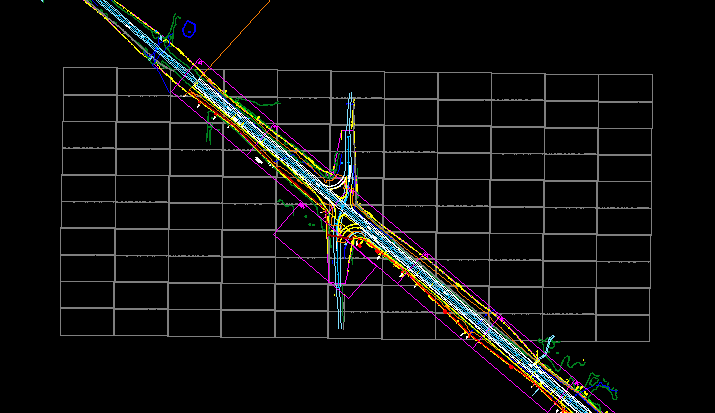
In addition, this command will purge any non-referenced Raster Image in the drawing created using ‘SPMBGIMAGE’ (Snapshots; see below) and that have been deleted later by the user.
Note that when running this command the ‘Background Map’ will be hidden (if shown) and the complete cleaning process may be time consuming depending on the number of entities in the drawing.
Disclaimer:
- Some components shown here (providers, names, window styles, etc.) may differ slightly from those on your computer.
- Certain features require Internet access. If you experience issues, check with your network administrator about a possible Proxy server. You can configure the Proxy settings in the application options.
- Some geographic data providers (Geocode, image maps, etc.) may require a user account, which you can set up in the Service Provider API Keys section of the application options.