
Snapshots
Capture static background map images and insert them into the drawing as raster images (PNG, JPG, TIF) or OLE objects. Snapshots can be georeferenced using a World File, and you can select the image detail level. Ideal for presentations, printing, or external GIS use..
Get static “Snapshots” of the ‘Background Maps’
Spatial Manager™ for GstarCAD includes the command SPMBGMAPIMAGE that allows you to create (capture) a snapshot corresponding to the current view or a custom area of the shown ‘Background Map’.

As you will see, you can choose between four levels of map image detail and select if you want an externally referenced GstarCAD Raster Image (you can select the path and name of the file to be saved, or accept the proposed default path and name) or an embedded OLE Image. In addition, in the first case you can select the image format and if you want to attach a World File in order to geo-reference the saved image.
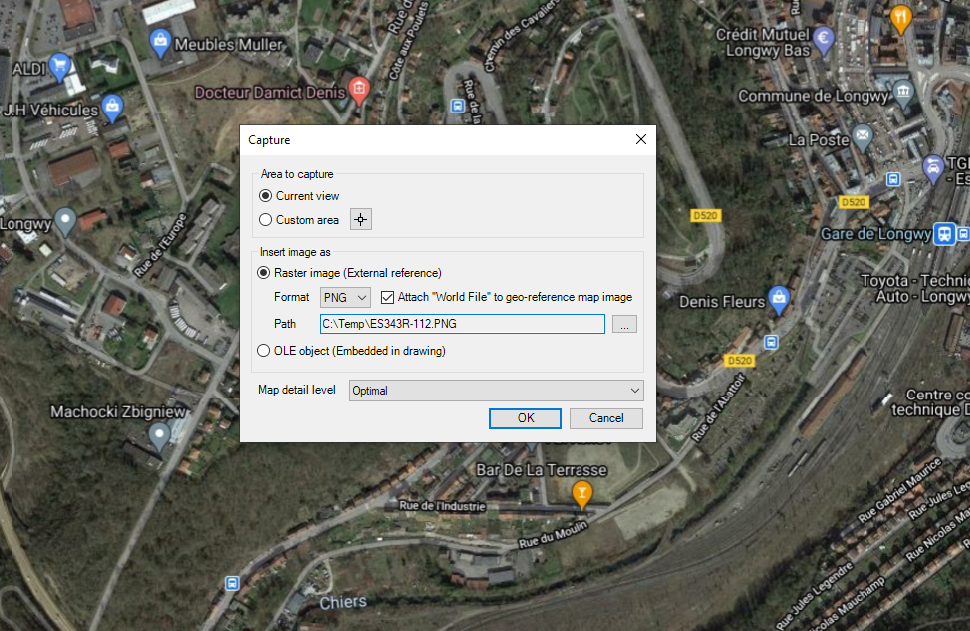
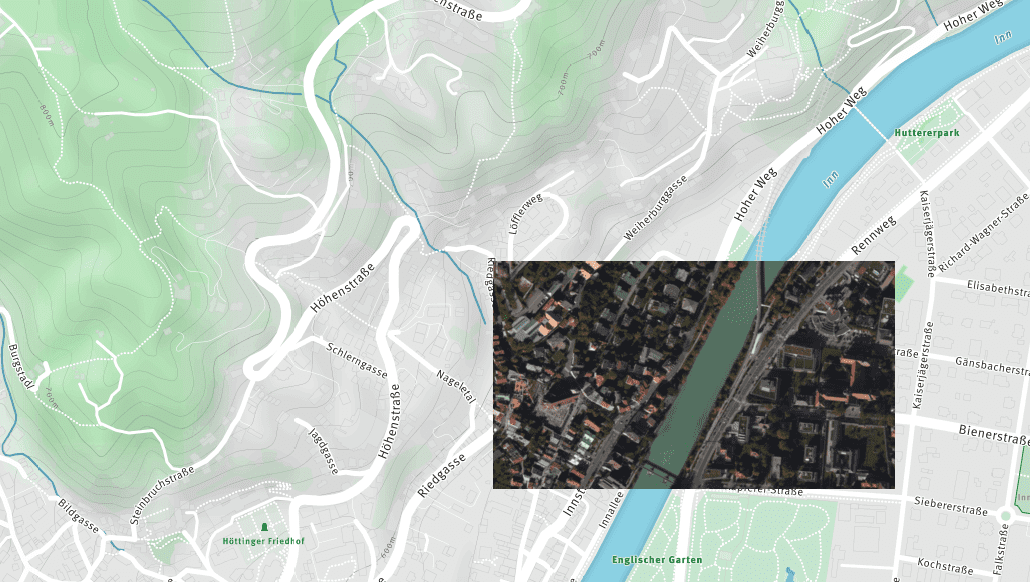
This command allows you many advanced graphic options when using ‘Background Maps’, as well as solving some printing issues, which are discussed in the next paragraph.
Disclaimer:
- Some components shown here (providers, names, window styles, etc.) may differ slightly from those on your computer.
- Certain features require Internet access. If you experience issues, check with your network administrator about a possible Proxy server. You can configure the Proxy settings in the application options.
- Some geographic data providers (Geocode, image maps, etc.) may require a user account, which you can set up in the Service Provider API Keys section of the application options.